Processed items
A processed item is the result of a run for a single article: the places, people, organizations, topics, and other details the flow produced. Open one from a run's item list to verify what the pipeline produced against the original story and correct anything that's wrong.
Because the model's original output is always preserved, your edits are saved as a separate review layer on top. You can fix mistakes, add things the model missed, and re-run flows without losing the record of what you changed.
Opening a processed item
From a run, click through to an individual item. You can also open items from the project Articles tab. The tab lists each story once, even when it was processed in more than one run. Search by headline or URL and jump straight to review without knowing which run produced the story.
The page shows the article headline, which flow produced the result, and a row of tabs — one for each kind of extracted data.
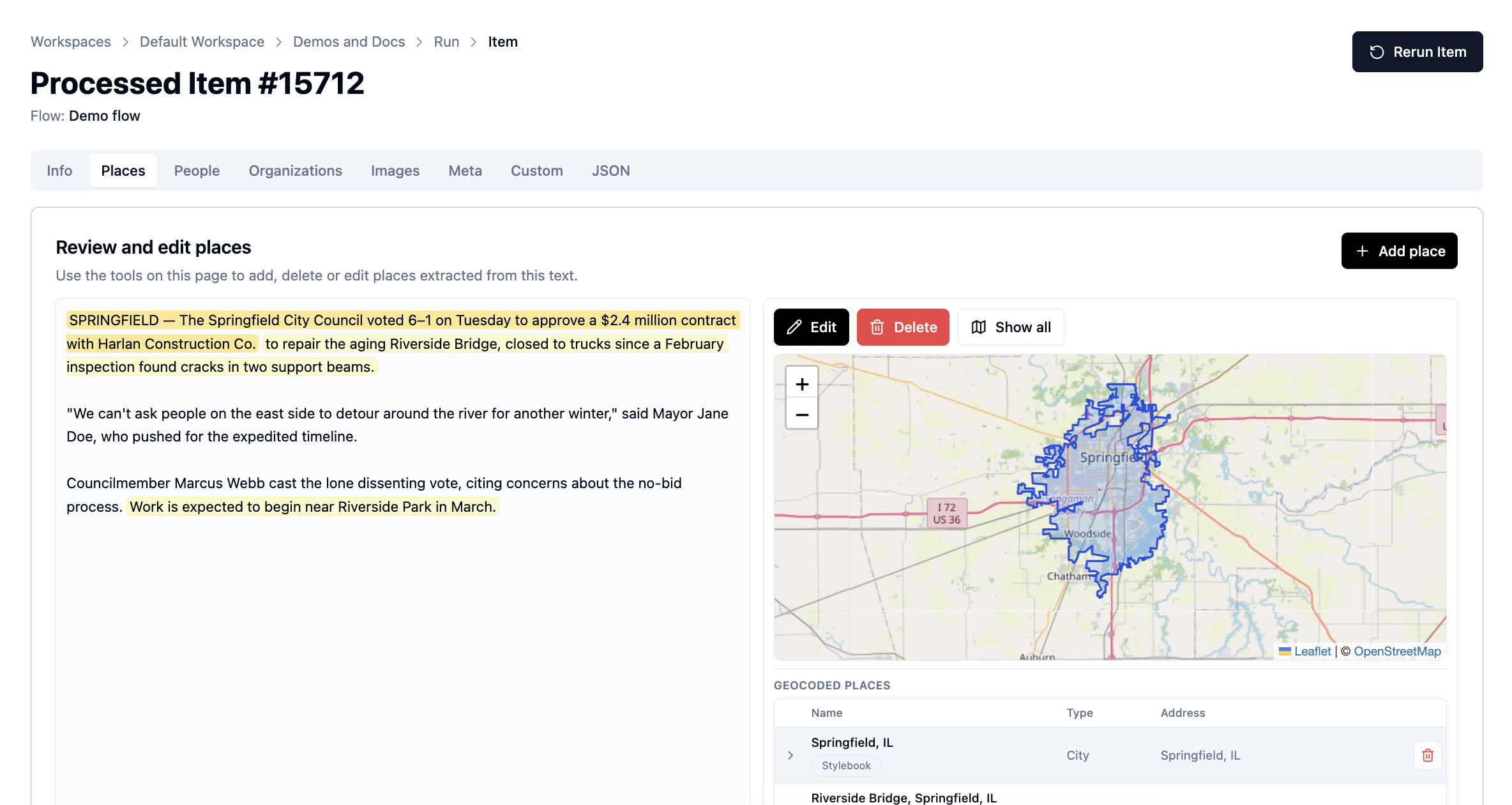
Entity review tabs (Places, People, Organizations, and similar) share the same basic layout: the story text on one side, the extracted entities on the other, with highlights that connect mentions in the prose to the rows in the list.
When an editor has saved corrections on a tab, an amber banner appears at the top: "… has been corrected or enhanced by an editor." That is your signal that the displayed data includes human review, not just the raw model output.
The tabs
| Tab | What you review |
|---|---|
| Info | Run status, source file, headline and byline fields, indexing summaries, and any flow-specific visualizations |
| Places | Locations mentioned in the story, with map geometry and geocoding |
| People | People mentioned or quoted, linked to Stylebook when matched |
| Organizations | Companies, agencies, and other orgs mentioned in the story |
| Images | Images from the article with generated descriptions (read-only) |
| Meta | Topic, subject, and other metadata tags applied to the article |
| Custom | Structured records from custom extractors you defined in the flow |
| JSON | The full machine-readable output — original model result and, when present, reviewed output |
Provenance: seeing where something came from
The entity tabs are built around evidence in the story. When you select a person, place, or organization, the matching passages in the article text light up. Click a highlight in the story to jump to the corresponding entity (and disambiguate when one phrase could refer to several places).
This is the core review pattern: every extracted entity should be traceable to language in the source text. If the model invented something or attached the wrong passage, you can see it immediately.
Example: People
The People tab lists everyone the flow found. For each person you can see display fields (name, title, affiliation, public-figure flag) and whether they link to an existing Stylebook catalog record.
Selecting a person highlights their mentions in the story. Quotes are highlighted separately from ordinary name mentions, so you can check whether the model attributed speech correctly. You can add a person the model missed by selecting a passage in the story, or remove spurious extractions — always tied back to quoted evidence.
Example: Places
The Places tab pairs the story with a map and a list of geocoded locations. Yellow highlights in the story mark where each place was mentioned; selecting a row focuses those passages and the corresponding pin on the map. You can adjust coordinates, fix a misread place name, or add a location by highlighting the supporting sentence — the same provenance pattern as people, with geography on top.
Places that matched your catalog show a Stylebook link; you can open the canonical record or remove a bad extraction from this story.
See Geography for how place geometry flows into Stylebook and the public API.
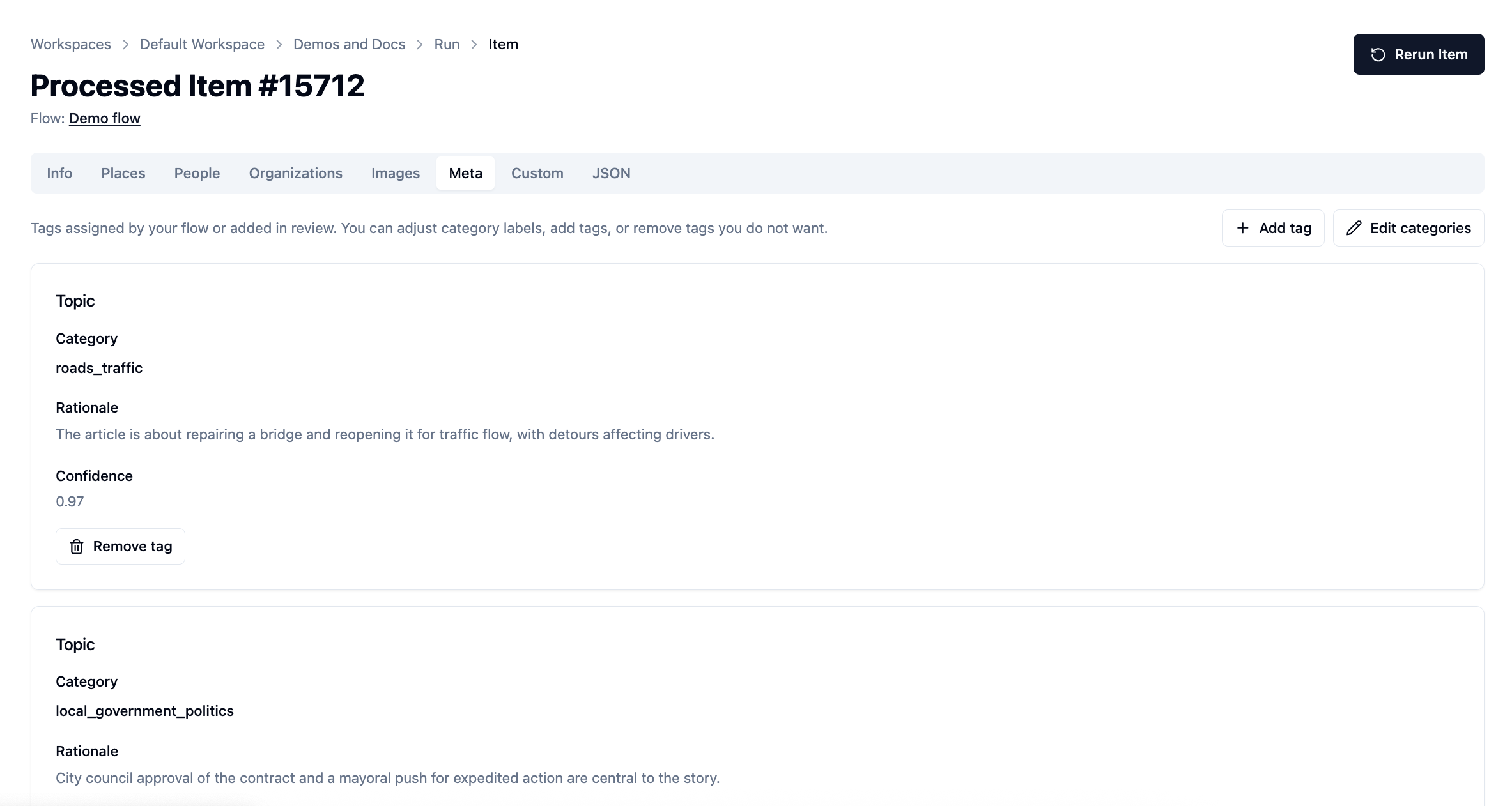
Example: Meta
The Meta tab works differently — there is no side-by-side story pane — but the same provenance idea applies. Each tag shows the category the model chose, a rationale explaining why, and a confidence score. You can edit categories, add tags, or remove ones that do not fit.
Editing and saving
Review edits do not overwrite the model's first pass. They accumulate in a review overlay that Agate merges when displaying the item and when building reviewed output for export. When the article has already been saved to Backfield, supported edits also update that article's stored entity evidence.
Typical corrections include:
- Fixing a field (headline on Info, category on Meta, person title on People)
- Removing a bad extraction
- Adding an entity the model missed, anchored to a story passage
- Adjusting map geometry for a place
Save your changes on each tab before leaving. Unsaved edits trigger a warning if you navigate away.
While a rerun is in progress, review editing is paused until processing finishes — the item is being regenerated from the flow.
When a Processing Guard holds a story, the item shows Needs attention on the Info tab along with which limit triggered the hold. Later steps did not run. Select Process anyway to continue that one attempt through the rest of the flow, or adjust the story or flow limits before you rerun.
Rerunning an item uses the flow settings stored with its original run by default and clears the run-local review overlay for the regenerated result. Processing Guard limits still apply on rerun unless you choose Process anyway again. When the saved flow has changed since that run, Agate can instead reprocess through the currently saved flow. Start a new run when you need fresh inputs. Make sure intentional corrections have been accounted for before rerunning.
Stylebook and canonical records
When a flow's output step saves results, extracted entities can link to canonical records in Stylebook. On a processed item you may see catalog links for matched people, places, and organizations.
Your review corrections update what is stored for this article — see Data model. They do not silently change the canonical record's label, metadata, geography, or connections. Open the linked Stylebook record when the newsroom-wide identity itself needs correction.
JSON and export
The JSON tab shows the structured output. When you have saved review changes, you can switch between original output (what the flow produced) and reviewed output (original plus your corrections). Use Download to export the JSON, or follow cloud-storage links when the flow wrote results to S3.
Related
- Runs — how items are produced
- Mentions & evidence — how story passages become catalog evidence
- Article detail in the API — fetch one article with inline images; optional
include=countsandinclude=text