Use the API Playground
Explore project-scoped endpoints interactively before writing application code.
You'll learn
- How to authorize the Playground with a project API key.
- How to select an endpoint and enter request parameters.
- How to read response status, headers, and JSON.
- How to copy a request without exposing your key.
Before you begin
Create a temporary personal key by following Create and protect an API key. This walkthrough uses Tutorial Project, which already contains processed articles.
1. Authorize the Playground
- Open API Playground from the Backfield sidebar.
- Paste your temporary key into Project API key.
- Select Use API key.
The Playground keeps keys in a tab-scoped vault so you can switch among saved keys without re-pasting. The active key field disappears after authorization. Clear key removes the current key from the session.
2. Request the current project
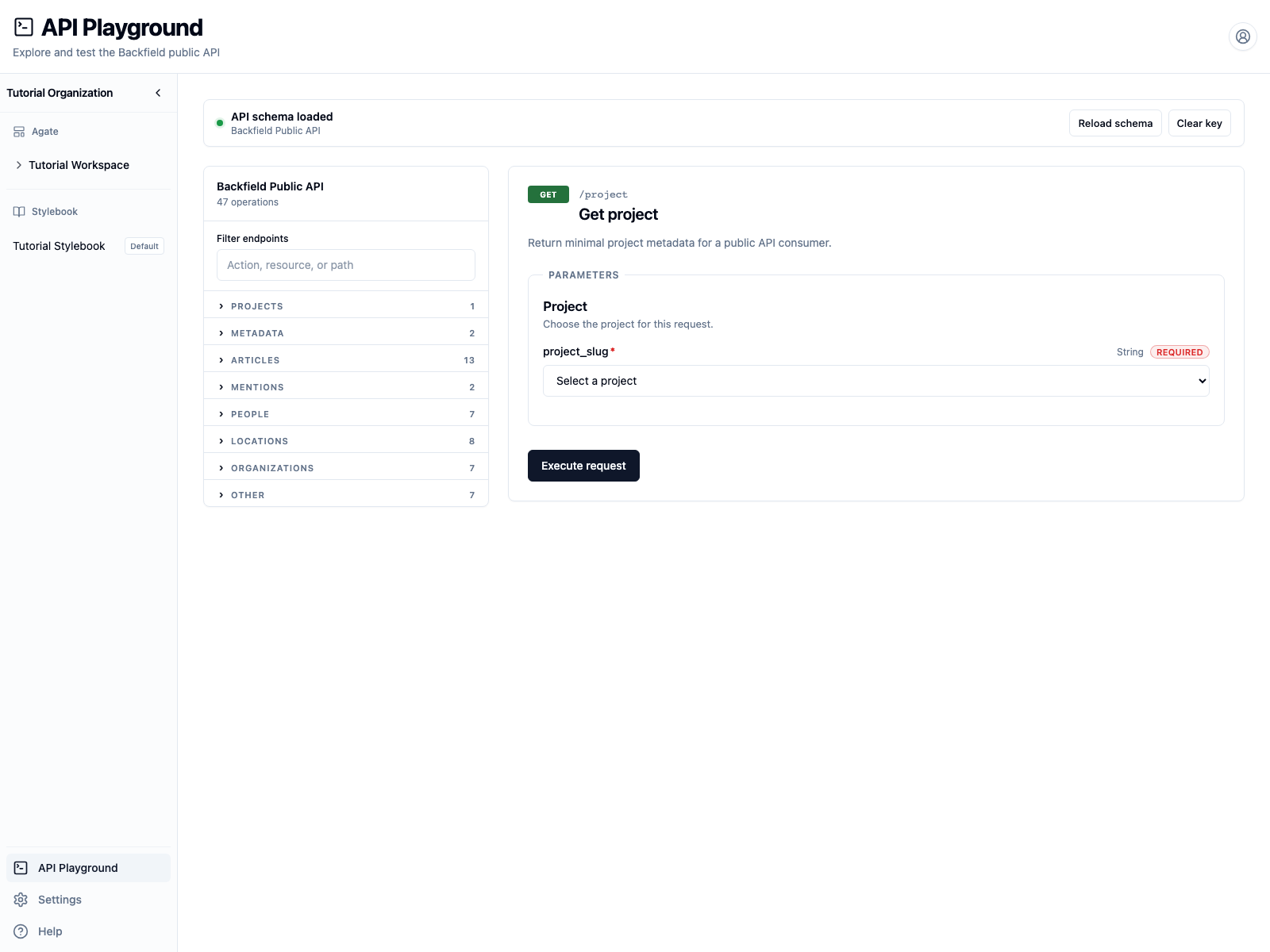
The Playground initially opens Get project.
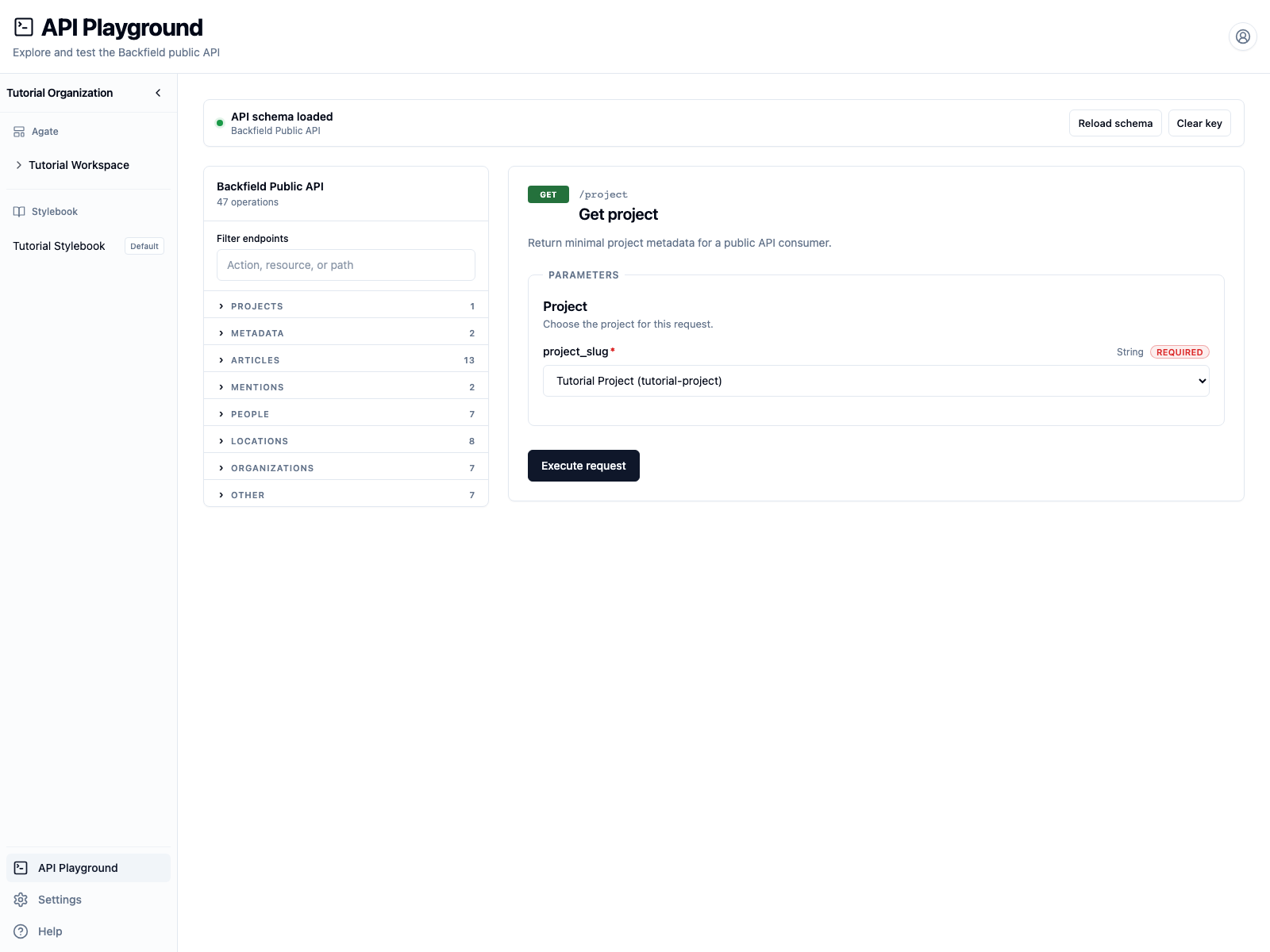
- Under Project, select Tutorial Project.
- Select Execute request.
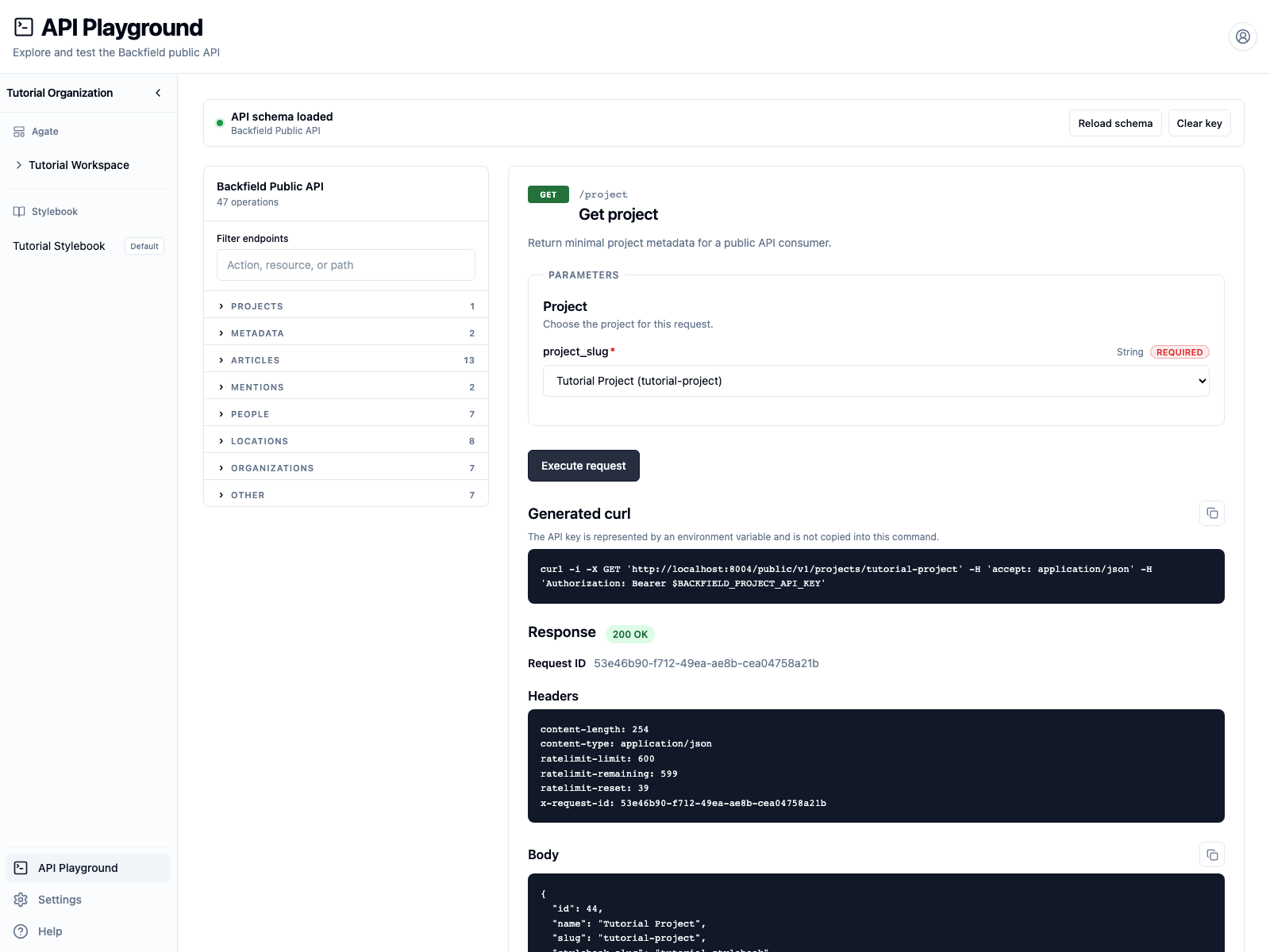
A successful request shows:
- 200 OK, the HTTP status.
- A request ID, which can help Backfield support trace a problem.
- Response headers, including rate-limit information.
- A JSON body with the project identity and content totals.
- A generated cURL command.
The Tutorial Project response also reports how many articles and mentions have embeddings. That count matters before you try semantic search.
3. Find another endpoint
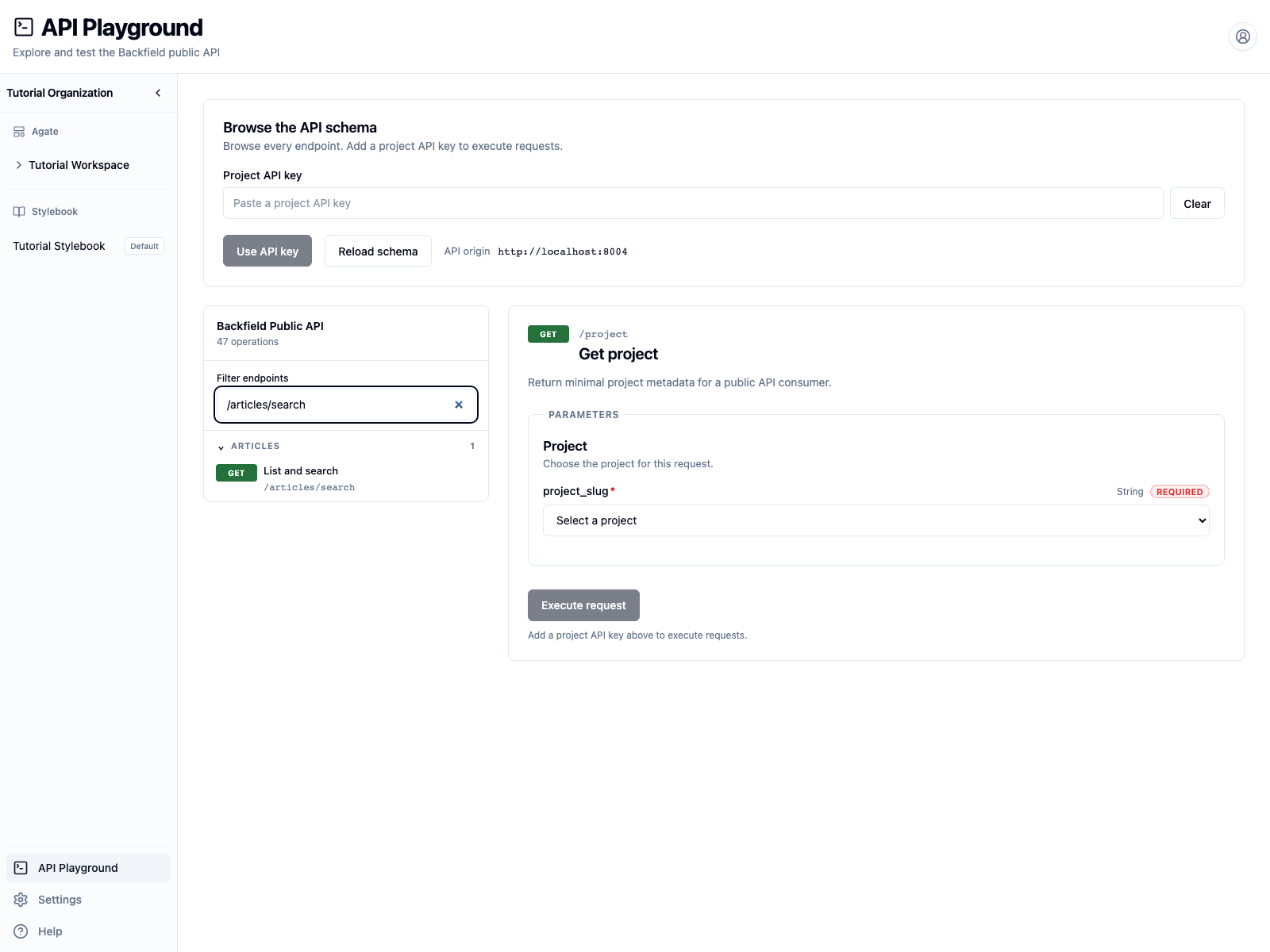
Enter /articles/search in Filter endpoints, then select List and
search.
After selecting Tutorial Project, try these fields:
- q:
Duluth - limit:
3 - Mention counts: selected
- Attached images: optional — adds
include=imageswhen you want inline image rows on each article result
Select Execute request. The response URL should contain:
Add &include=images when Attached images is selected.
Path fields identify the project or resource. Query fields such as q and
limit narrow a GET request. Endpoints that create work, such as Trigger
run, display a JSON request-body editor instead.
4. Read and reuse the request
The generated cURL command represents the key as an environment variable:
Run the generated command in the same terminal. Do not replace
$BACKFIELD_PROJECT_API_KEY with the secret itself in source code, shell
history, screenshots, or issue reports.
If a request fails, read both the status and JSON error:
- 401 usually means the key is missing, invalid, or revoked.
- 403 means the key or flow lacks the required permission.
- 404 means a project or resource identifier is unknown.
- 422 means a parameter or request body is invalid.
5. Clean up
- Select Clear key in the Playground.
- Return to Tutorial Project → API.
- Revoke the temporary key.