Configure AI models
Connect an AI provider, add models, and make them available to a project.
Before you begin
You need organization-administrator access and an API key from your model provider. Backfield encrypts the key and does not display it after saving.
1. Open AI models
In Agate, choose Settings, then AI models.
The page has two parts:
- Credentials stores provider API keys.
- Model catalog lists the models flow builders can select.
The Tutorial Organization has an OpenAI credential and several active model records, including GPT-5.6 Luna.
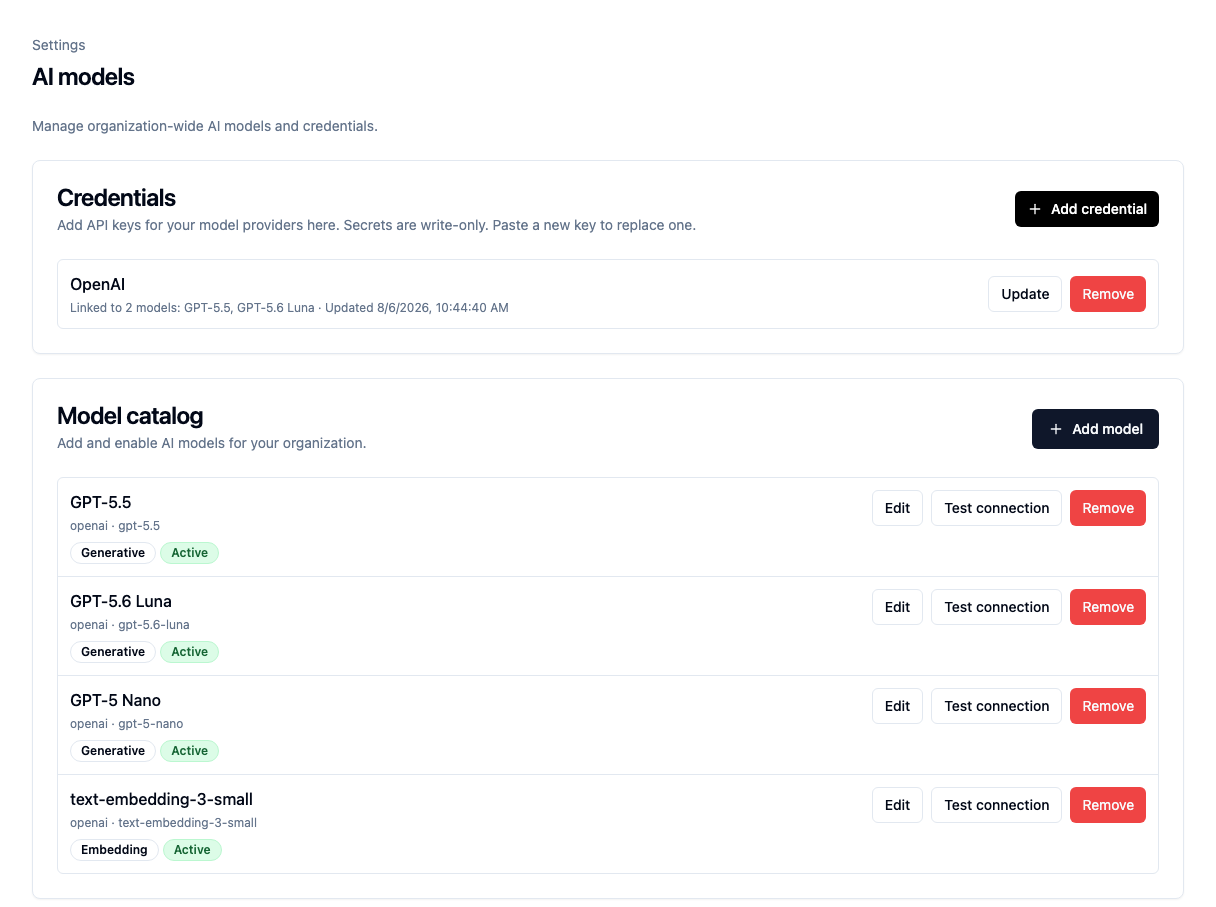
A credential and a model are separate records. A saved credential must be assigned to a model before that model can make requests.
2. Add a credential
Under Credentials, choose Add credential.
- Enter a recognizable display name, such as
OpenAI. - Add an endpoint URL only when your provider requires a custom address.
- Paste the provider API key.
- Choose Save.
Use Update to rotate the key later. Every model linked to that credential will use the replacement.
3. Add or edit a model
Choose Add model, or choose Edit beside an existing model.
- Choose Generative for extraction and article metadata, Embedding for semantic search, or Decision for Person Enrich and Organization Enrich lookup steps.
- Choose a preset from the LiteLLM-backed catalog, or enter a custom LiteLLM-compatible model identifier.
- Give the model a clear display name.
- Select its API credential.
- Keep the status Active.
- Optionally add current input and output prices.
- Choose Add or Save.
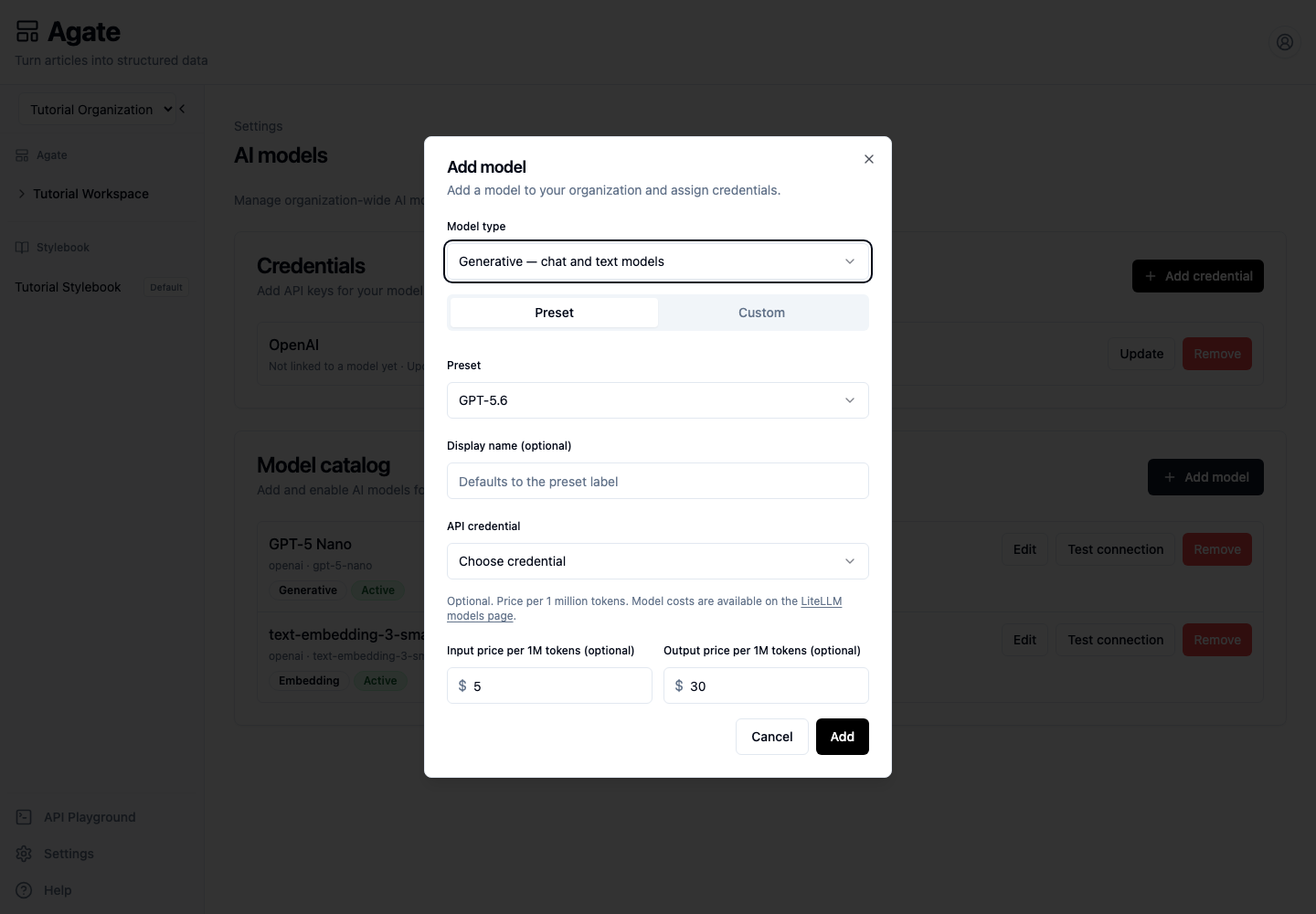
Pricing is optional. Without it, Backfield can run the model but cannot provide a complete cost estimate.
4. Test the connection
Choose Test connection on the model row.
A successful test confirms that Backfield can use the model identifier, credential, and endpoint together. If it fails, first check that the model has a credential and that the provider key has access to that model.
5. Make the model available to a project
Open Tutorial Project, then its Models tab.
- Turn on Available for this project.
- Mark the normal generative model as the generative default.
- Mark the normal embedding model as the embedding default.
- When a flow uses person or organization enrichment, turn on a Decision model and set it as the decision default.
Flow nodes show only active models that are available to the current project. Generative lists do not include decision models.
Use a project credential override only when that project needs a different provider account or billing boundary. Removing an override returns the project to the organization credential.
Troubleshooting
- A model does not appear in a node: check its type, active status, and project availability.
- Authentication fails: check which credential is assigned to the model.
- The credential says it is not linked: edit the model and select that credential.
- Cost estimates are incomplete: add current per-million-token prices.