Configure integrations
Add the outside services used for geocoding, web search, and S3 storage.
Before you begin
You need organization-administrator access and the credentials for the services your organization uses.
Saved secrets are write-only. Agate shows whether a secret is configured but does not reveal its value.
1. Open Integrations
In Agate, choose Settings, then Integrations.
The Tutorial Organization already has Geocode Earth and Geocodio credentials.
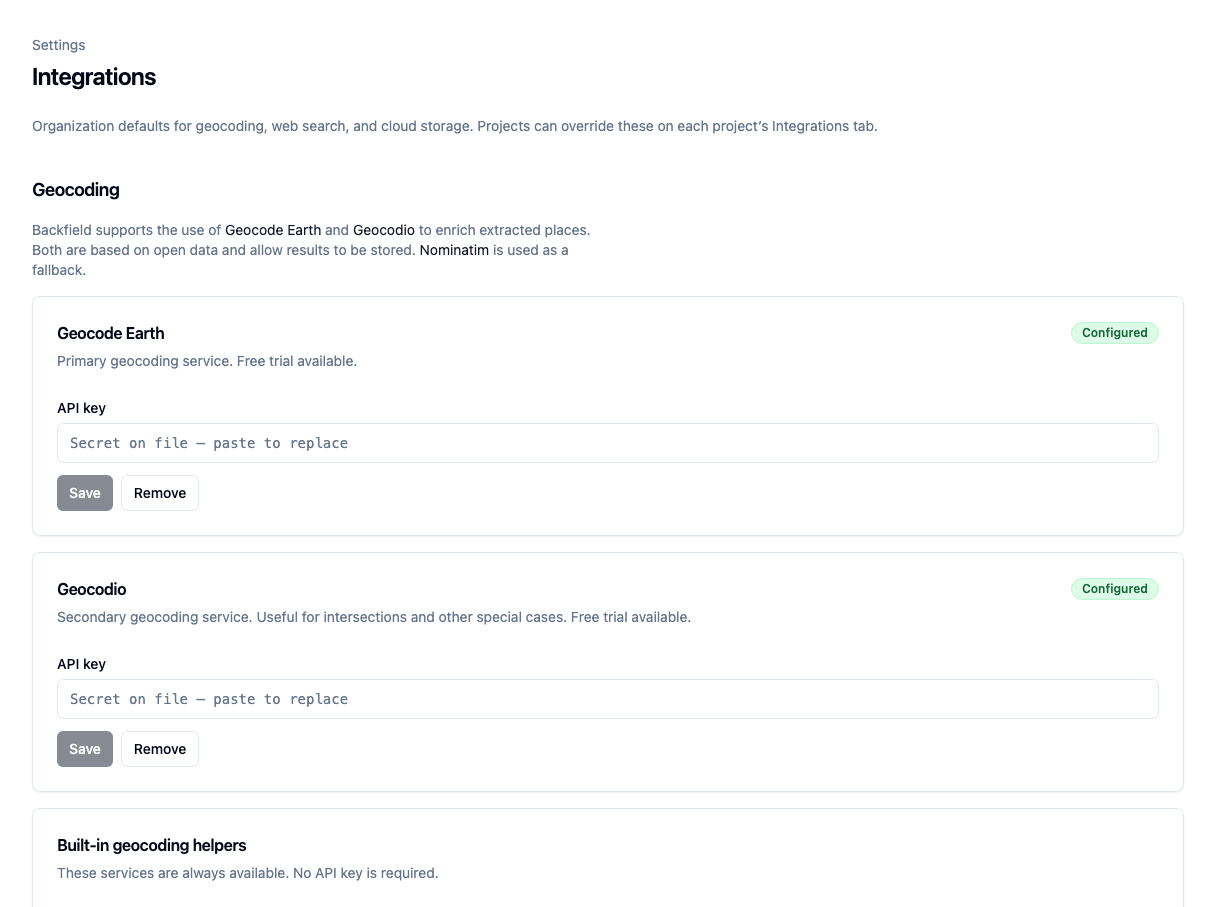
2. Configure geocoding
Backfield supports:
- Geocode Earth as the primary geocoding service;
- Geocodio for intersections and other special cases;
- Nominatim and Overpass as built-in helpers that require no key.
For Geocode Earth or Geocodio:
- Paste the key into API key.
- Choose Save.
- Confirm that the service shows Configured.
Pasting and saving another value replaces the existing secret.
3. Configure web search
Scroll to Search, paste a Brave Search key, and choose Save. Brave can provide supporting evidence during place resolution. DuckDuckGo remains available as a built-in fallback.
4. Configure S3 when needed
Under Storage, enter the access-key ID and secret access key. Add a session token only for temporary credentials.
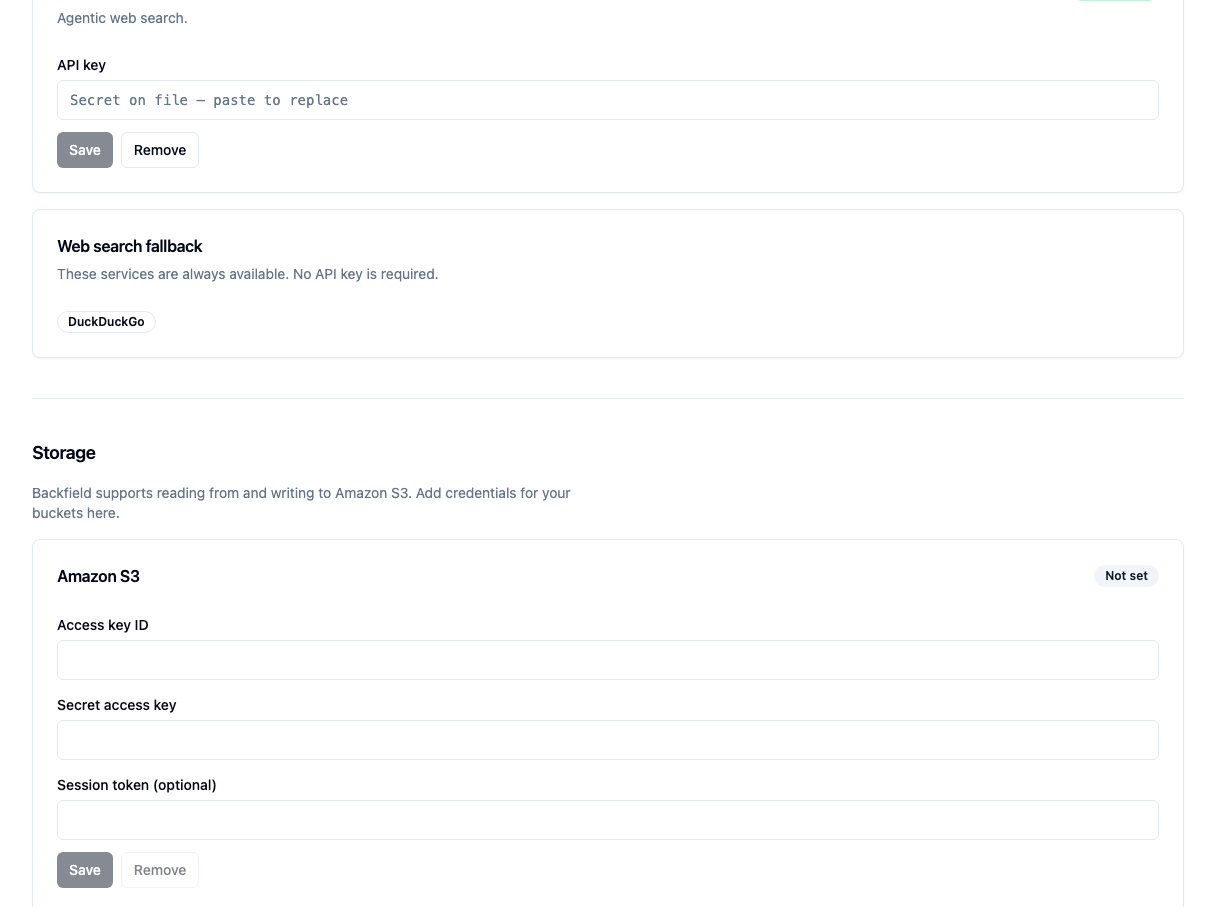
Bucket names and folders are configured on S3 Input and S3 Output nodes, not on this page.
Warning
When rotating temporary credentials, replace the access-key ID, secret key, and session token together.
5. Check project settings
Open Tutorial Project, then its Integrations tab.
- Configured means the project inherits an organization secret.
- Overridden means the project uses its own secret.
To add an override, paste the project-specific value and choose Save. Choose Remove to return to the organization default.
Most projects should inherit the organization settings. Use an override only when a project needs a separate account, quota, or storage boundary.
6. Verify the integration
The settings page does not test provider access. Run a small flow that uses the service:
- Place Extract followed by Geocode for geocoding and search;
- S3 Input for read access;
- S3 Output for write access.
If the run fails, inspect the failed step for provider permissions, quota, or bucket-access errors.