Create and protect an API key
Create a project-scoped personal key, test it against the Backfield API, and revoke it without exposing the secret.
You'll learn
- When to use a personal key and when to use a service key.
- Why the full secret appears only once.
- How to send an authenticated request.
- How project access and key status affect authorization.
- How to rotate or revoke a key safely.
Before you begin
You need access to Tutorial Project and an approved password manager or secret store.
Do not put a real API key in tutorial text, screenshots, chat, source code, or a public repository. This walkthrough creates a temporary personal key and revokes it after testing.
1. Choose the key type
Backfield offers two project key types:
- Personal (user): read-only access for a script or tool used on behalf of one person.
- Service (automation): shared server-side automation managed by organization administrators. It can optionally receive permission to trigger flows.
Use a personal key for this interactive test. Do not use a personal key for a shared production service that should continue after its owner changes roles or leaves the organization.
2. Open the API tab
In Agate, open Tutorial Project and select API under Project workspace.
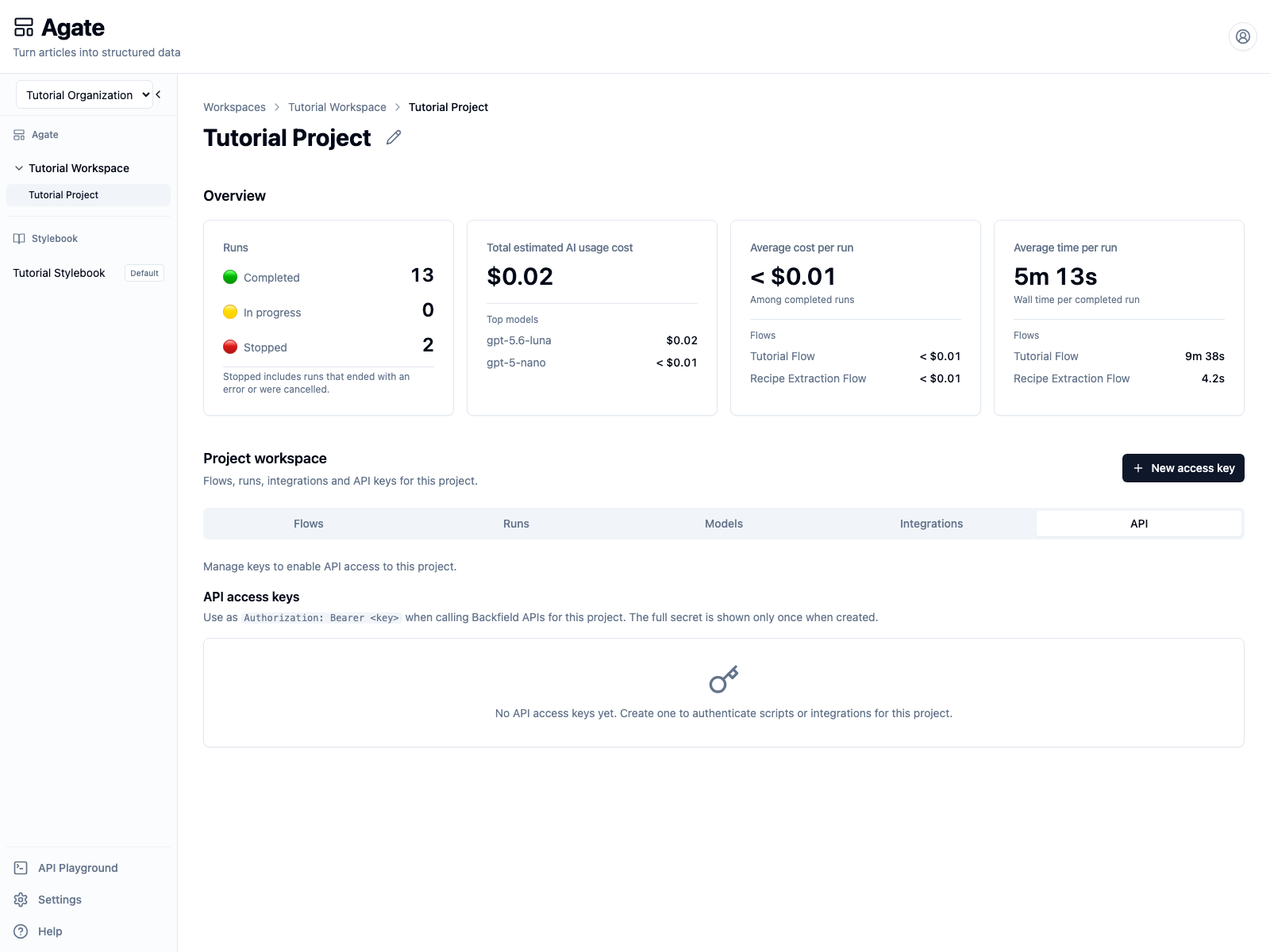
API keys belong to one project. A Tutorial Project key cannot be used to query another project.
Select New access key.
3. Create a personal key
Choose:
- Key type:
Personal (user) - Label:
Tutorial personal key - Allowed access:
Read project data
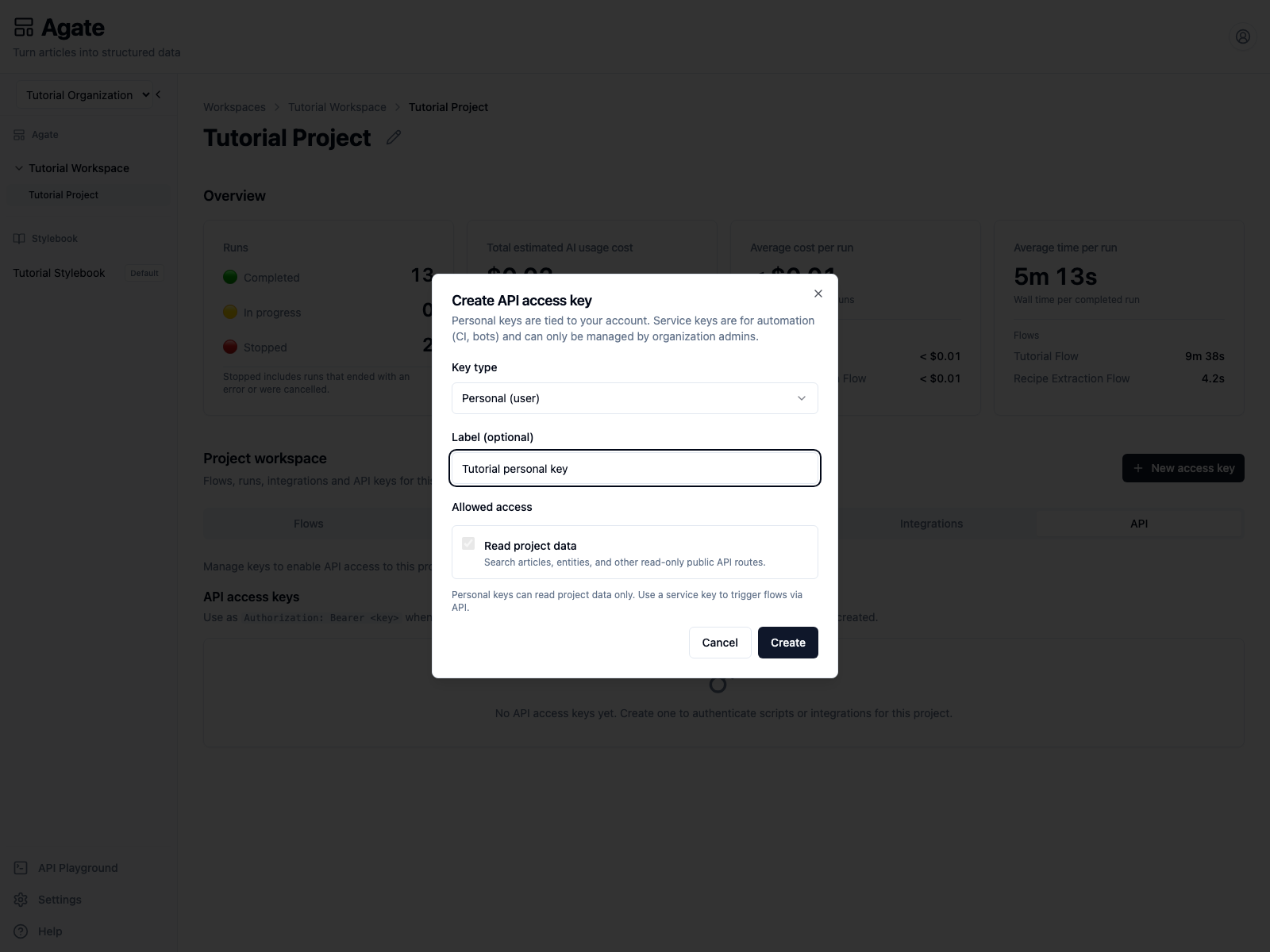
The read scope is required for personal keys. It covers the public read-only routes for articles, entities, mentions, metadata, and project information.
Select Create.
4. Store the secret immediately
Backfield displays the full key once.
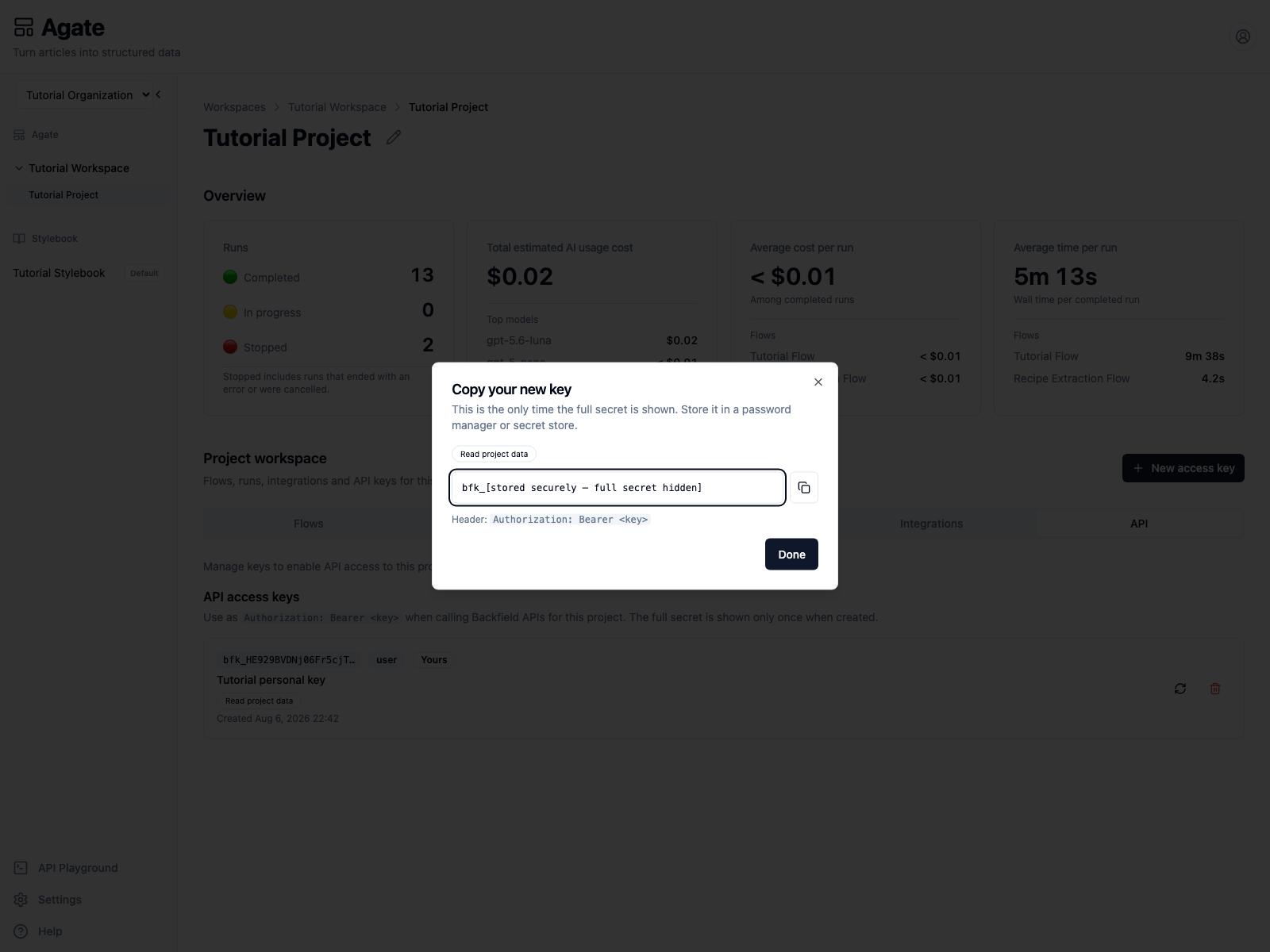
The screenshot intentionally replaces the secret with a safe placeholder. In your own session:
- copy the full value beginning with
bfk_; - save it in the approved password manager or secret store;
- record its project, purpose, owner, and planned review date;
- confirm that the stored value can be retrieved;
- select Done.
Backfield stores enough information to recognize the key, but it cannot display the full secret again.
5. Test the key
Load the key into BACKFIELD_API_KEY from your secret store. Do not paste it
into a script or commit it to an environment file that is tracked by Git.
Send a request to Tutorial Project:
curl "https://api.{organization_slug}.backfield.news/public/v1/projects/tutorial-project" \
  -H "Authorization: Bearer ${BACKFIELD_API_KEY}" \
  -H "X-Request-ID: tutorial-api-key-test"
For the local Tutorial Organization used in these screenshots, the URL is:
The verified request returned 200 and identified the expected project:
{
  "name": "Tutorial Project",
  "slug": "tutorial-project",
  "stylebook_slug": "tutorial-stylebook",
  "stats": {
    "articles": {"total": 4, "embedded": 0},
    "mentions": {"total": 16, "embedded": 0},
    "images": {"total": 0, "embedded": 0}
  }
}
Your counts may differ. The important checks are the 200 status, project
slug, and assigned Stylebook. The response also returns the request ID in the
X-Request-ID header for troubleshooting.
6. Inspect the key record
After closing the one-time dialog, the API tab shows the key's safe prefix, type, owner, label, scope, and creation time.
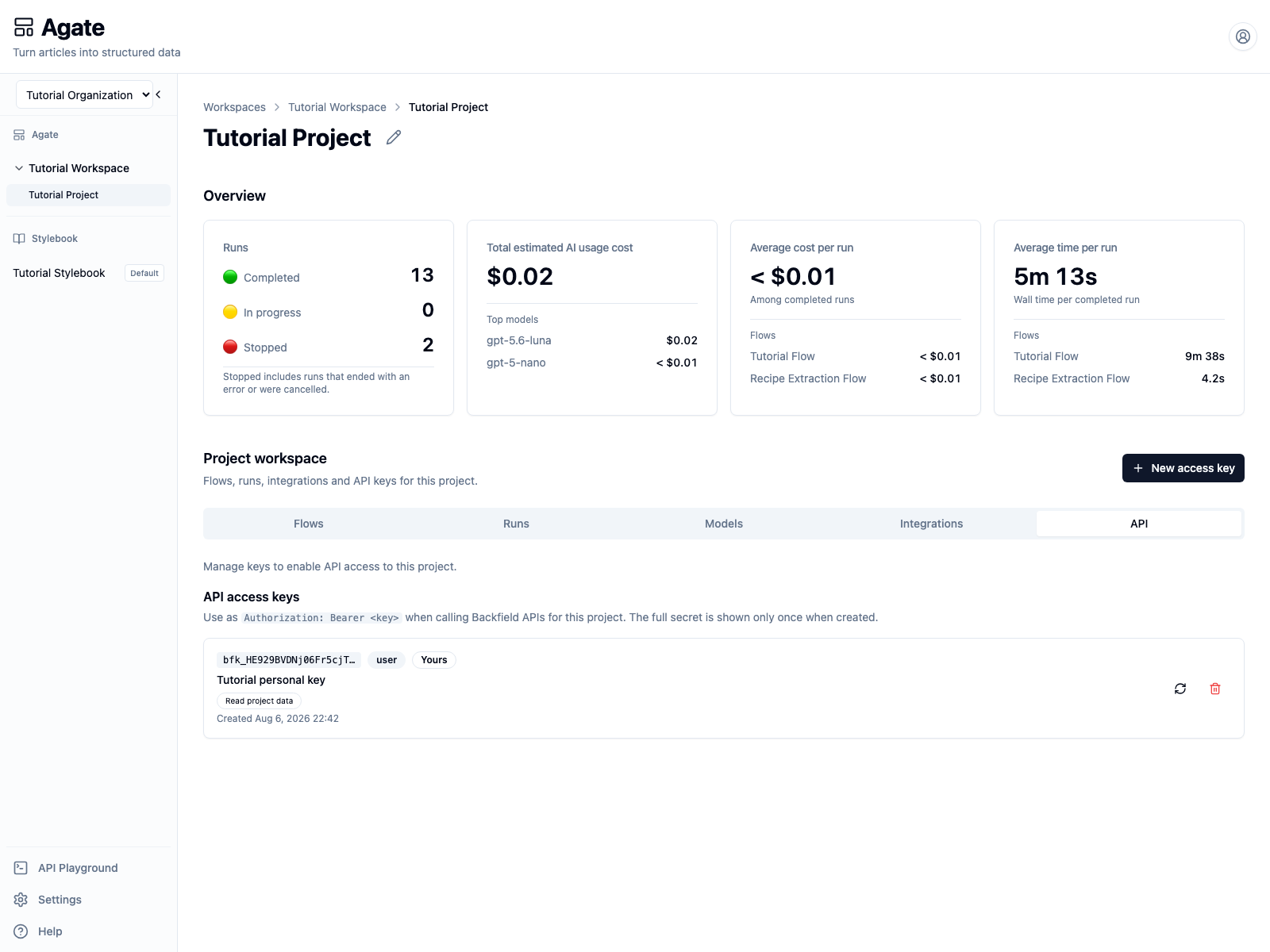
The prefix helps identify a credential without exposing it. It cannot be used to authenticate.
Personal-key requests are rechecked against the owner's account, organization membership, and project access. Disabling the owner or removing all required access invalidates the key.
7. Revoke the temporary key
Select the trash button beside Tutorial personal key.
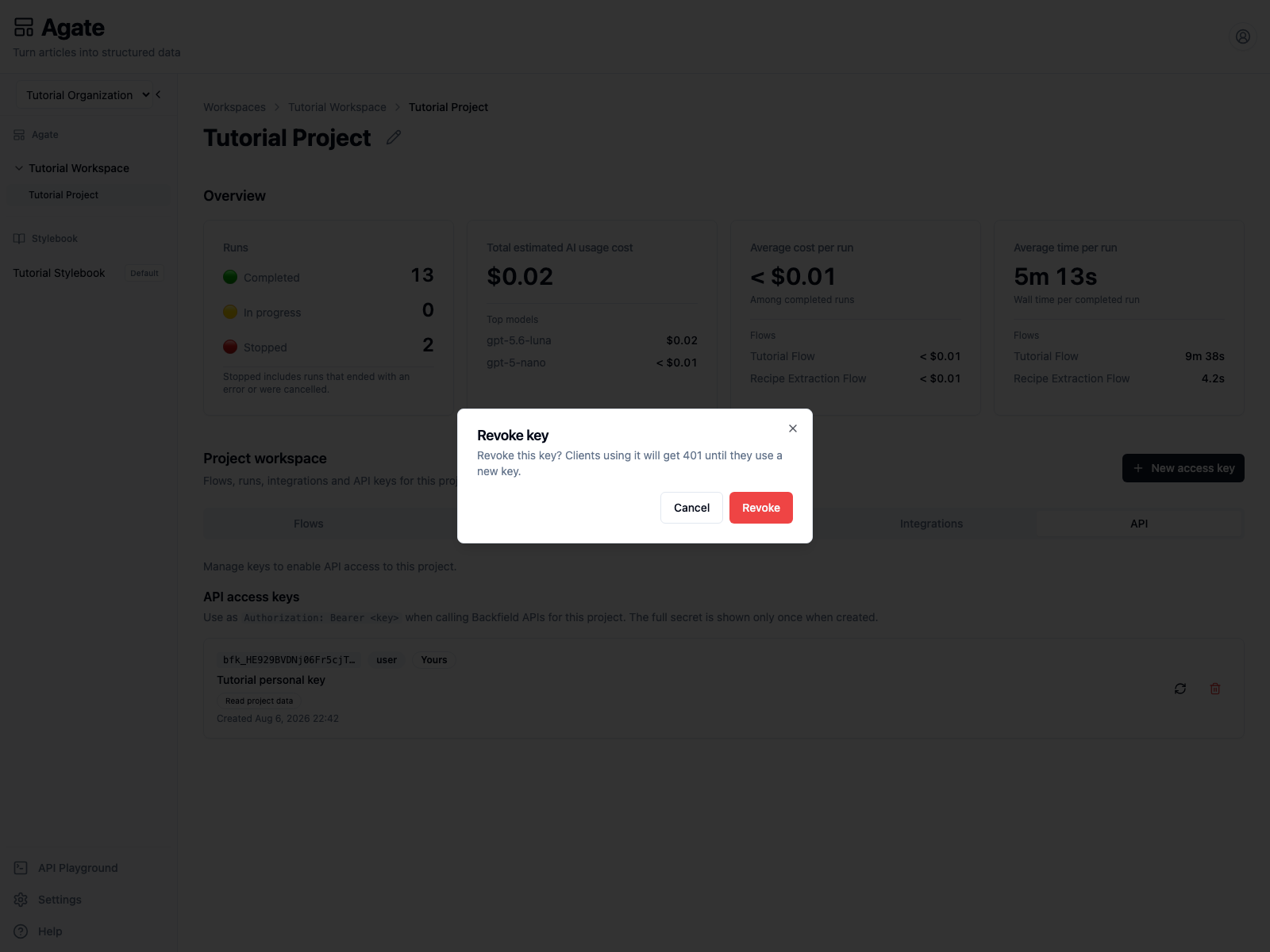
Revocation is immediate. Select Revoke only after confirming that no client still needs this temporary key.
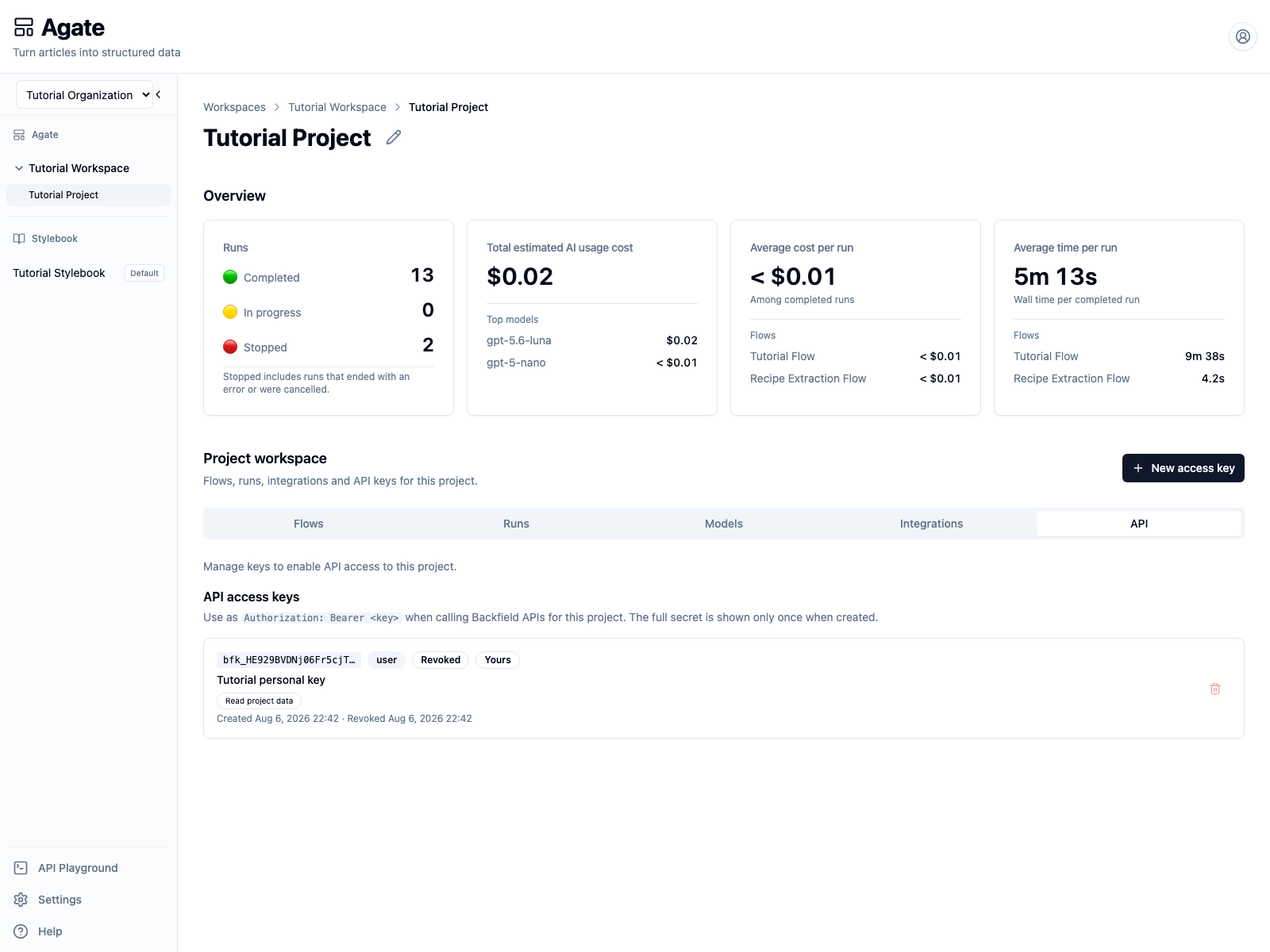
The revoked key remains listed for identification and audit purposes. A
verified request with it returned 401.
Rotate a production key safely
Do not revoke a production key before its replacement works. Use this order:
- create the replacement;
- store it securely;
- update every client;
- test the replacement against the correct project;
- revoke the old key;
- confirm that the old key returns
401.
The rotate action creates a replacement and shows its secret before revoking the old key. Test and store the replacement while that dialog is open, then finish the rotation.
Service-key checklist
Before an organization administrator creates a service key, record:
- the automation and team responsible for it;
- where the secret will be stored;
- which project it may access;
- whether it needs only
reador alsoruns:trigger; - how it will be monitored, rotated, and retired.
Grant runs:trigger only when the automation must start an approved flow.
Service keys and personal keys should never be embedded in browser-side code.