Create and edit canonical records
Create a location manually, correct its details, add metadata, and review the safeguards around geography, mentions, and deletion.
You'll learn
- How to search before creating a canonical.
- How to create and edit a location.
- How to maintain canonical geography and metadata.
- How canonical details differ from article mentions.
- What happens when a canonical is deleted.
Before you begin
You need editing access to Tutorial Stylebook. Deleting an entire canonical requires organization administrator access.
This walkthrough creates a fictional place called Harborview Community Center. Use tutorial data rather than adding a fictional record to a production Stylebook.
1. Search before creating
Open Tutorial Stylebook → Locations → Canonical locations. Search for the place by its name, address, and any common variation you know.
Do not create a second canonical simply because the first search returns no result. Try broader terms and check the location type and jurisdiction. Two records for the same place divide its article history and create cleanup work.
Select Create when you are confident the place is not already present.
2. Create the location
Enter:
- Name:
Harborview Community Center - Location Type:
Place - Formatted Address:
120 Harbor Drive, Duluth, MN
For this fictional example, paste the following point into the GeoJSON field and select Apply from text:
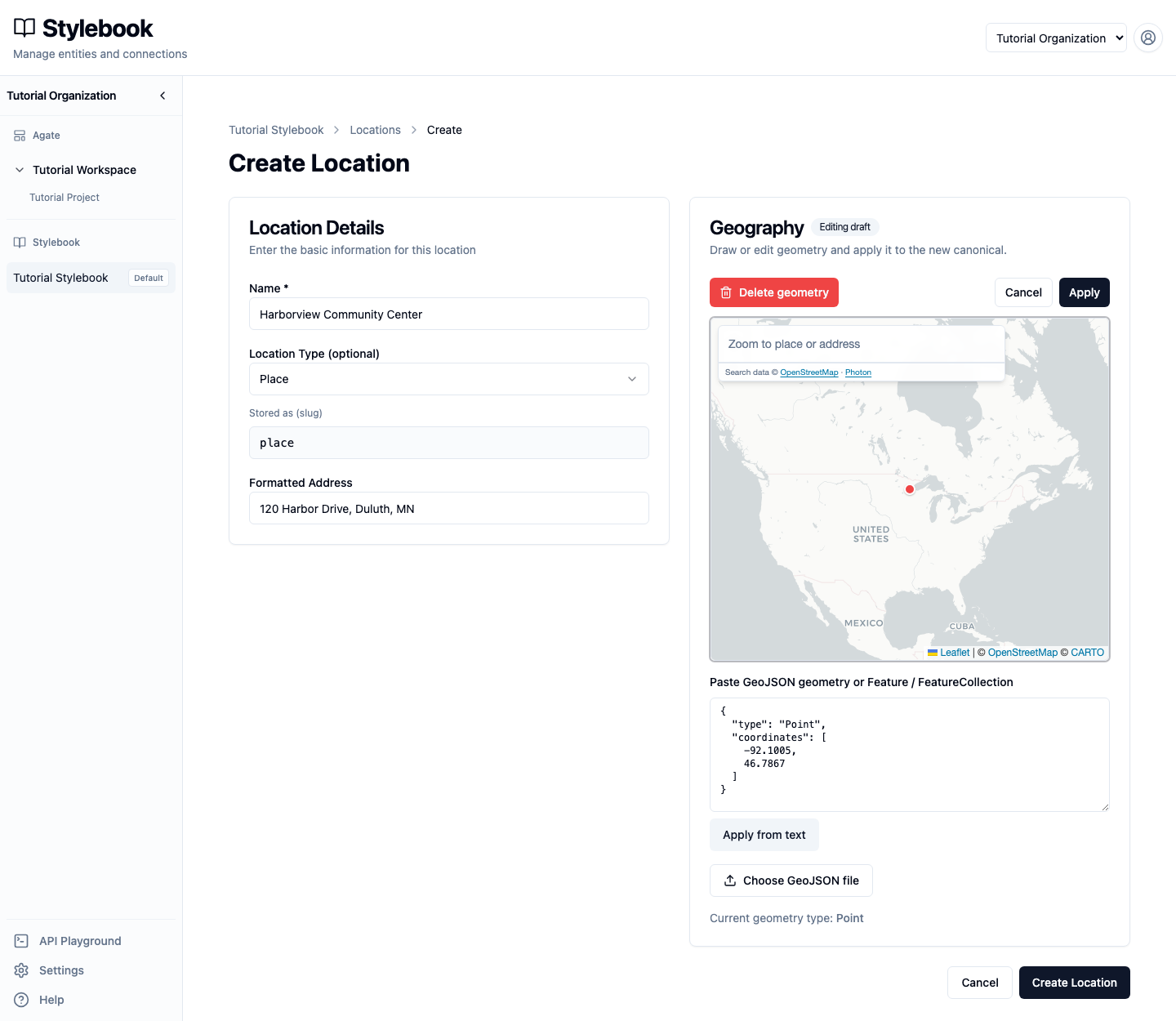
Select Create Location.
The location type describes what the place is. The formatted address is a display value. Geography is the point, line, or boundary used for maps and geographic search.
Only save geography you can support. Leaving geography empty is better than attaching a precise but incorrect point or boundary.
3. Correct the details
Open the new canonical and select Edit. Change:
- Label:
Harborview Neighborhood Center - Formatted address:
120 Harbor Drive, Duluth, MN 55802
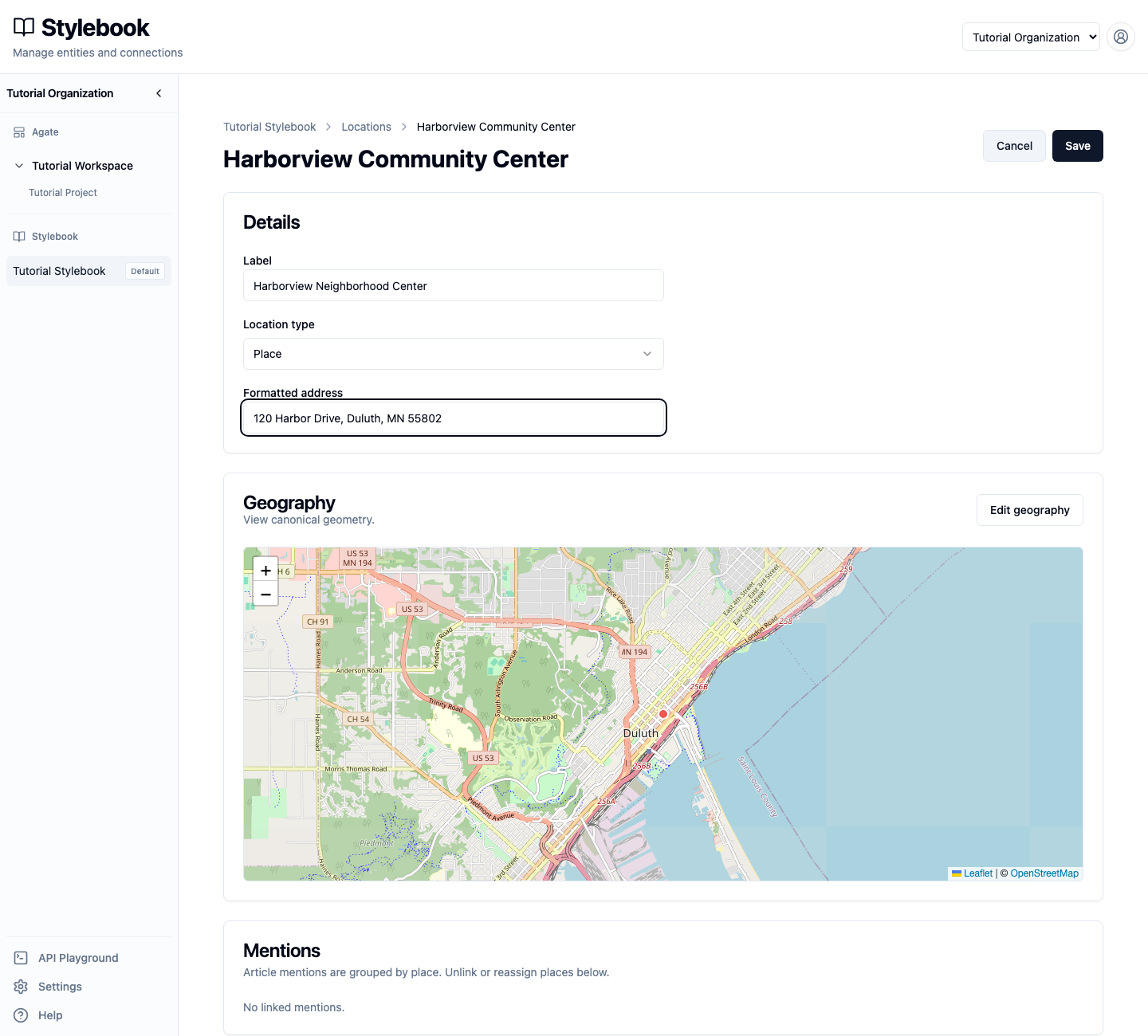
Select Save.
The label, type, address, geography, and metadata belong to the shared canonical. If several projects use this Stylebook, the correction is visible to all of them.
People and organizations have different identifying fields. A person can include a title and affiliation, while an organization can include an organization type. The same rule still applies: search first, then save enough trusted detail to distinguish the record.
4. Review the geography
Select Edit geography.
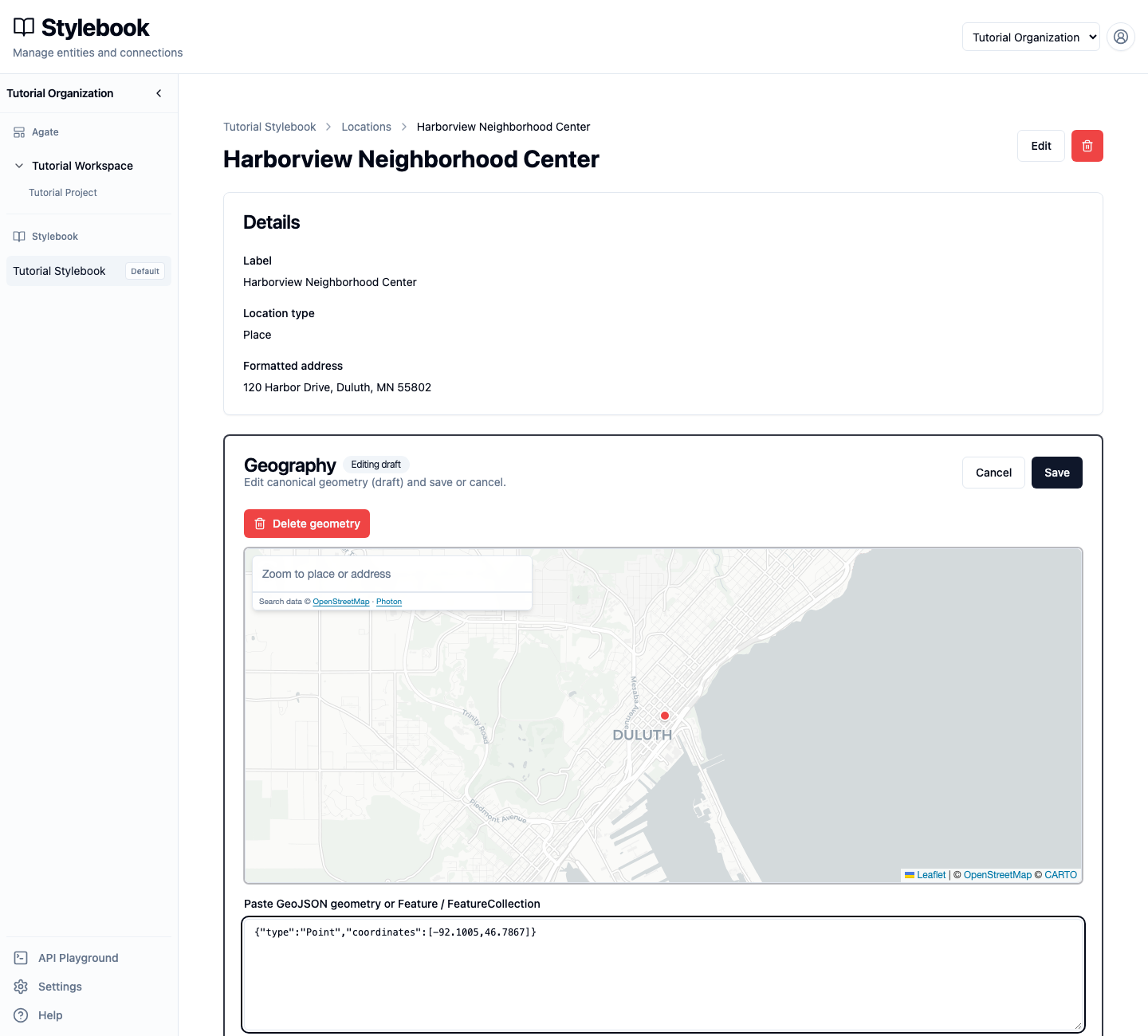
The editor can:
- search the map by place name or address;
- draw or adjust supported geography;
- accept GeoJSON text or a GeoJSON file;
- remove geography.
Select Save only after checking that the point or shape represents the canonical place. Select Cancel to leave the existing geography unchanged.
When linked article places still carry an outdated geocode shape, use Apply to linked saved places to copy the corrected catalog geography onto selected places. This helps geographic search follow the maintained Stylebook boundary instead of a stale article-level polygon.
A point is appropriate for a specific venue. A neighborhood, city, park, or district may need an area. A road may use a line. The most detailed available shape is not always the most accurate or responsible choice.
5. Add maintained metadata
Expand Advanced options, then select Add detail. Enter:
- Key:
seasonal_use - Type:
Text - Value:
summer cooling center
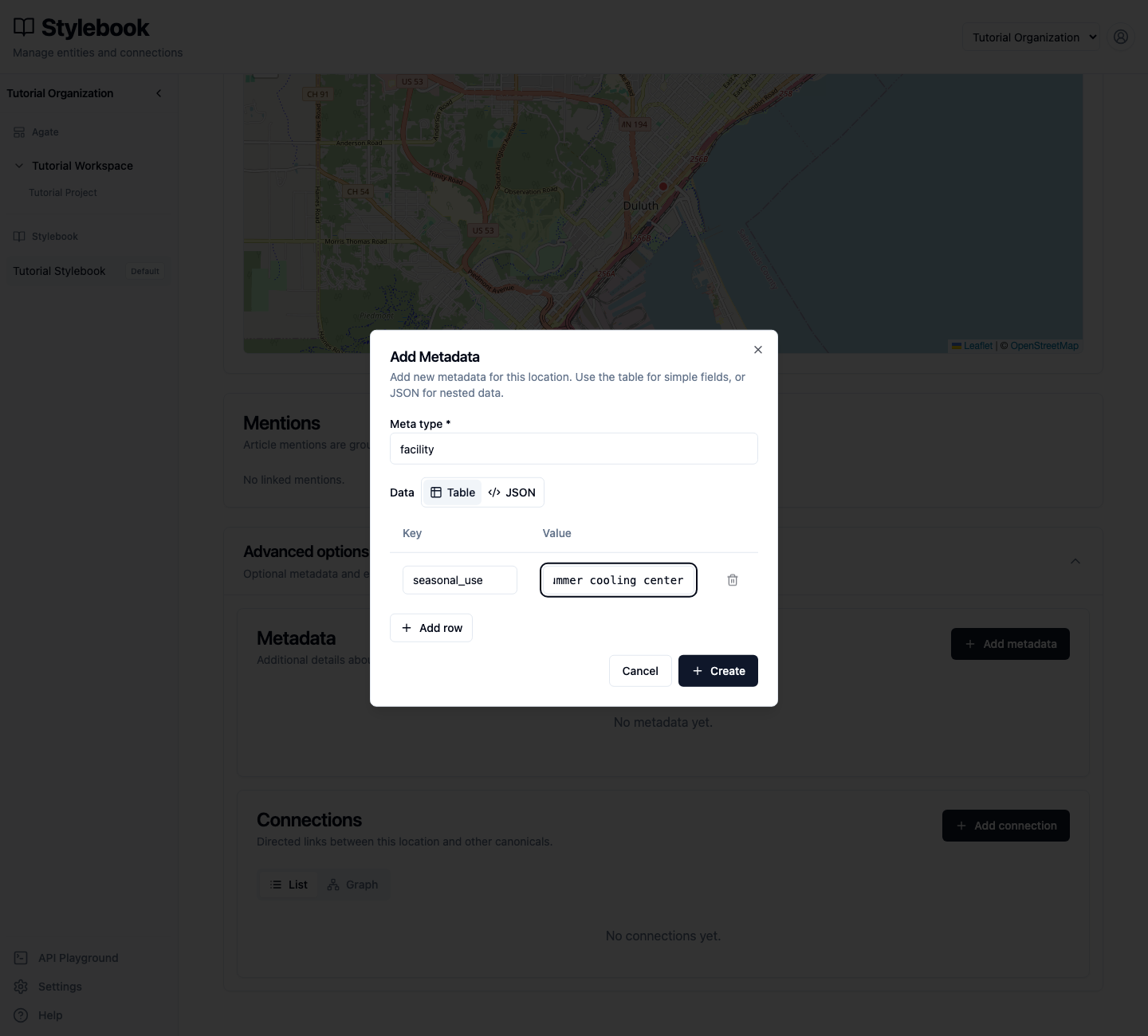
Select Add detail.
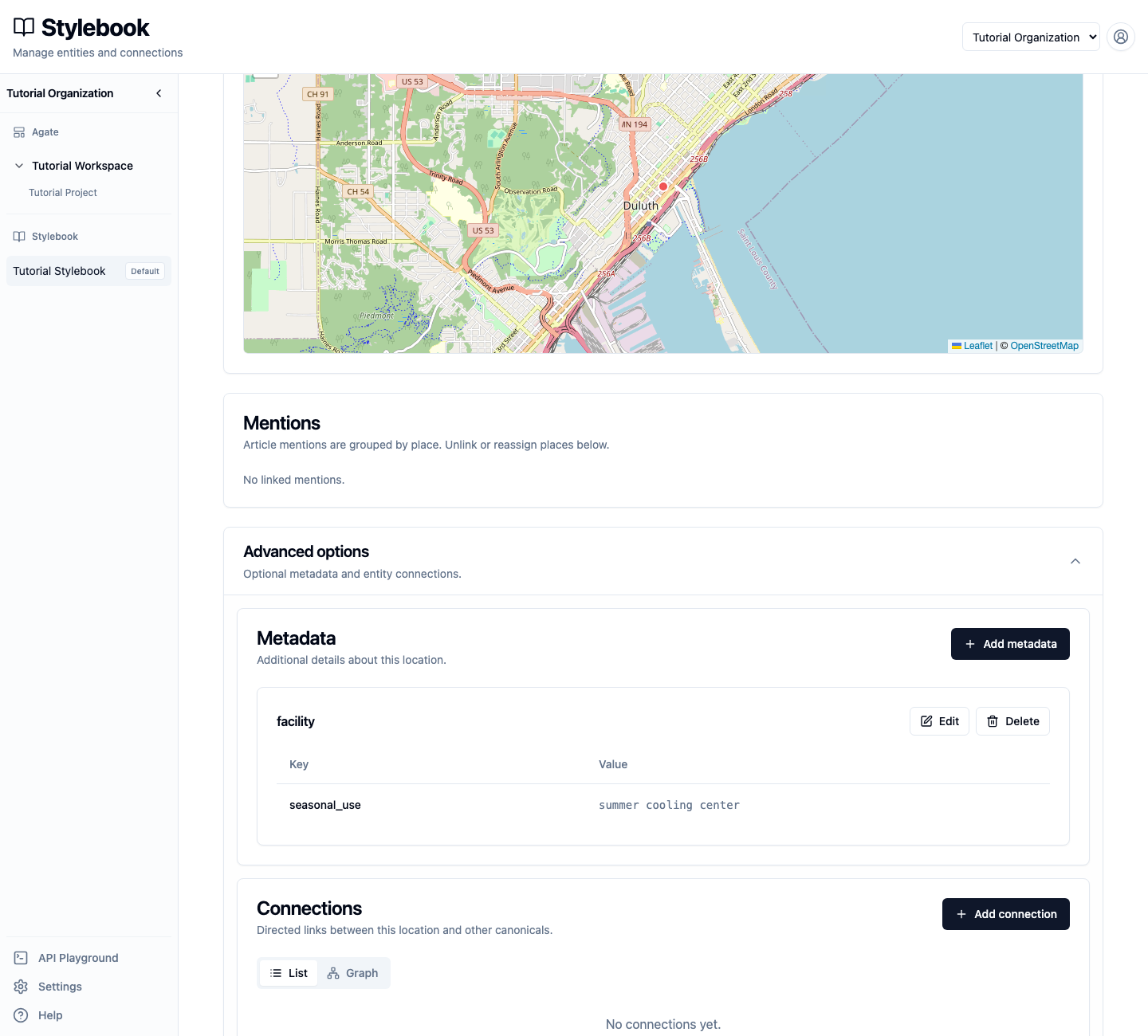
Each attribute stores one typed value for a single key. Metadata is maintained information about the shared place. It is not evidence that the place appeared in a particular story. Use a clearly defined key, record the source in your newsroom's normal system, and plan to review facts that can change.
Use Edit or Delete on the attribute card when a value needs correction or should no longer be maintained.
6. Understand mentions
The new canonical shows No linked mentions because it was created manually. Mentions appear after article places are linked to it.
Each mention remains tied to its article and project. The controls operate on a linked article place and all the mentions grouped beneath it. Use Move to reassign that place to another canonical, or Unlink to return it to the candidate queue. These actions change the canonical link; they do not rewrite the source article.
If removing the final mention leaves a canonical empty, Stylebook asks whether to delete the record or keep it. Keep a record when its maintained details, metadata, geography, or planned use still have editorial value.
7. Review the deletion warning
If you are an organization administrator, select the trash button on the canonical page. Stylebook editors who are not administrators can maintain the record but cannot delete the entire canonical.
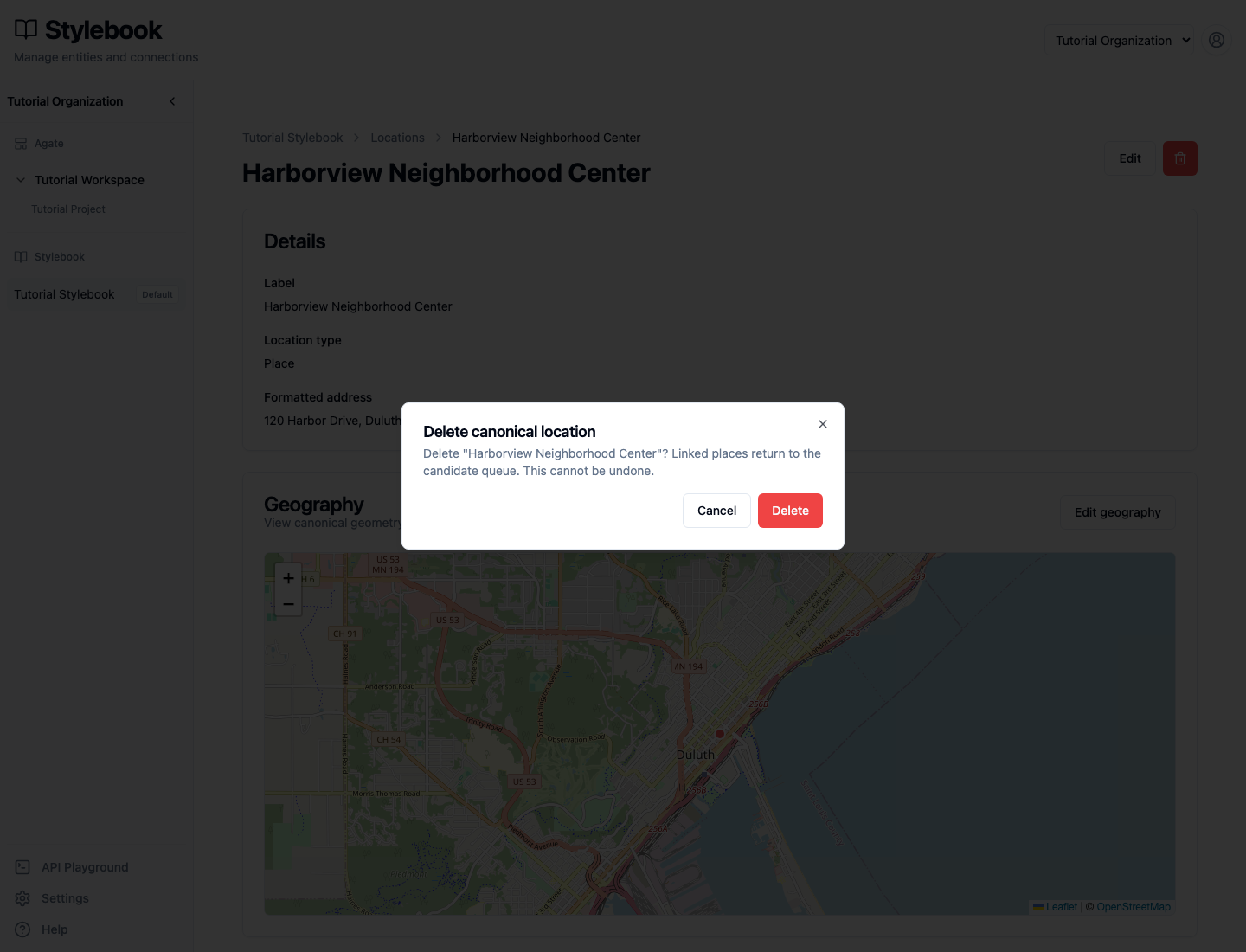
Deleting a canonical cannot be undone. Any linked article places return to the candidate queue instead of being deleted with it. Select Cancel for this tutorial so the example remains available.
Check your work
The completed canonical should have:
- the label Harborview Neighborhood Center;
- the type Place;
- the updated formatted address;
- point geography in Duluth;
- a
seasonal_usetext attribute with the valuesummer cooling center; - no linked mentions.