Add article metadata
Article metadata gives each story consistent labels for filtering, analysis, and downstream products. In this tutorial, you will classify a sample story by its primary subject and review the result.
You'll learn
- The difference between article metadata and canonical Stylebook metadata.
- How to add and configure an Article Metadata node.
- How to review a category, rationale, and confidence score.
- How to correct, add, or remove a tag.
Before you begin
You need:
- A project with GPT-5.6 Luna enabled.
- A flow with Text Input and Backfield Output.
- A short sample article.
You can use the Tutorial Flow and the article from Extract people and places.
1. Add Article Metadata
- Open the flow and select Edit flow.
- Select Add another path under Text Input.
- Select Enrich, then Article Metadata.
- On Settings, choose GPT-5.6 Luna.
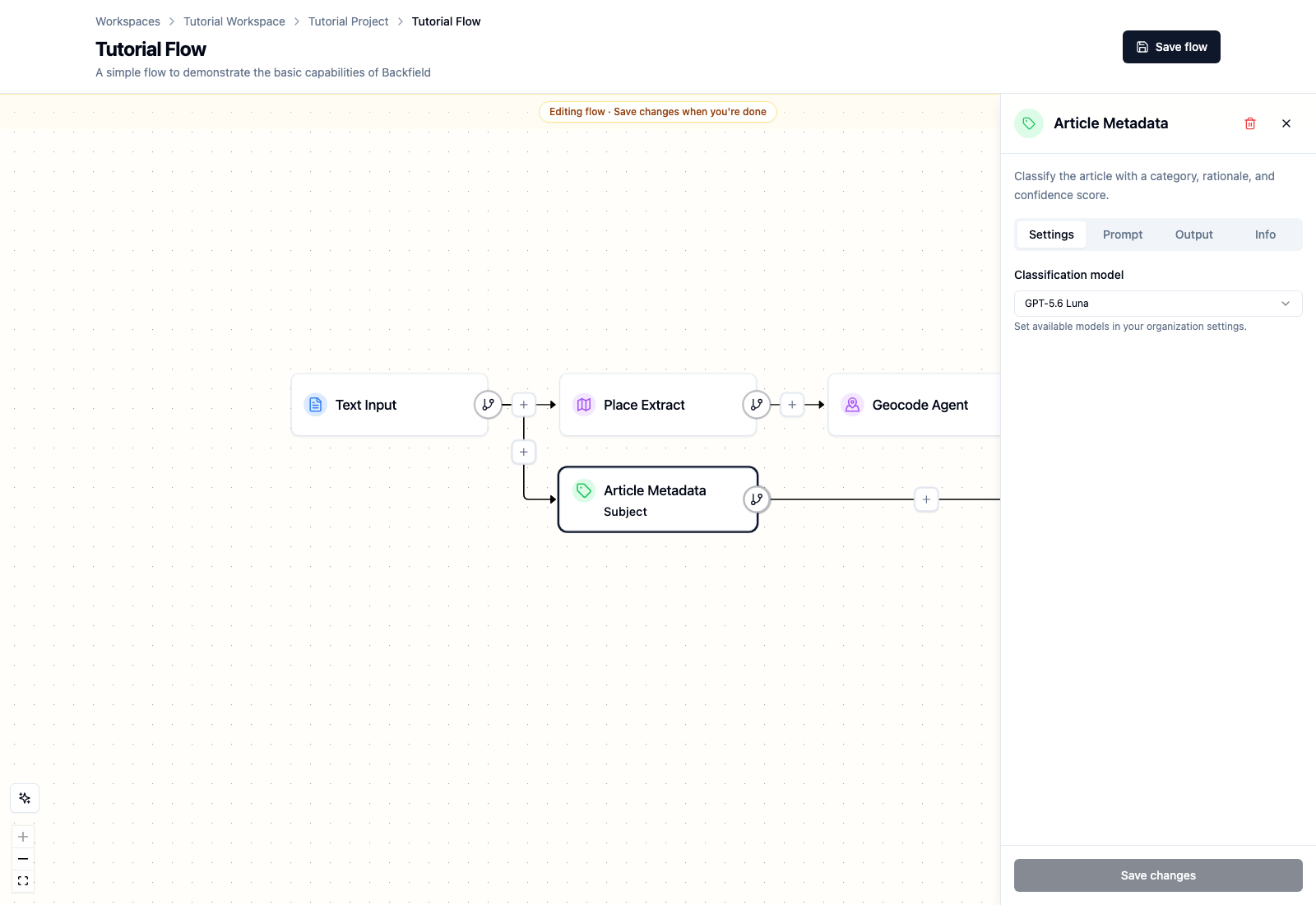
One Article Metadata node classifies one metadata dimension. Add more nodes from the same input if you want several dimensions.
2. Choose what to classify
Open Prompt and choose a preset. Backfield includes presets for:
- Topic — the broad coverage area, such as public health or education.
- Subject — the concrete event, institution, project, or issue at the center of the story.
- Format — how the story is structured, such as a news story, profile, or explainer.
- Geographic scope — the community or area affected.
- Timeframe — whether the story is present, future, ongoing, cyclical, or evergreen.
- User need — why a reader would value the story.
- Critical information need — the practical civic need the story serves.
- Custom — a category system created by your newsroom.
For this tutorial, choose Subject. The preset supplies the category list, decision rules, and output instructions. Read the prompt before changing it: small wording changes can alter classifications across many stories.
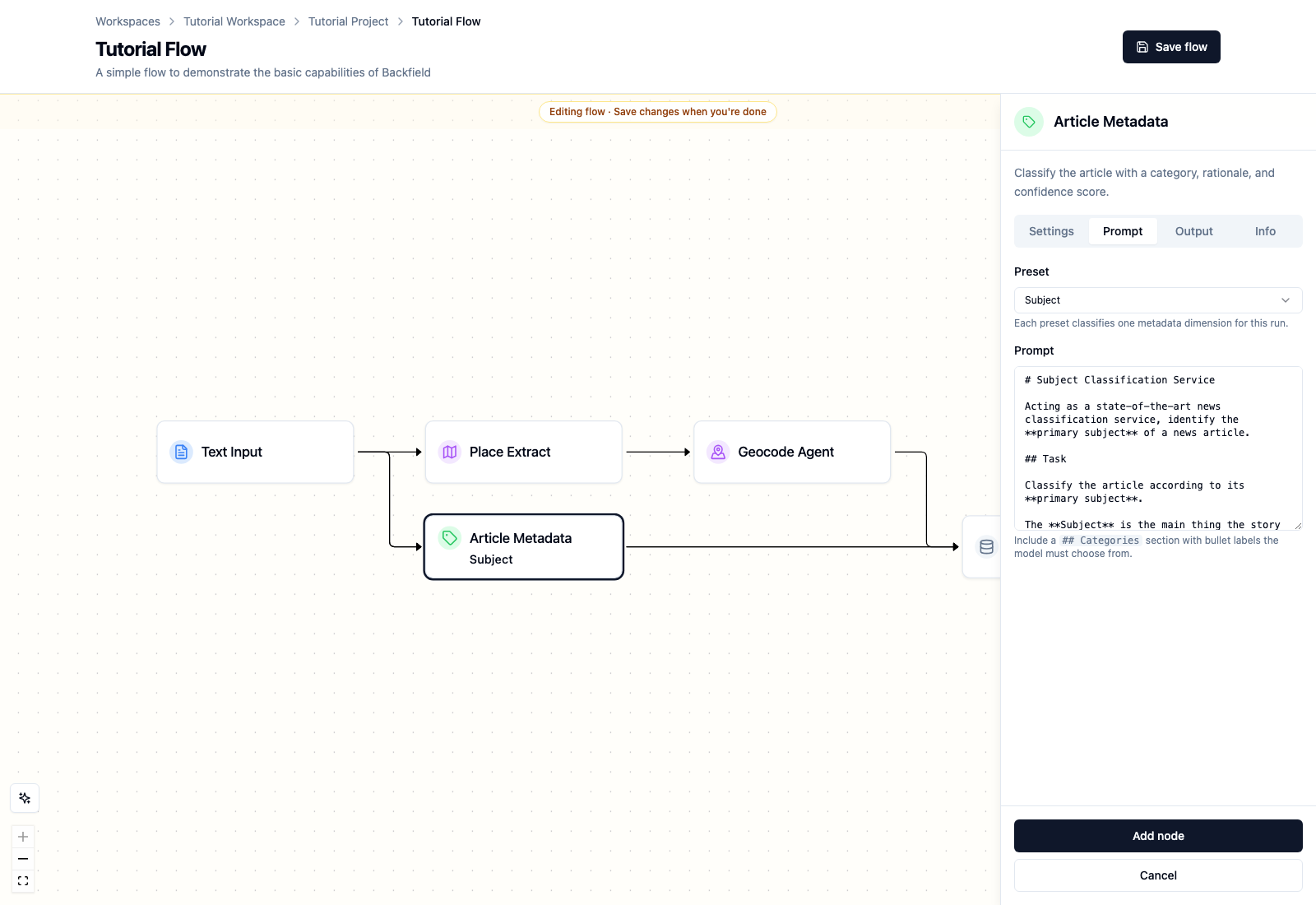
Select Add node, then Save flow.
3. Run the sample article
Run the flow with the sample article. When the run succeeds:
- Open the processed item.
- Select Meta.
- Review the category, rationale, and confidence.
The verified tutorial run classified the cooling-program story as
health_issue with 0.97 confidence. Its rationale explains that the story is
about a city program protecting residents during dangerous heat.
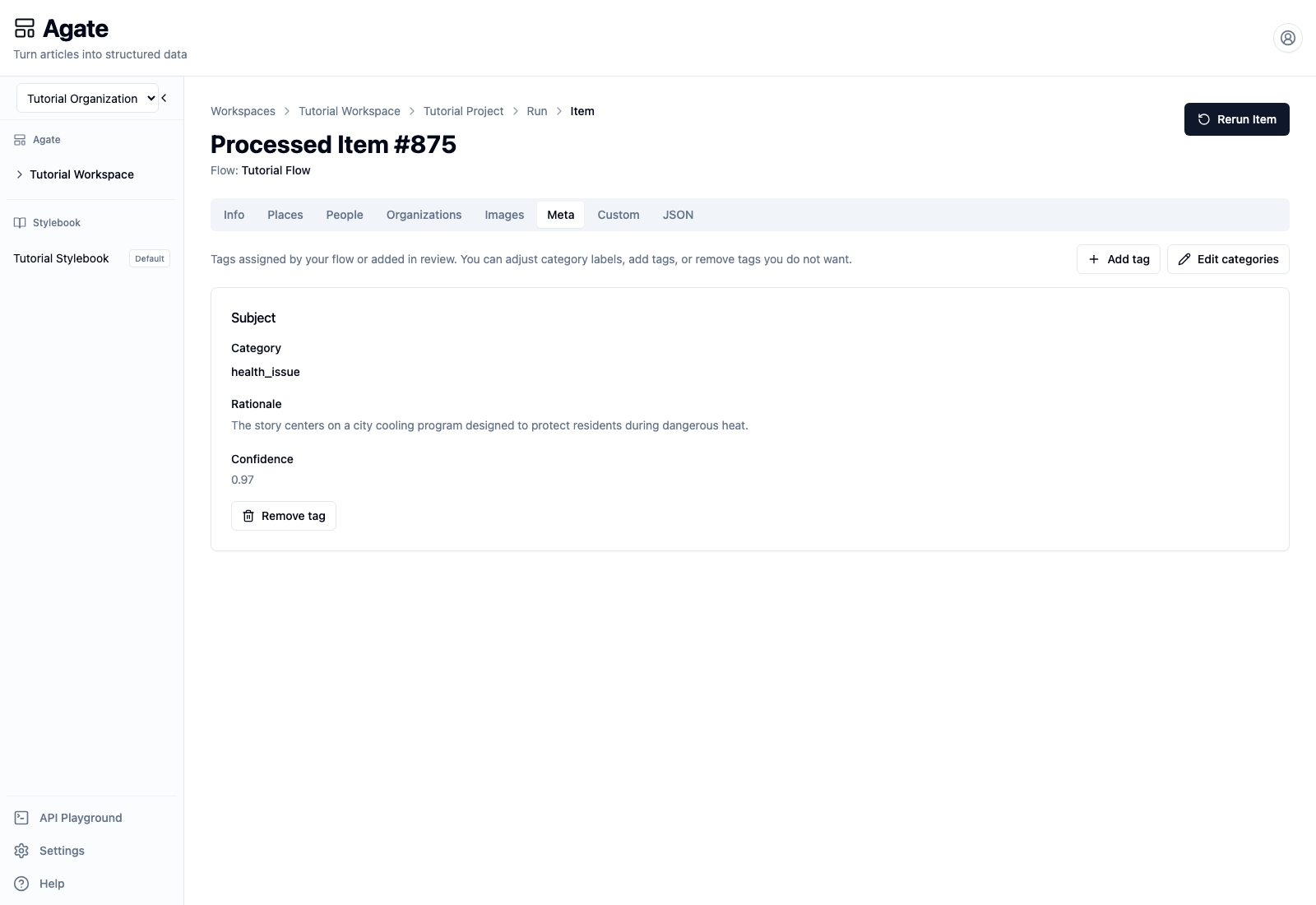
Confidence measures the model's certainty, not editorial correctness. Review the category and rationale together.
4. Correct or add a tag
If a category is wrong:
- Select Edit categories.
- Replace the category label.
- Select Done editing.
To classify a dimension that the flow did not produce, select Add tag, choose a tag type, enter a category, and select Add tag.
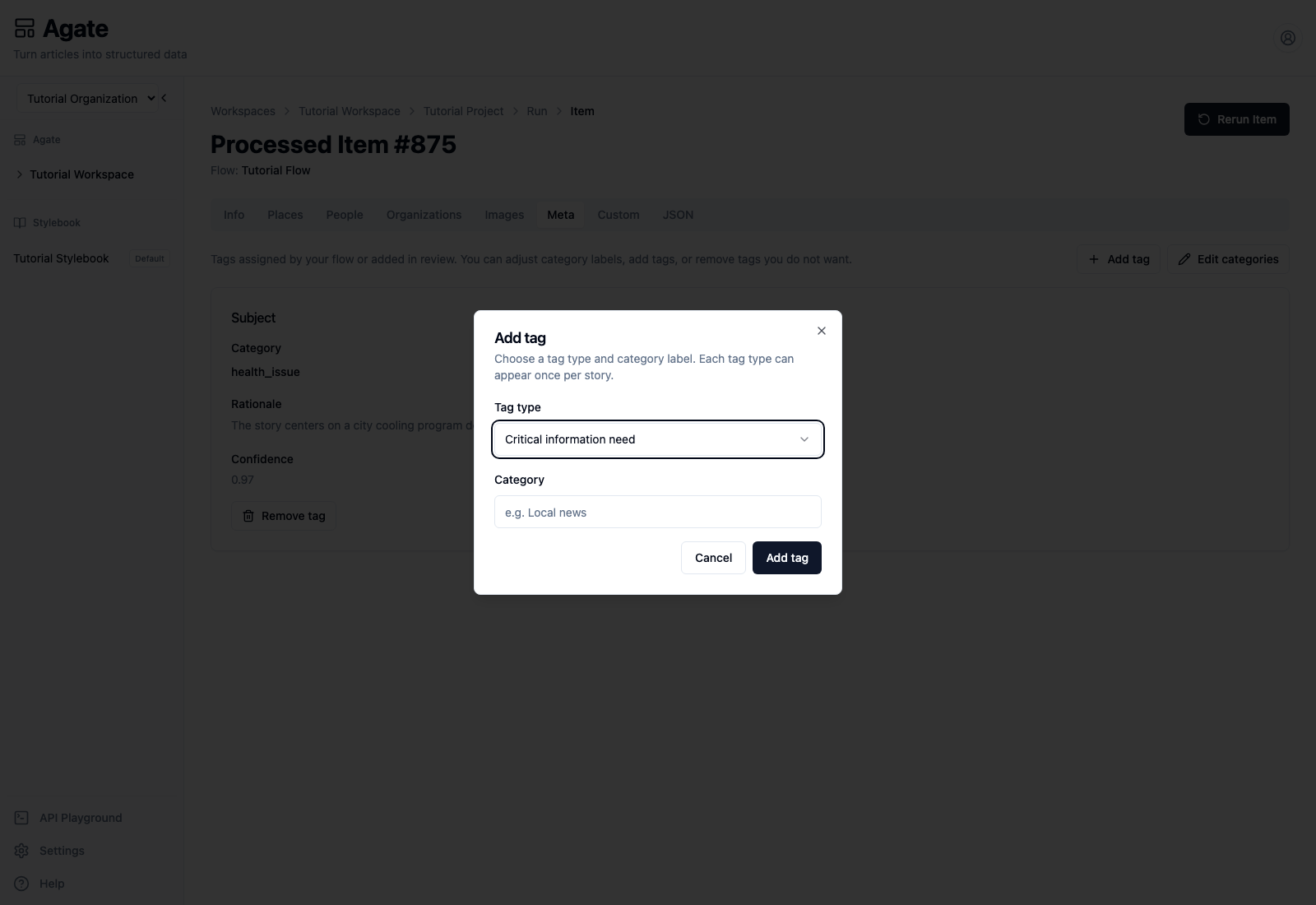
Use Remove tag when a classification does not belong on the story.
Reviewed values are saved by Backfield Output and can be filtered through the Backfield API.
Article metadata and Stylebook metadata
Article metadata describes a story: its topic, subject, format, scope, or reader need. Stylebook metadata describes a canonical entity, such as a person's political party or a city's population. Editing one does not change the other.