Runs
A run is one execution of a flow. It applies the flow to one article or a batch of articles and records what happened at each step.
Each article in a run becomes a processed item: the reviewable output for that article, including extracted entities, article metadata, custom records, JSON output, and any errors.
Starting a run
Start a run from a flow when the pipeline is complete and valid. Agate uses the flow's input node to decide what you need to provide:
| Input | What the run processes |
|---|---|
| Text input | One pasted article or document |
| JSON input | One structured article object, or up to 20 uploaded .json files (one processed item per file) |
| S3 input | A batch of JSON files from a bucket and prefix |
Single item and batch runs
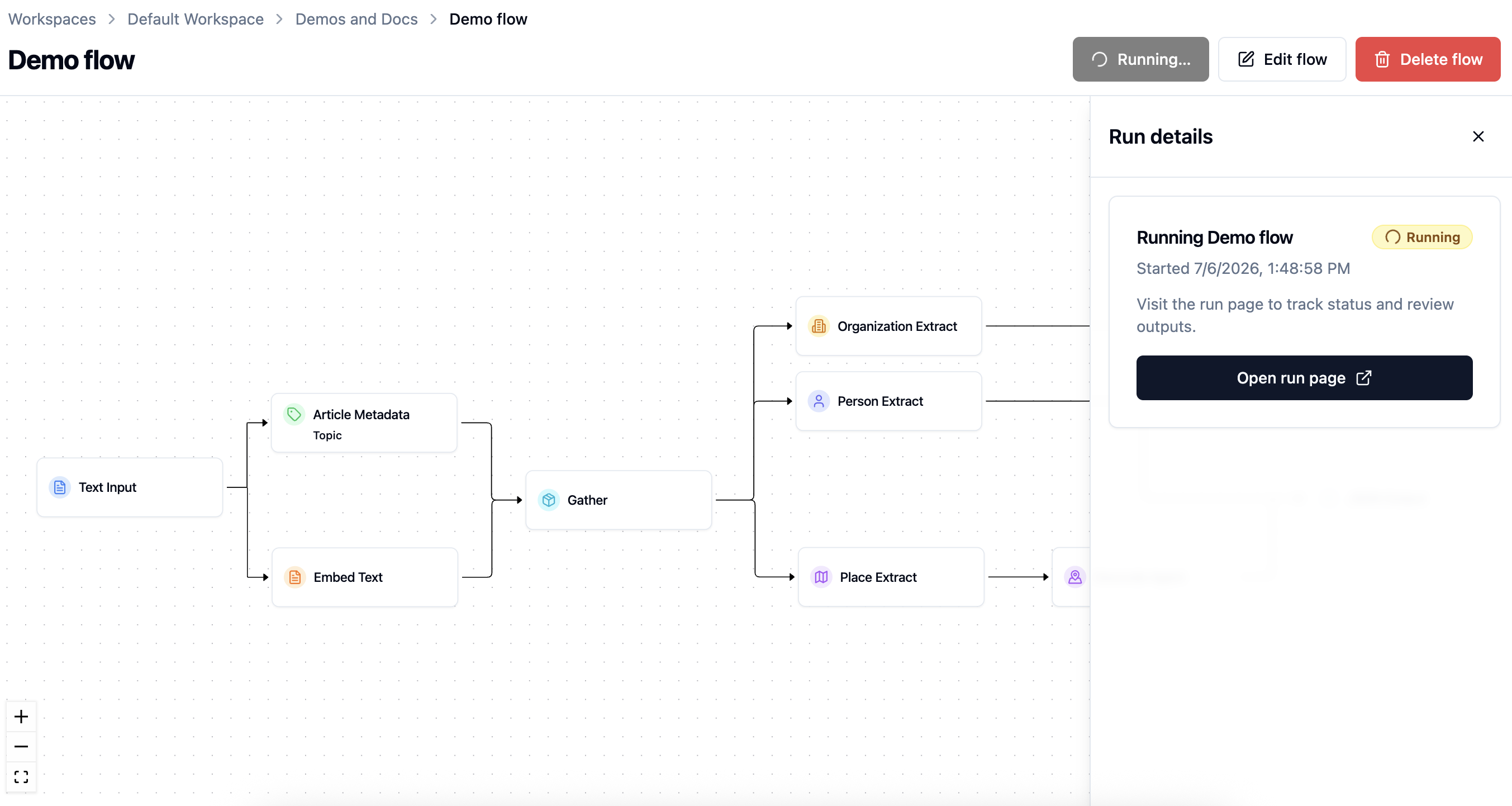
Text Input and a single JSON Input document create one processed item. This is often helpful for testing a flow.
JSON Input with two or more uploaded files creates one processed item per file, up to 20 files per run.
S3 Input processes a batch of article files and is more often used for regular production runs. Agate prepares the item list, then workers process items concurrently according to the deployment's capacity.
Note: The act of moving articles into S3 for processing happens outside of the Backfield ecosystem. It might involve writing web scrapers, CMS integrations, processing RSS feeds or other tasks that turn your articles into properly formatted JSON objects in a S3 bucket that Backfield can reach.
S3 Input remembers successfully processed object versions. Later runs skip unchanged files so a recurring batch does not repeatedly process the same content. A Process files again setting is available when you deliberately need to reprocess those files.
Finding runs and items
On the project page, the Runs tab lists executions for that project. Previous and Next controls page through long run histories so large projects stay manageable.
When you need to open review for a story but do not know which run produced it, use the project Articles tab. Each story appears once in that list, including when earlier runs reprocessed the same article. Search by headline or URL (or source label when no headline is available) and open the matching processed item directly.
Status and progress
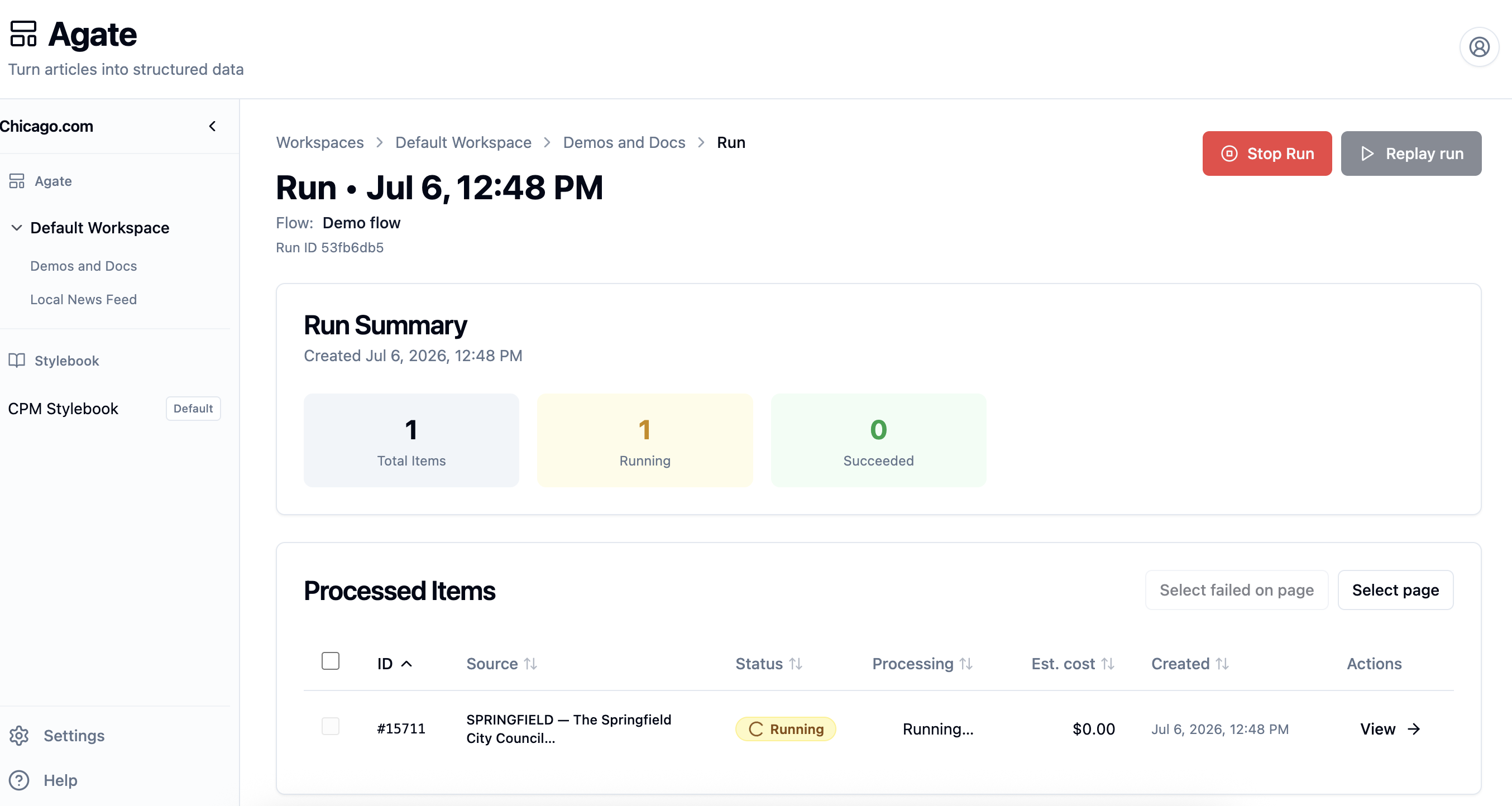
The run page shows both the overall run status and the status of each processed item. Use it to answer three questions:
- Did the run start?
- Which items are still working?
- Which items need attention?
Common statuses include:
| Status | Meaning |
|---|---|
| Pending | The run or item has been created but has not started processing |
| Running | Agate is executing the flow |
| Completed | Every item reached a successful technical result |
| Completed with errors | One or more items failed or the run was stopped |
| Needs attention | At least one item was held by a Processing Guard limit and no item failed outright |
For batches, the overall status summarizes the item list. Individual rows use item-level states such as succeeded, failed, or needs attention when a Processing Guard held the story. A run can finish with some items succeeded and others failed or held, so check the rows before assuming the whole batch is usable. Technical completion also does not mean every extraction is editorially correct; that judgment happens during review.
When an S3 or multi-file JSON run cannot prepare its item list — for example because cloud storage credentials are wrong or a bucket is unreachable — the run is marked failed and shows the preparation error instead of staying running indefinitely.
What the run records
Runs preserve the operational details you need to understand what happened:
| Detail | Why it matters |
|---|---|
| Input source | Shows whether the run came from pasted text, JSON, S3, or an API trigger |
| Item count | Shows how many articles were created and how many are pending, running, succeeded, or failed |
| Node progress | Helps identify which step is slow or failing |
| Errors | Shows the message returned by a failed node or item |
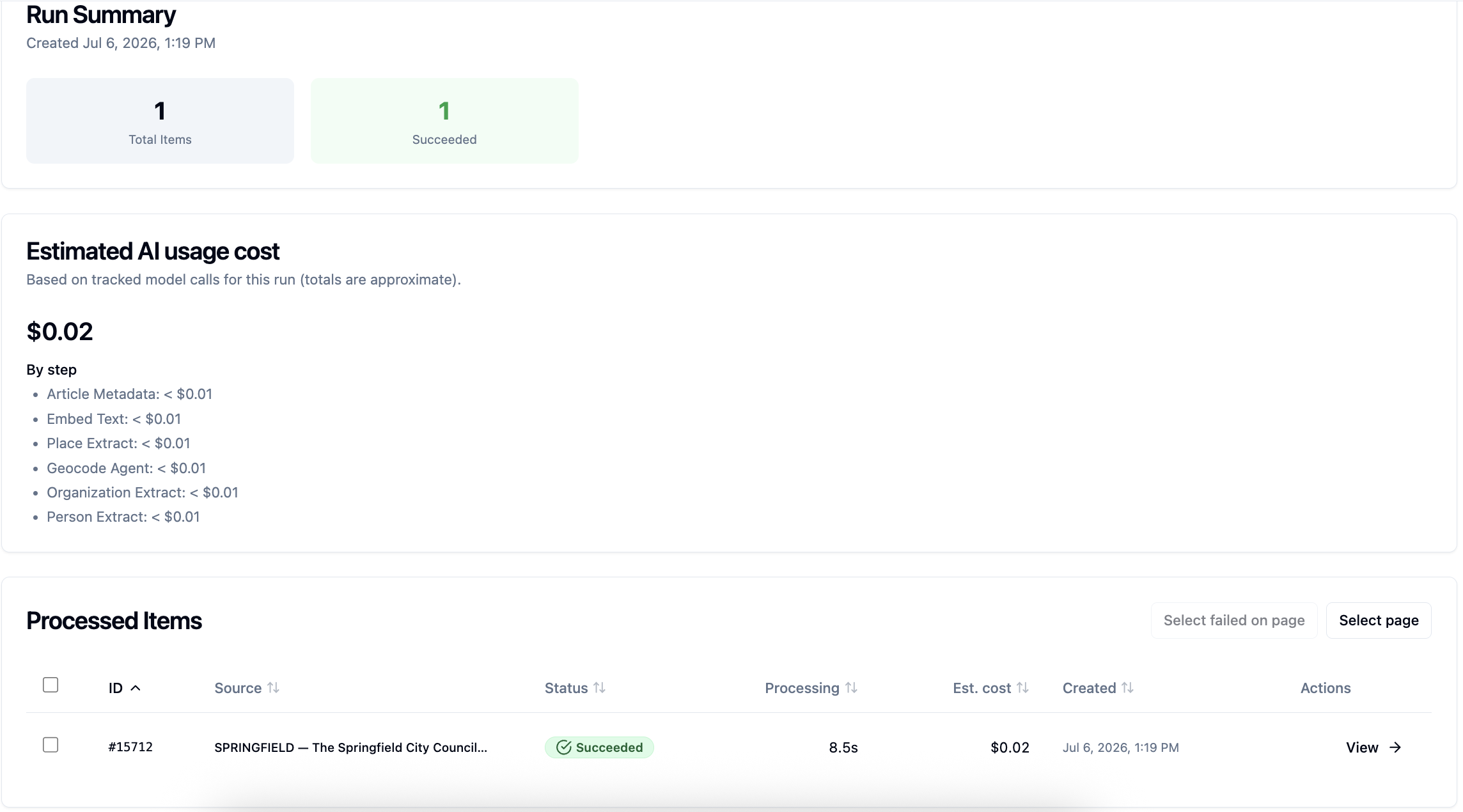
| Estimated AI cost | Helps track model usage for the run and its steps |
| Location lookup health | When geocoding services report authentication or rate-limit problems during the run, the cost summary can flag degraded location lookup |
| Timestamps | Show when the run started, updated, and finished |
Cost estimates depend on the AI models selected in the flow. Treat them as operational estimates for monitoring and comparison, not as audited billing records.
Cancellation, failures, and reruns
If a run fails, start by checking the failed processed item or node. The most common causes are missing input fields, invalid JSON, inaccessible S3 files, model configuration problems, or one-off network or LLM errors.
Long-running work can be cancelled from the run interface. Cancellation is bounded: work already executing may need a short time to stop, and items that finished remain visible.
An item rerun uses the flow settings and input stored with its original run by default. When the saved flow has changed since that run, Agate also offers to reprocess through the currently saved flow instead. Use Run flow when you need a fresh run with new inputs rather than regenerating stored items. Before a rerun starts, Agate identifies the Backfield Output reconciliation policy and warns that run-local review edits for affected items will be cleared as those items are regenerated. Canonical Stylebook edits are separate and are not silently rewritten by rerunning an article.
The run table supports selecting failed items and rerunning them together. A full Replay run creates a new run from stored inputs; manually replaying an API-triggered flow is disabled because its input contract belongs to the calling system.
For S3 batches, replaying stored inputs differs from a normal new scan: replay intentionally re-executes the stored items, while a normal scan skips unchanged objects unless Process files again is enabled.
Triggering via the API
Flows can also be triggered from code when API runs are enabled for the graph. Use this when an external system needs to send text or JSON into a configured flow and poll for completion.
See Run endpoints for authentication, request shape, and status polling.
Related
- Flows — building the pipeline a run executes
- Input nodes — text, JSON, and S3 inputs
- Processed items — reviewing the output of each article
- Run endpoints — triggering and polling runs from code