Manage users and access
Add a person to your organization and decide what they can use.
Before you begin
You must be an organization administrator. You will need the person's email address and a strong initial password.
1. Open the Users page
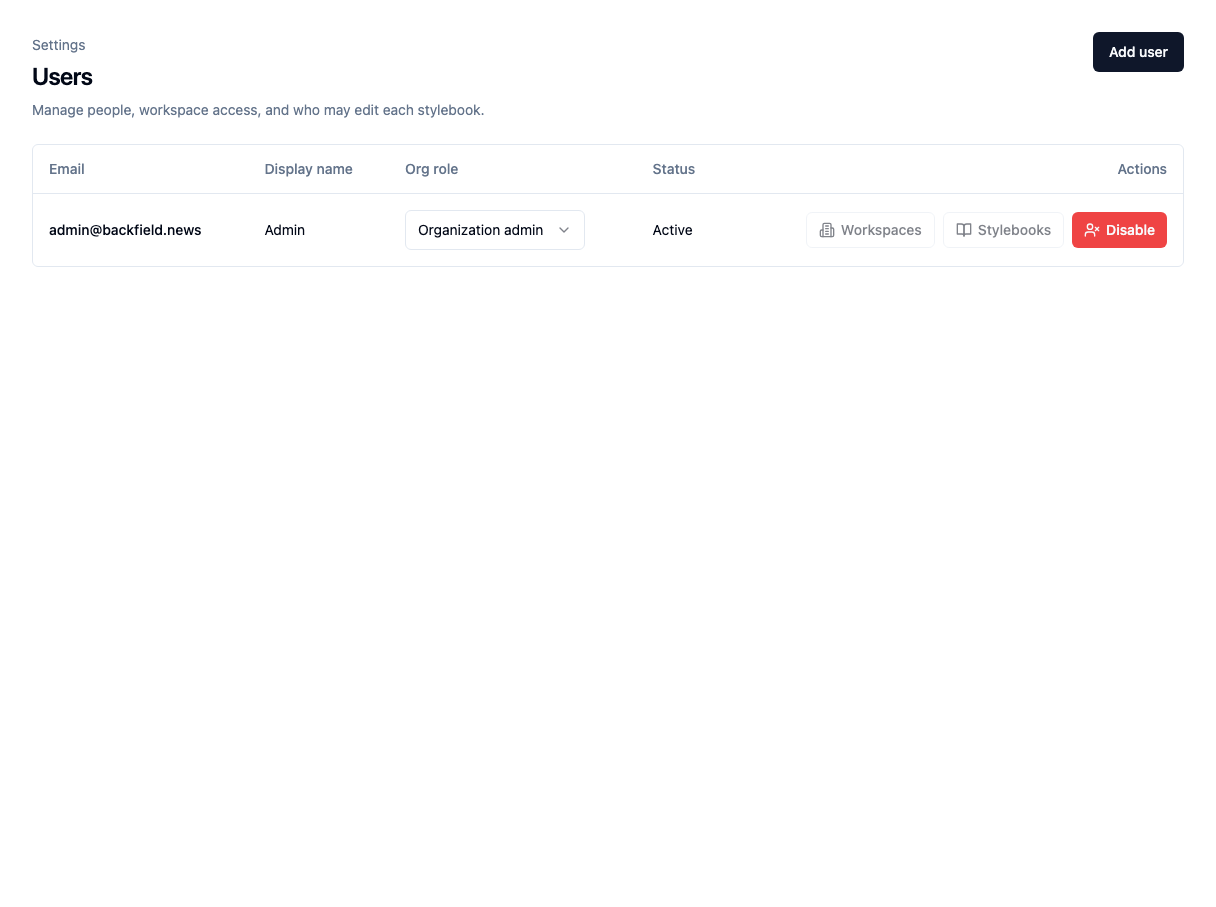
In Agate, choose Settings, then Users.
The Tutorial Organization currently has one organization administrator.
2. Add a user
- Choose Add user.
- Enter the person's email address.
- Enter a temporary password.
- Add a display name if useful.
- Choose Member for most people.
- Choose Create.
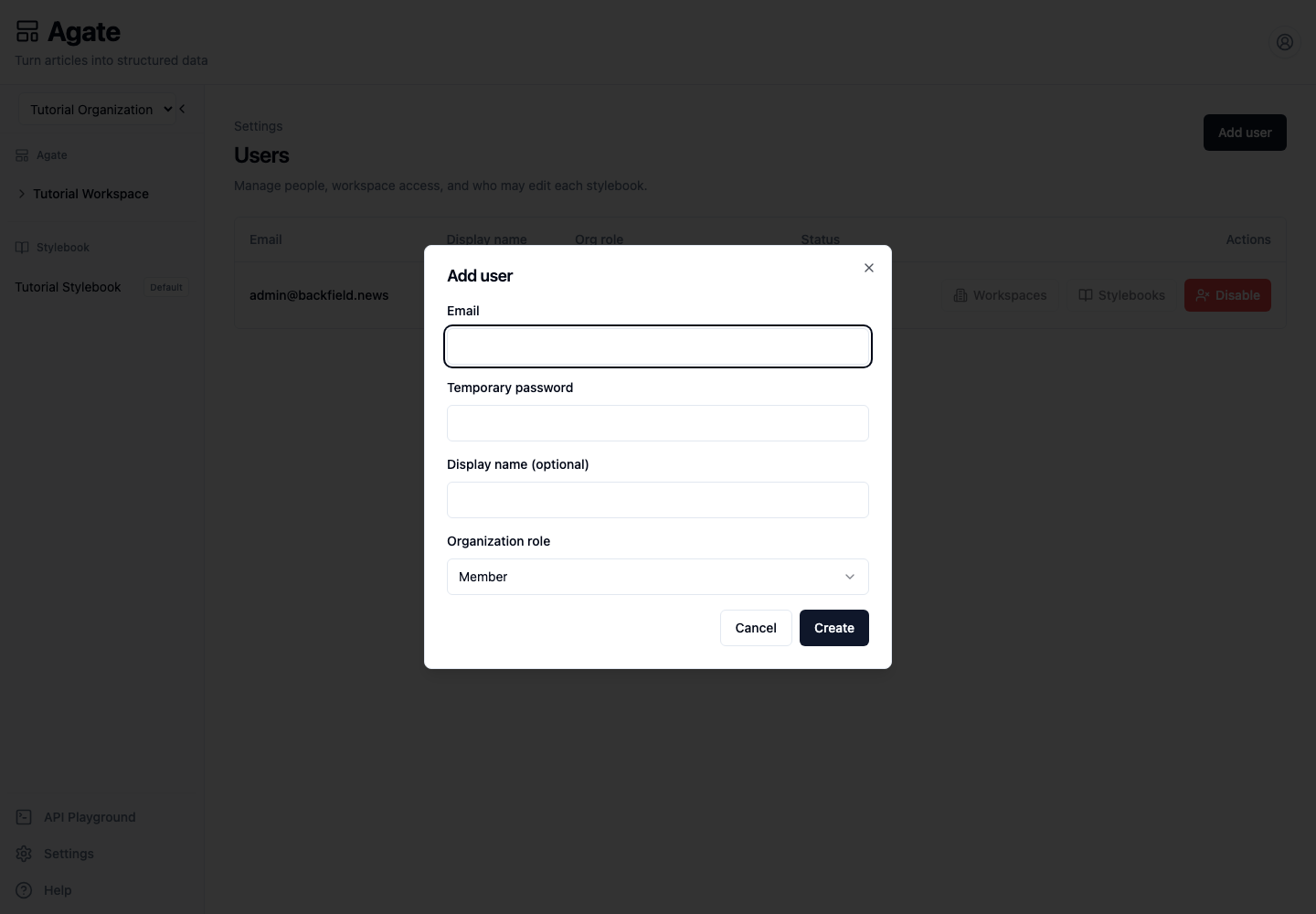
Use Organization admin only when the person needs to manage users, credentials, models, integrations, and Stylebooks.
Share the password securely
The person can sign in with the password you create. Ask them to change it promptly, and do not send the password in the same message as their email address.
3. Assign access
Use the actions on the new member's row:
- Workspaces controls which workspaces and projects they can open.
- Stylebooks controls which Stylebooks they may edit.
Select the complete access list in each dialog, then choose Save. Removing a selection removes that access.
Organization administrators already have access to every workspace and Stylebook, so these two buttons are unavailable on administrator rows.
4. Check their account
Ask the person to sign in and confirm that:
- they can see the assigned workspaces and projects;
- they cannot see unassigned workspaces;
- they can edit only the assigned Stylebooks;
- organization Settings are unavailable to a member.
Workspace access and Stylebook editing are separate. A person can review project runs without being allowed to change shared canonical records.
Change a role, edit a profile, or disable an account
Use the menu in the Org role column to switch between Member and Organization admin.
Choose Edit user to change a member's display name or role.
Choose Disable when a person should no longer be able to sign in. Their historical work remains in Backfield. Organization administrators can choose Re-enable on a disabled account to restore sign-in access. The email address stays reserved; creating a new account with the same address is not allowed.
Warning
Check the email address carefully before disabling an account.