Manage canonical connections
Connect two canonical locations, confirm the relationship's direction, and practice editing and reviewing it.
You'll learn
- How to choose the source and target records.
- Why connection direction changes the meaning.
- How Nature and Description complement each other.
- How to use the list and graph views.
- How to edit or remove a connection.
Before you begin
You need editing access to Tutorial Stylebook and the records used in the Create and edit canonical records tutorial:
- Harborview Neighborhood Center, a fictional place;
- Duluth, MN, the canonical city.
The relationship will read:
Harborview Neighborhood Center is located in Duluth, Minnesota.
1. Choose the direction
Open Harborview Neighborhood Center in Tutorial Stylebook → Locations → Canonical locations.
A connection starts at the canonical you have open and points to the canonical you select. In this tutorial, the direction is:
Harborview Neighborhood Center → Duluth, MN
Direction carries meaning. Reversing these records would claim that Duluth is located in the fictional neighborhood center.
2. Select the target
Expand Advanced options and select Add connection.
Under Connect to, select Location, then Select location. Search for
Duluth.
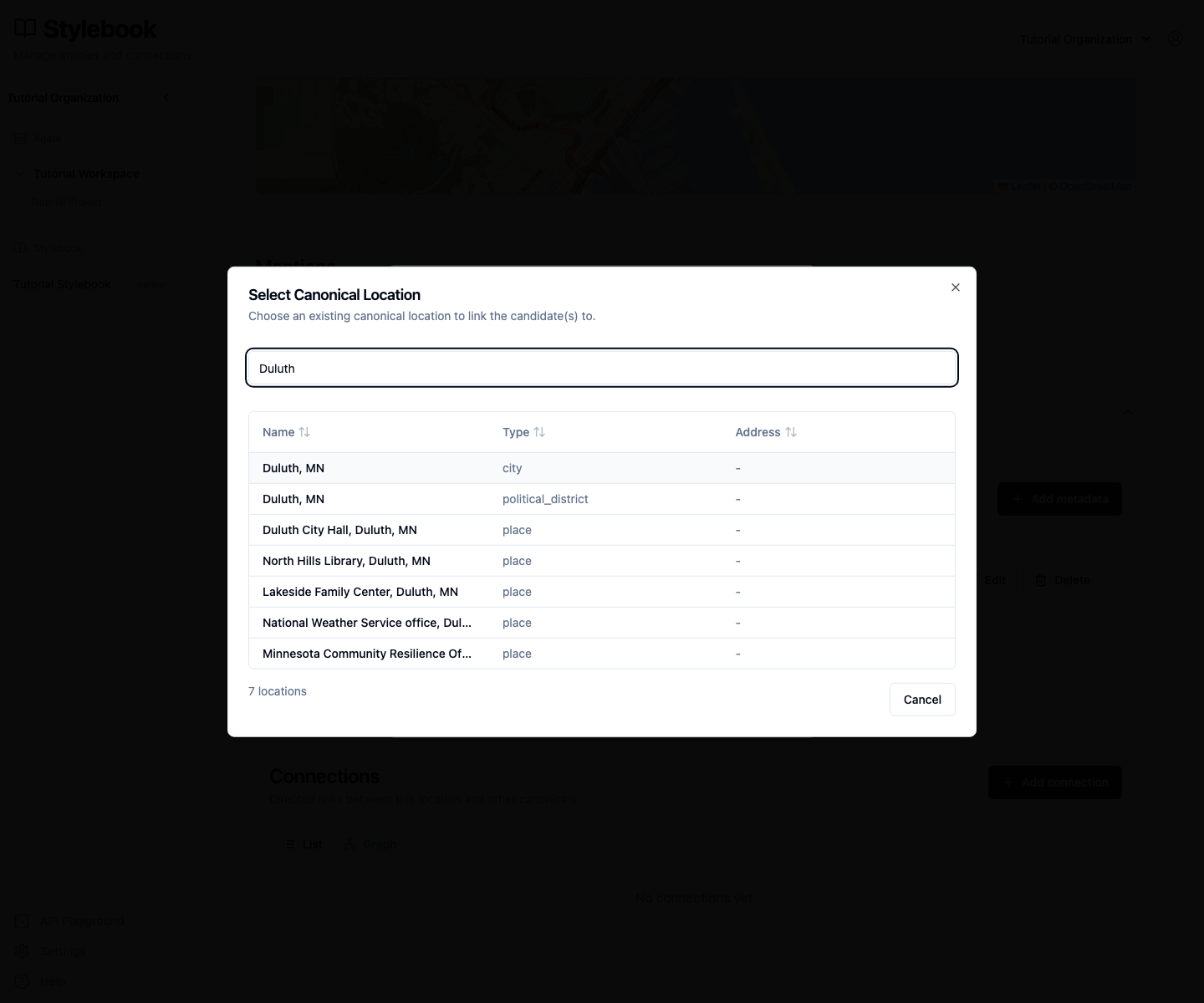
Several records may contain the same place name. Select Duluth, MN whose
type is city, not the political district or a building in Duluth.
3. Describe the relationship
Enter:
- Description:
Harborview Neighborhood Center is located in Duluth, Minnesota. - Nature:
located in
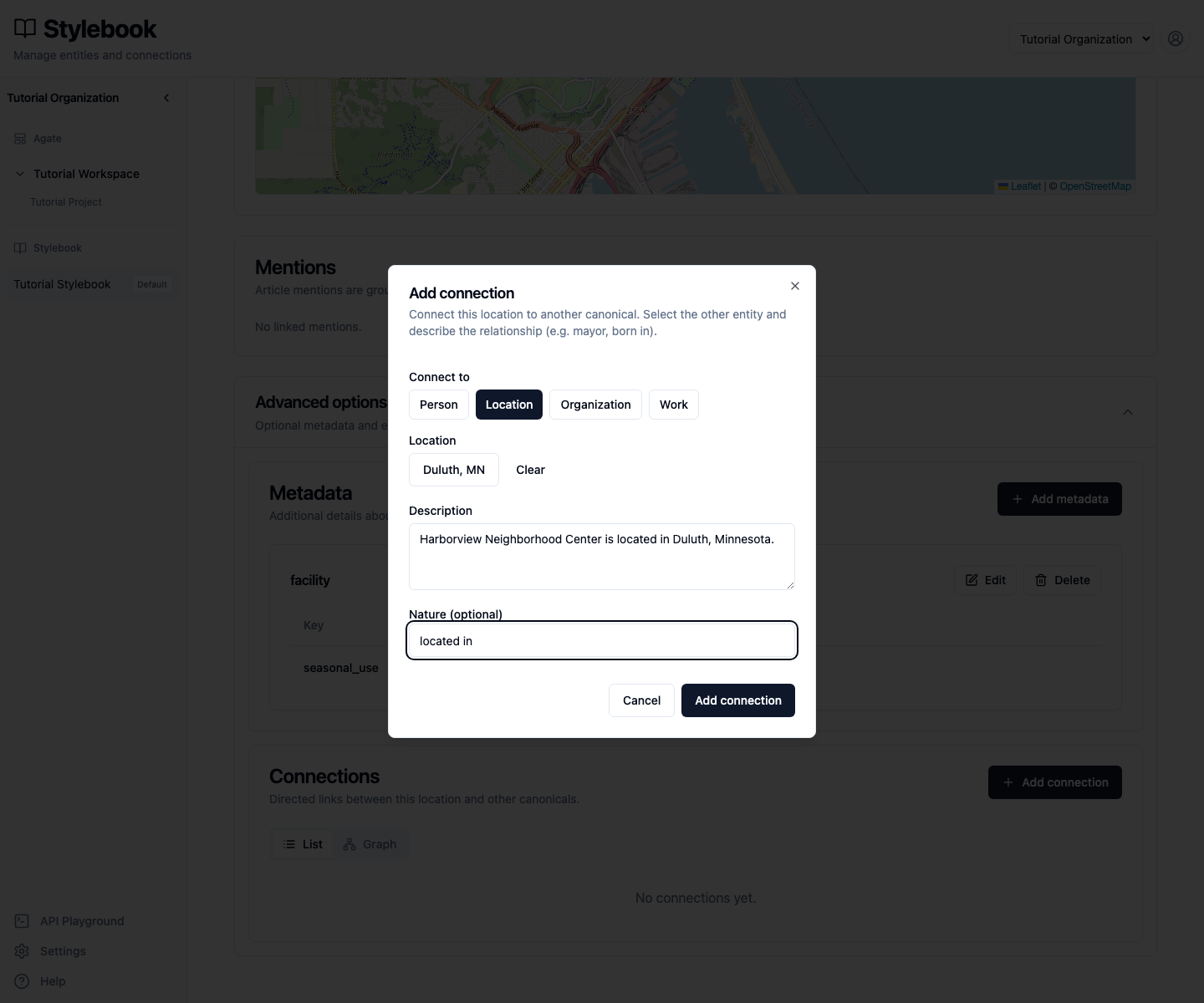
Select Add connection.
Nature is a short, reusable relationship type. Description provides the plain-language context an editor needs. Use consistent Nature values and keep the description specific enough to remain accurate.
4. Verify the connection
The List view shows the source, arrow, target, description, and Nature.
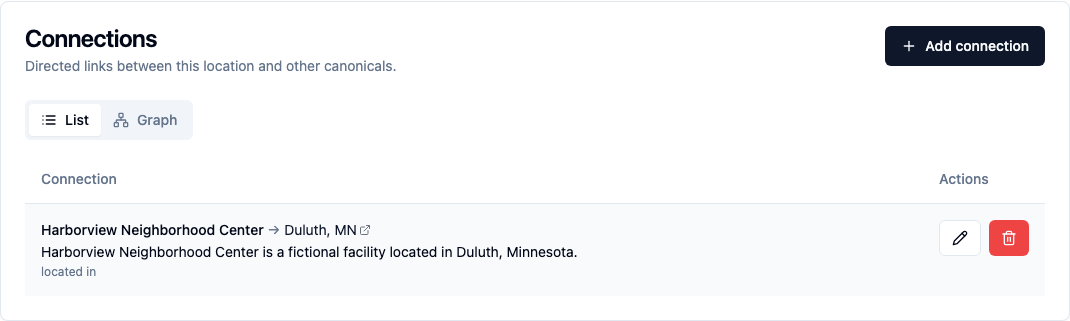
Check all five parts:
- source: Harborview Neighborhood Center;
- direction:
→; - target: Duluth, MN;
- description: the relationship in plain language;
- Nature:
located in.
Select Graph to see the same records and relationship visually.
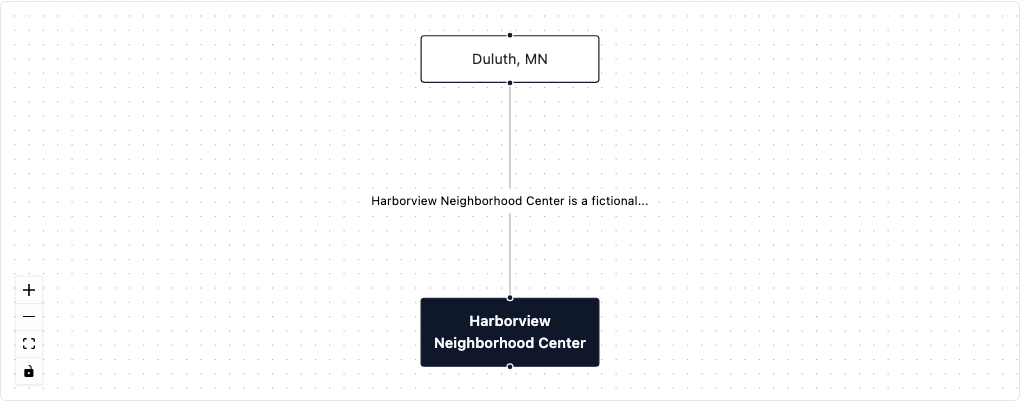
The graph is another view of the maintained connection. It does not create a second relationship or change the source of the information. For records with many connections, the graph shows a capped neighborhood; use the List view for the full set and to confirm the exact direction and wording.
5. Edit the description
Return to List and select the pencil button. Change the description to:
Harborview Neighborhood Center is a fictional facility located in Duluth, Minnesota.
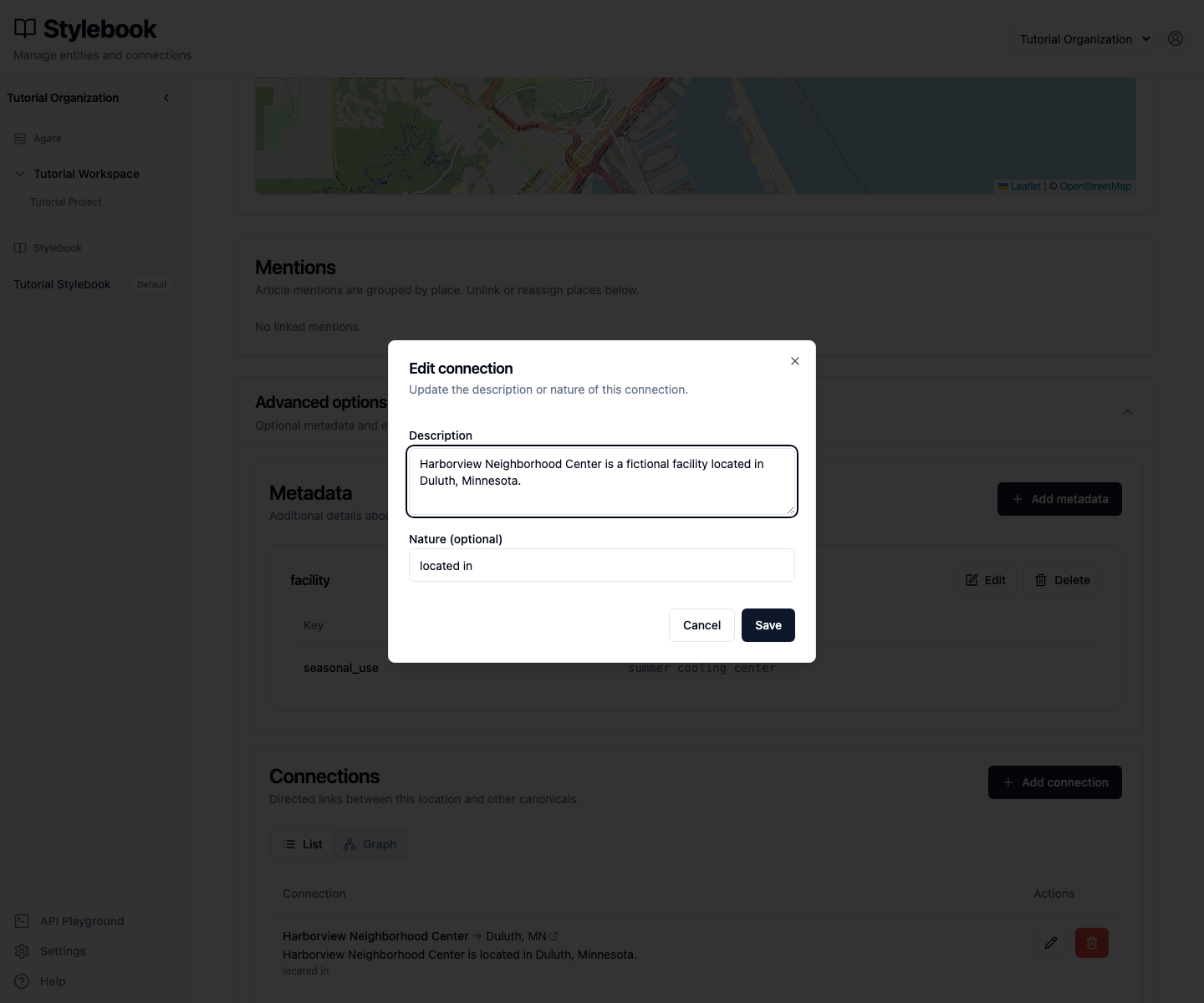
Select Save. Editing changes the description or Nature; it does not change the source or target. If the direction or target is wrong, remove the connection and create the correct one.
6. Review the deletion warning
Select the trash button beside the connection.
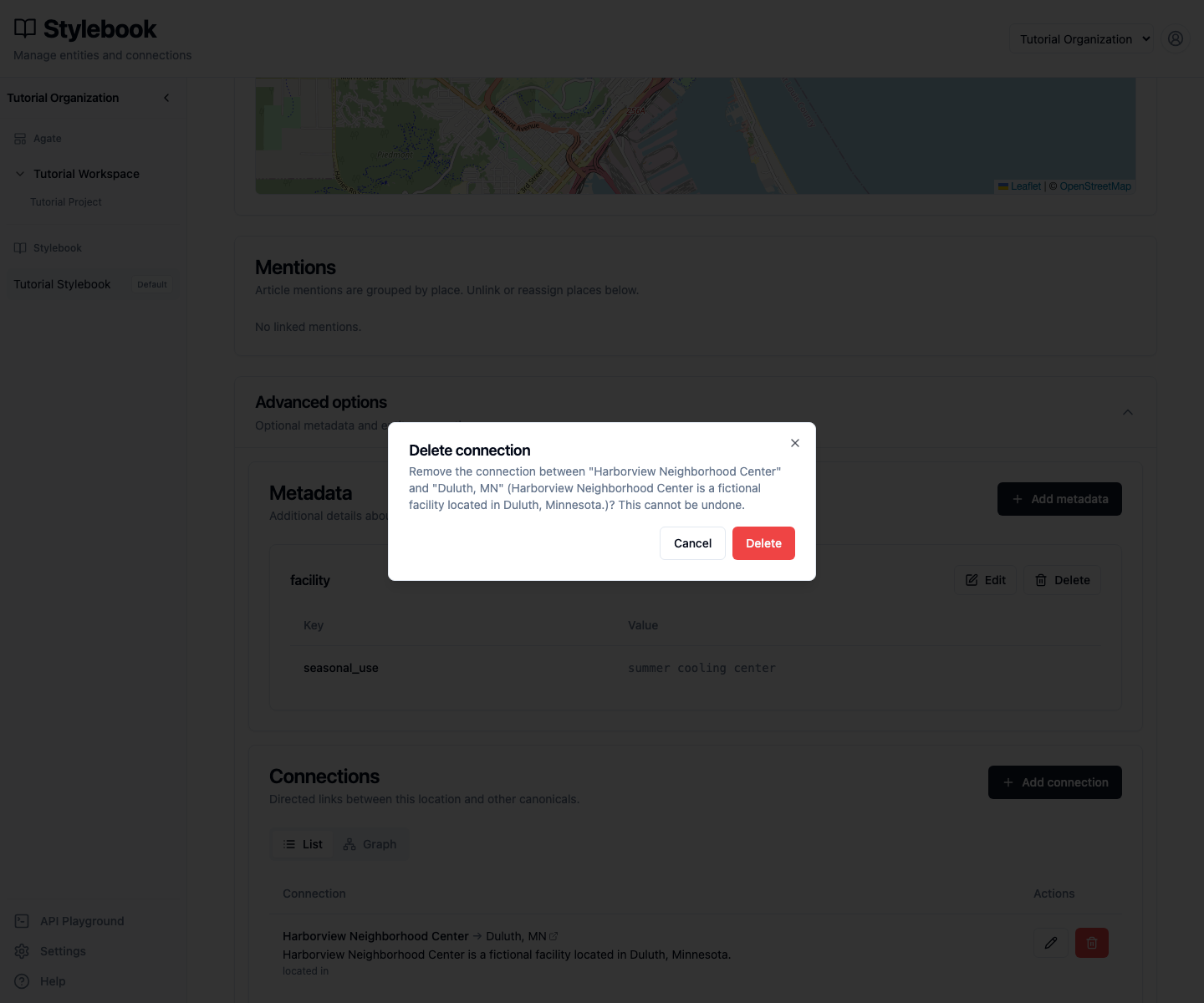
Confirm that the warning names both records and the current description. Deleting a connection cannot be undone, but it does not delete either canonical record. Select Cancel so the tutorial connection remains available.
Manual and inferred connections
This tutorial creates a manual connection: an editor chooses both records and writes the relationship.
Backfield can also create an inferred connection from reporting. Inferred connections can display status such as automatic, current or former, a supporting passage, and a reason. Treat that evidence as material for editorial review, not as proof that the relationship is current or correctly directed. Editors can close an inferred connection when it is no longer accurate and reopen it later if new reporting supports the link.
Connections belong to the shared Stylebook. Article evidence remains tied to its project and article, but changing a connection changes the maintained relationship wherever the Stylebook is used.
Check your work
The saved connection should show:
- Harborview Neighborhood Center → Duluth, MN;
- Nature
located in; - the edited description that identifies Harborview as a fictional facility.