Review candidate queues
Resolve article entities that Backfield could not safely link to an existing canonical record.
You'll learn
- How to narrow a queue to one project.
- How to inspect review reasons and article context.
- When to link, create, or defer a candidate.
- How to record an editor note.
- Why an AI recommendation is not an automatic decision.
Before you begin
You need editing access to Tutorial Stylebook. This walkthrough uses:
- the location candidate Harborview Community Center, Lincoln Park, Duluth, MN, produced by the tutorial story;
- the canonical Harborview Neighborhood Center, created in Create and edit canonical records.
Candidate queues are separated into people, organizations, and locations. This tutorial uses the location queue, but the editorial decision is the same for each type.
1. Open the review queue
Open Tutorial Stylebook → Locations → Candidates.
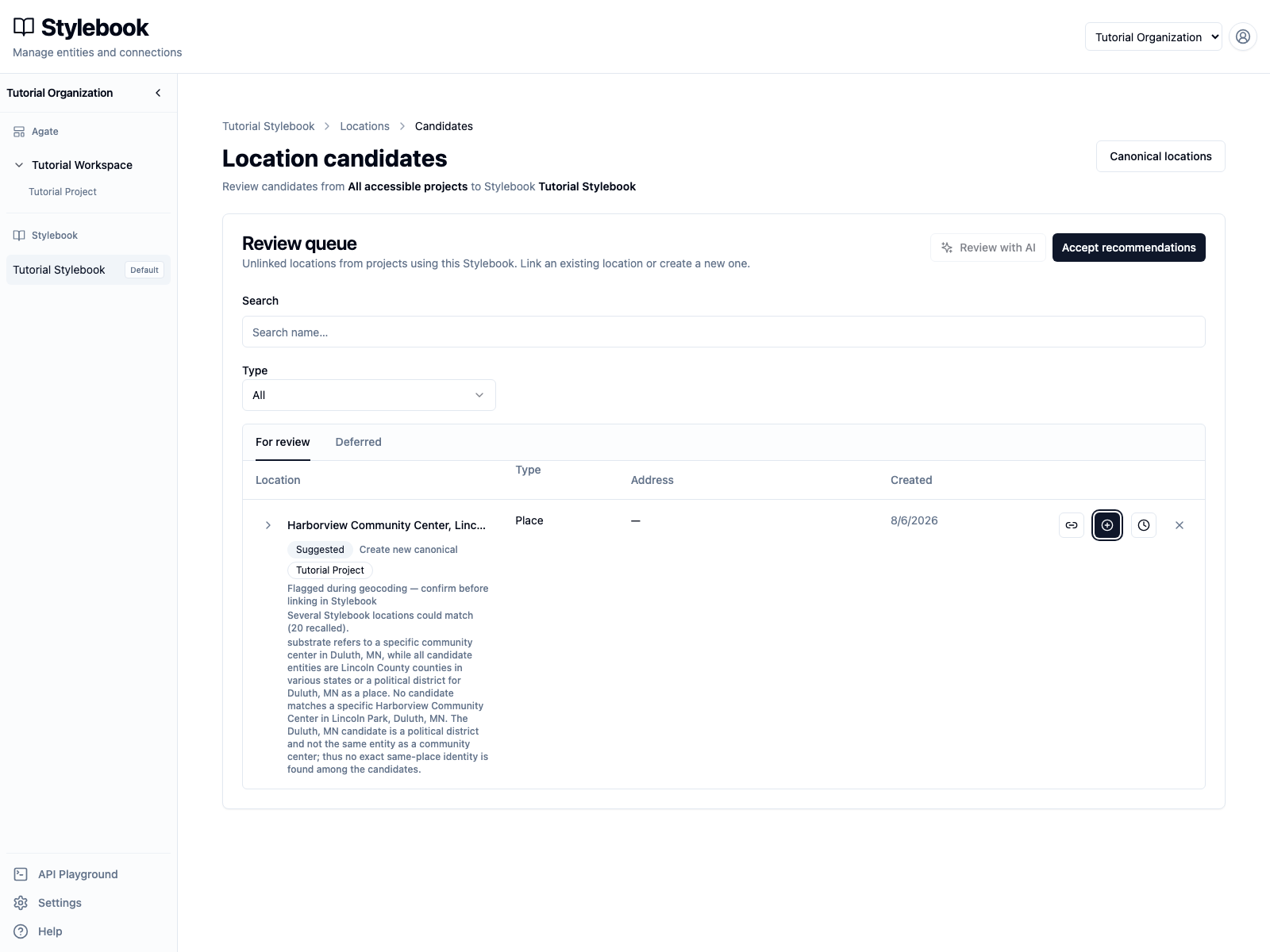
The queue initially covers all accessible projects that use this Stylebook. Choose Tutorial Project from the project filter to narrow the list. When only one project has open candidates, Review with AI is already scoped to that project; choose a project explicitly when several projects contribute.
The Harborview row shows:
- the extracted name and type;
- the project that produced it;
- why the item needs review;
- an AI suggestion to Create new canonical;
- actions to link, create, defer, or clear the recommendation.
The highlighted action is a recommendation, not a completed decision.
2. Read the evidence
Select the arrow beside Harborview to expand the row.
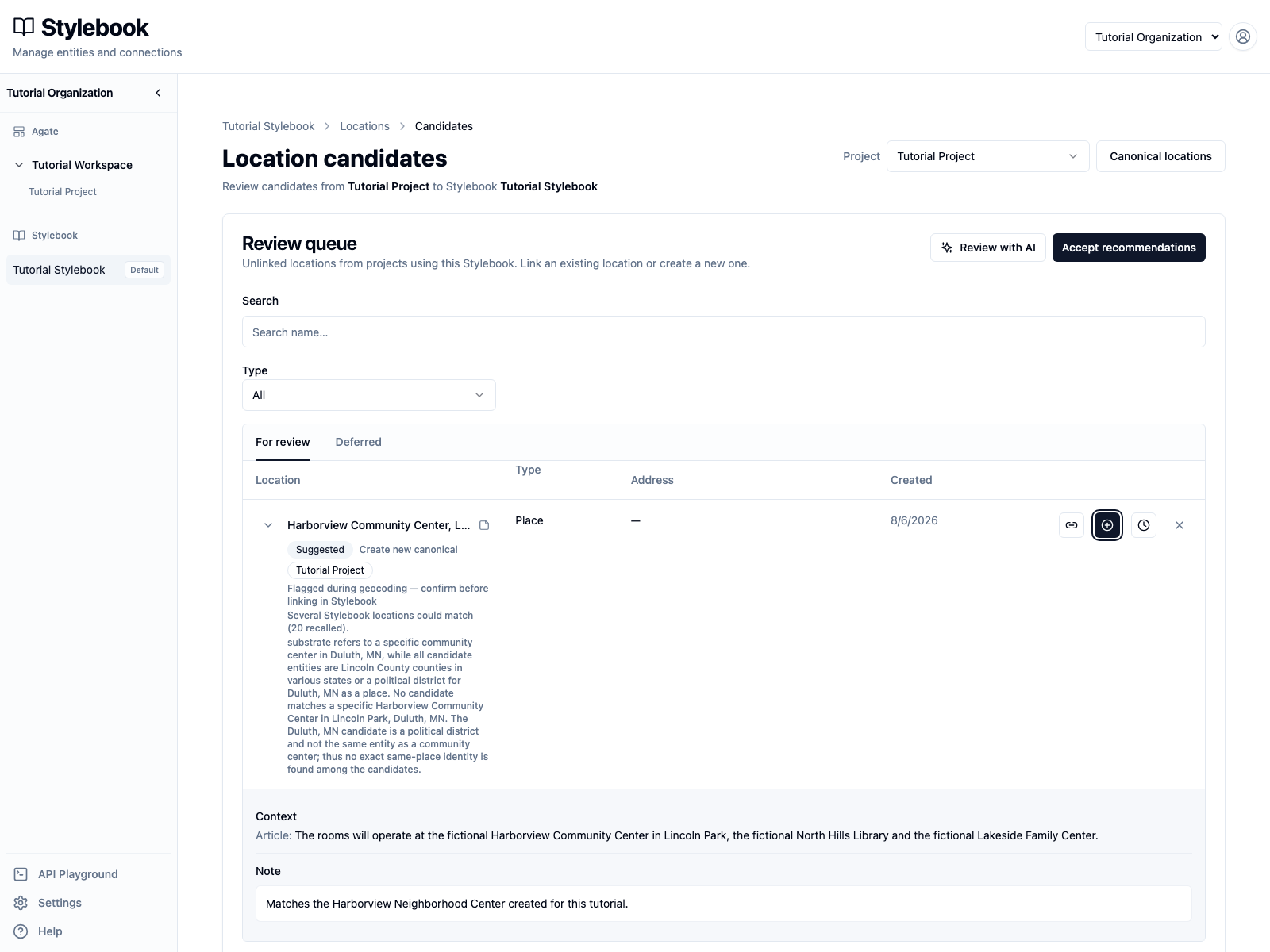
Read the article passage and compare it with:
- the extracted name, type, and address;
- the review reasons;
- the recommendation and its explanation;
- the records currently in Stylebook.
The recommendation says to create a canonical because no matching community center was found during its review. Since then, an editor manually created Harborview Neighborhood Center. The newer Stylebook record changes the decision.
Select Click to add a note and enter:
Matches the Harborview Neighborhood Center created for this tutorial.
Click outside the field or press Command/Control+Enter to save. Notes preserve useful review context for other editors; they do not resolve the candidate.
3. Understand AI review
Select Review with AI and choose GPT-5.6 Luna.
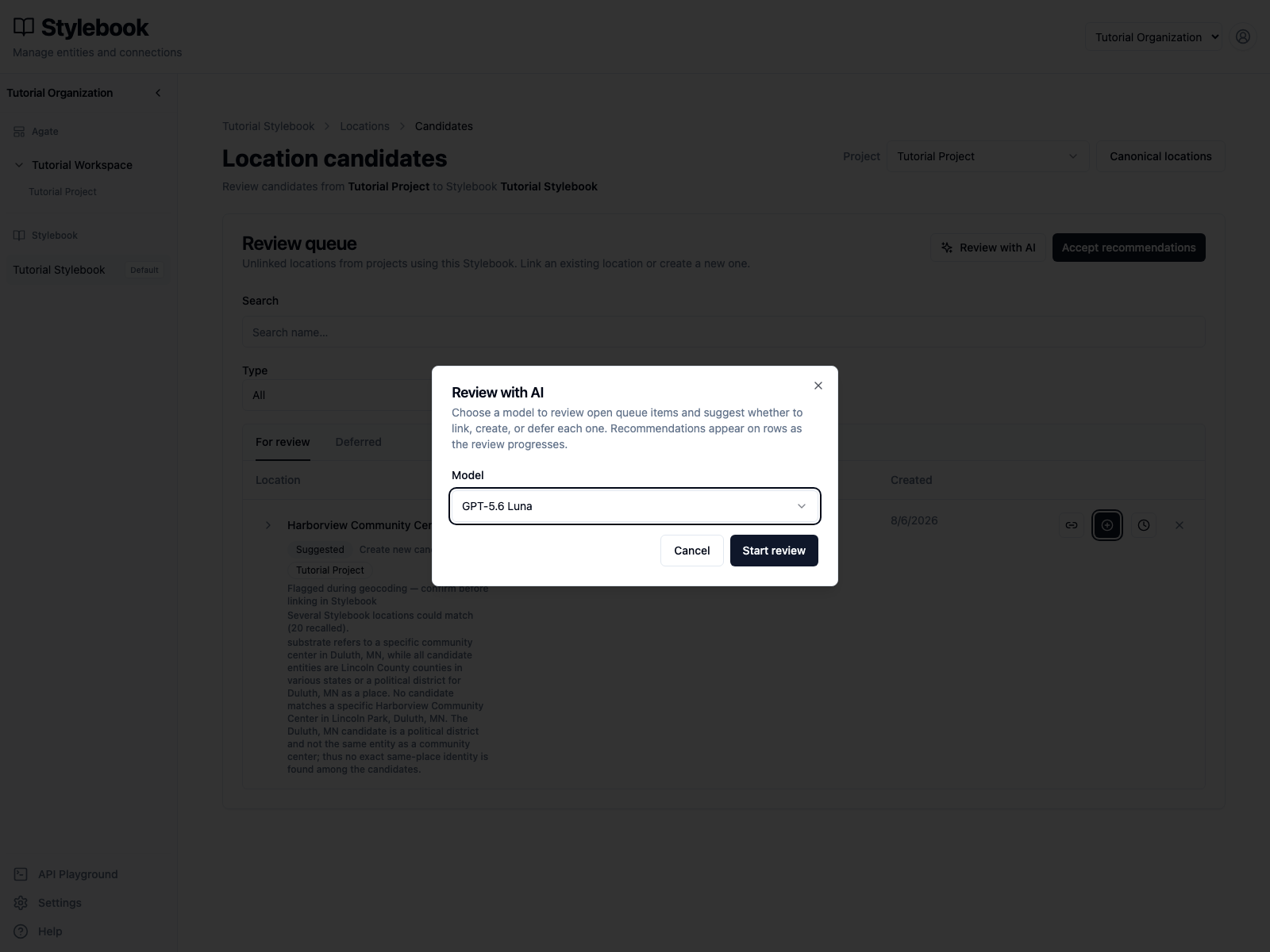
Starting a review asks the model to recommend link, create, or defer for each open candidate in the selected project. Recommendations appear on rows as review progresses.
This row already has a recommendation, so select Cancel for this walkthrough. Even a well-reasoned suggestion can become stale when an editor adds or changes a canonical. Review the evidence before accepting any recommendation.
4. Choose the correct action
The available decisions are:
- Link to existing canonical when the article entity and a Stylebook record represent the same real-world identity.
- Create new canonical when no existing record represents the entity.
- Defer when the evidence is insufficient or the decision needs another editor. The candidate moves to Deferred without losing its article evidence.
For Harborview, select Link to existing canonical. Search for
Harborview.
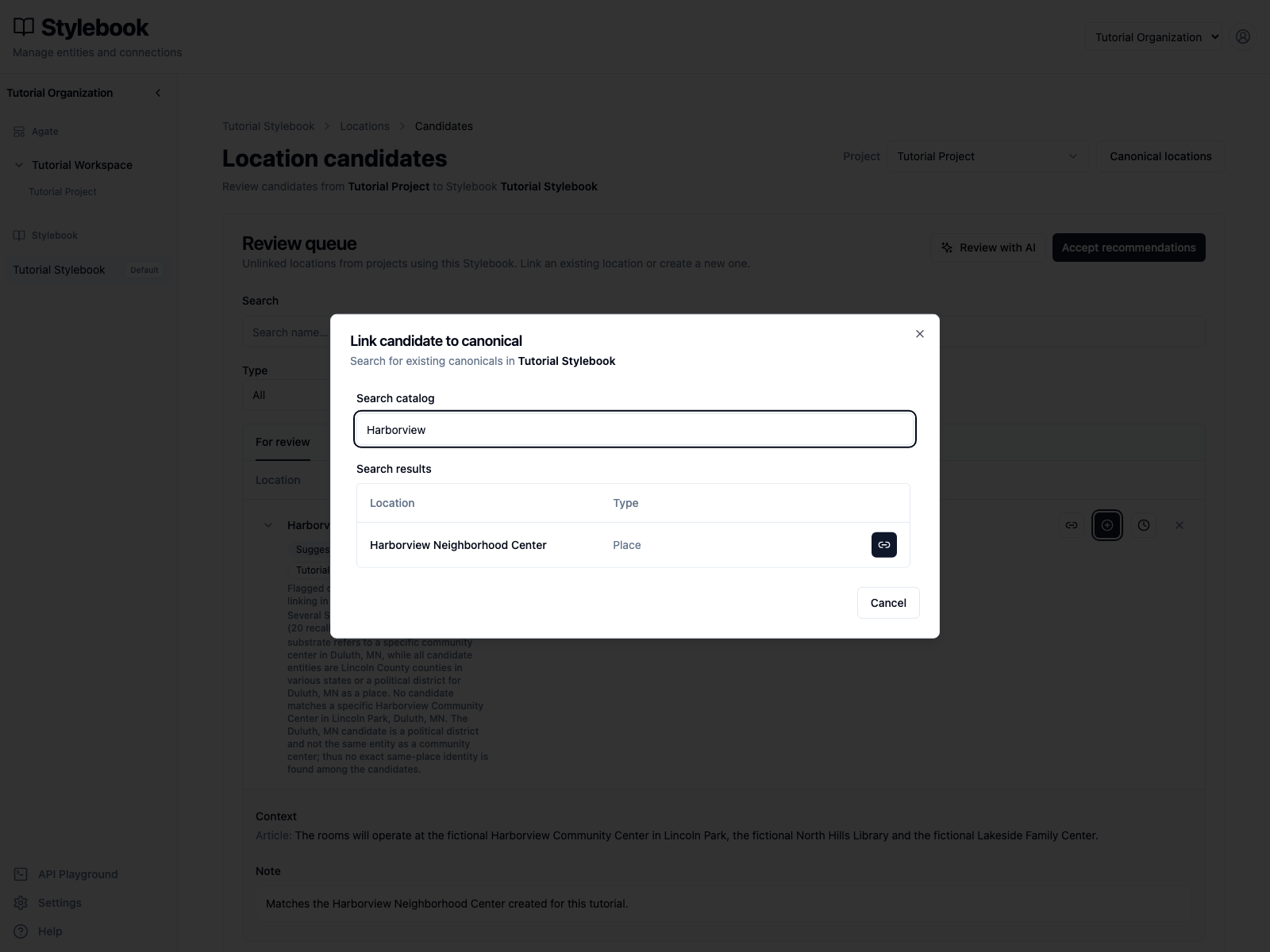
Confirm that the result is Harborview Neighborhood Center with type Place, then select the link button on that row.
Do not link only because two names are similar. For people, compare title and affiliation. For organizations, check acronyms and organization type. For locations, check type, address, jurisdiction, and geography.
5. Confirm the result
The candidate leaves For review, and a confirmation names both the article place and its canonical.
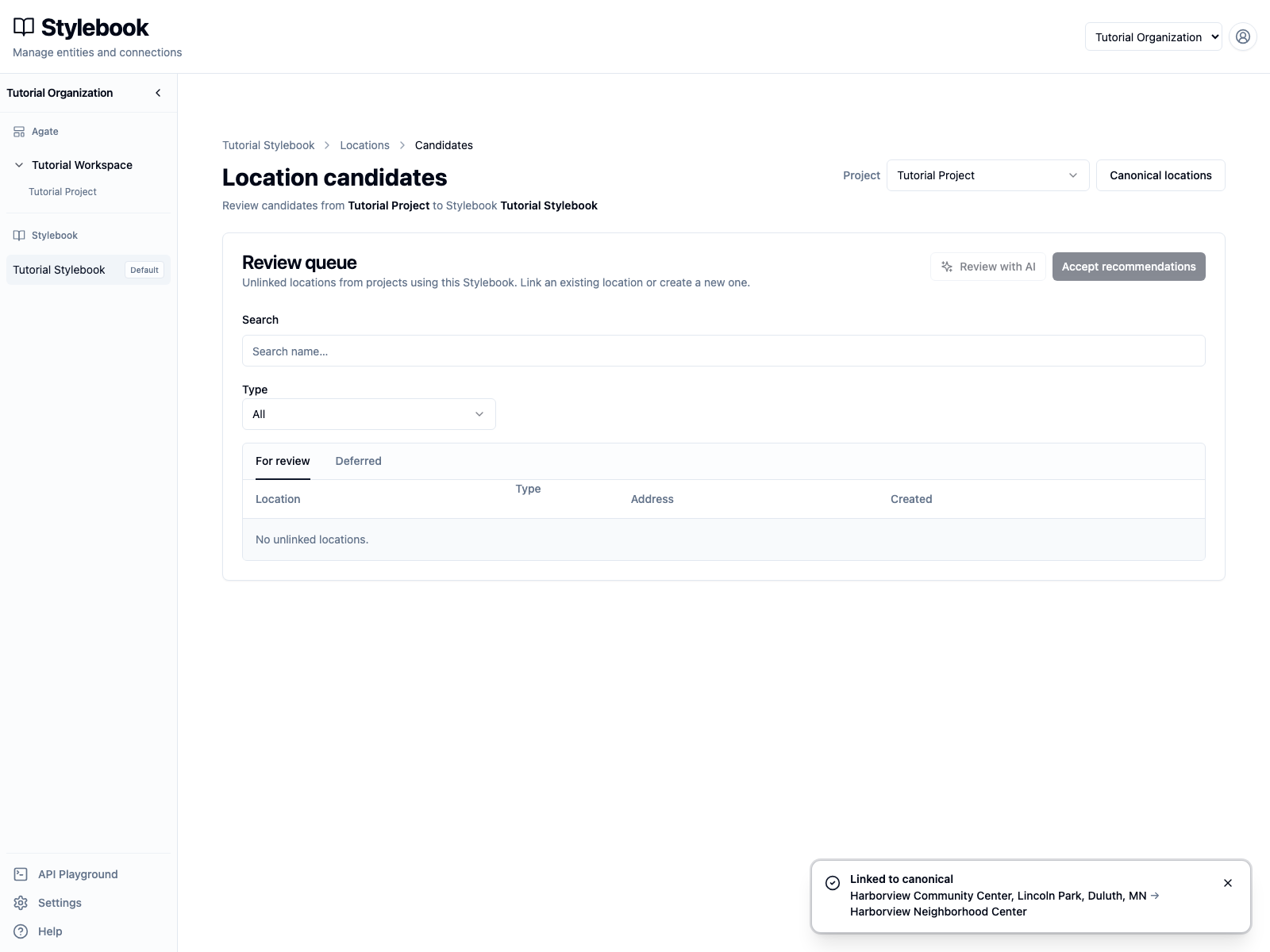
Open Harborview Neighborhood Center from the confirmation. Its Mentions area now shows the linked article place and its evidence.
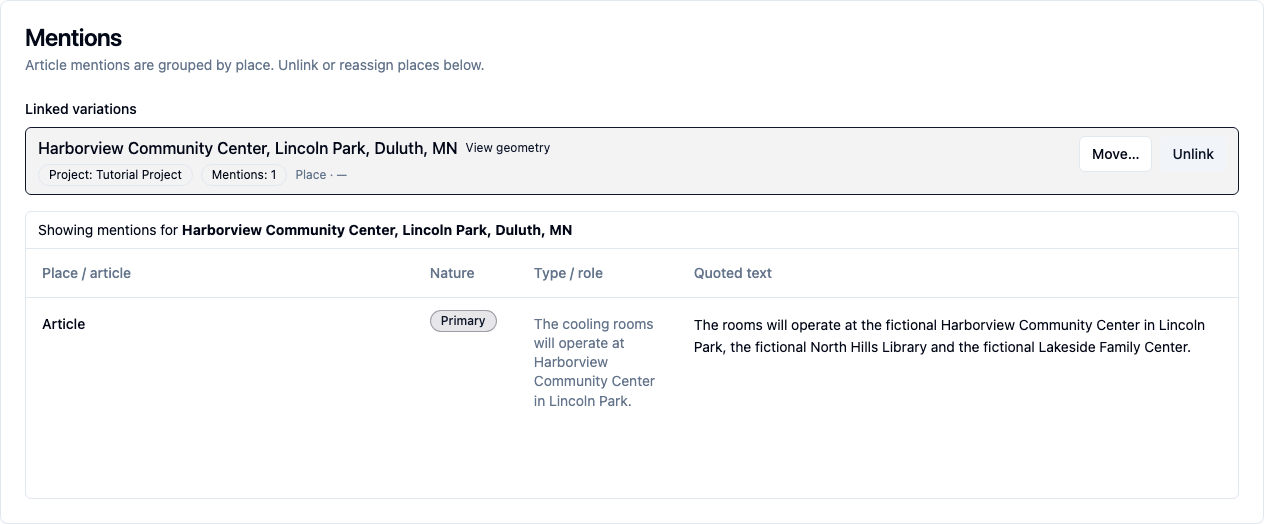
The article mention remains tied to Tutorial Project and the source article. Linking attaches that evidence to the canonical; it does not replace the canonical's maintained label, address, geography, metadata, or connections.
Review recommendations safely
Accept recommendations applies recommendations across the full filtered queue, not only the rows visible on the current page. Before using it:
- select the intended project;
- inspect the recommendation types and review reasons;
- search Stylebook for records added after the AI review;
- resolve unusual or ambiguous items individually;
- confirm that the remaining recommendations are safe to apply together.
Use Deferred as a working queue, not as a place to discard difficult records. Deferred candidates can still be linked or used to create a canonical when better evidence becomes available.
Check your work
- Tutorial Project has no open location candidates.
- Harborview Neighborhood Center has one linked variation from the tutorial story.
- The linked variation retains its article passage and project.
- The canonical's maintained fields remain unchanged.