Build your first flow
Build a reusable flow that finds people and places in an article, geocodes the places, and saves the results to Backfield.
Before you begin
You need:
- access to Tutorial Project;
- GPT-5.6 Luna enabled and configured for that project;
- working geocoding integrations;
- an article containing at least one named person and Minnesota place.
1. Start a flow
Open Tutorial Project. On the Flows tab, choose New flow.
Enter Tutorial Flow in the name field. A description is optional.
2. Choose the input
Choose Type or paste text.
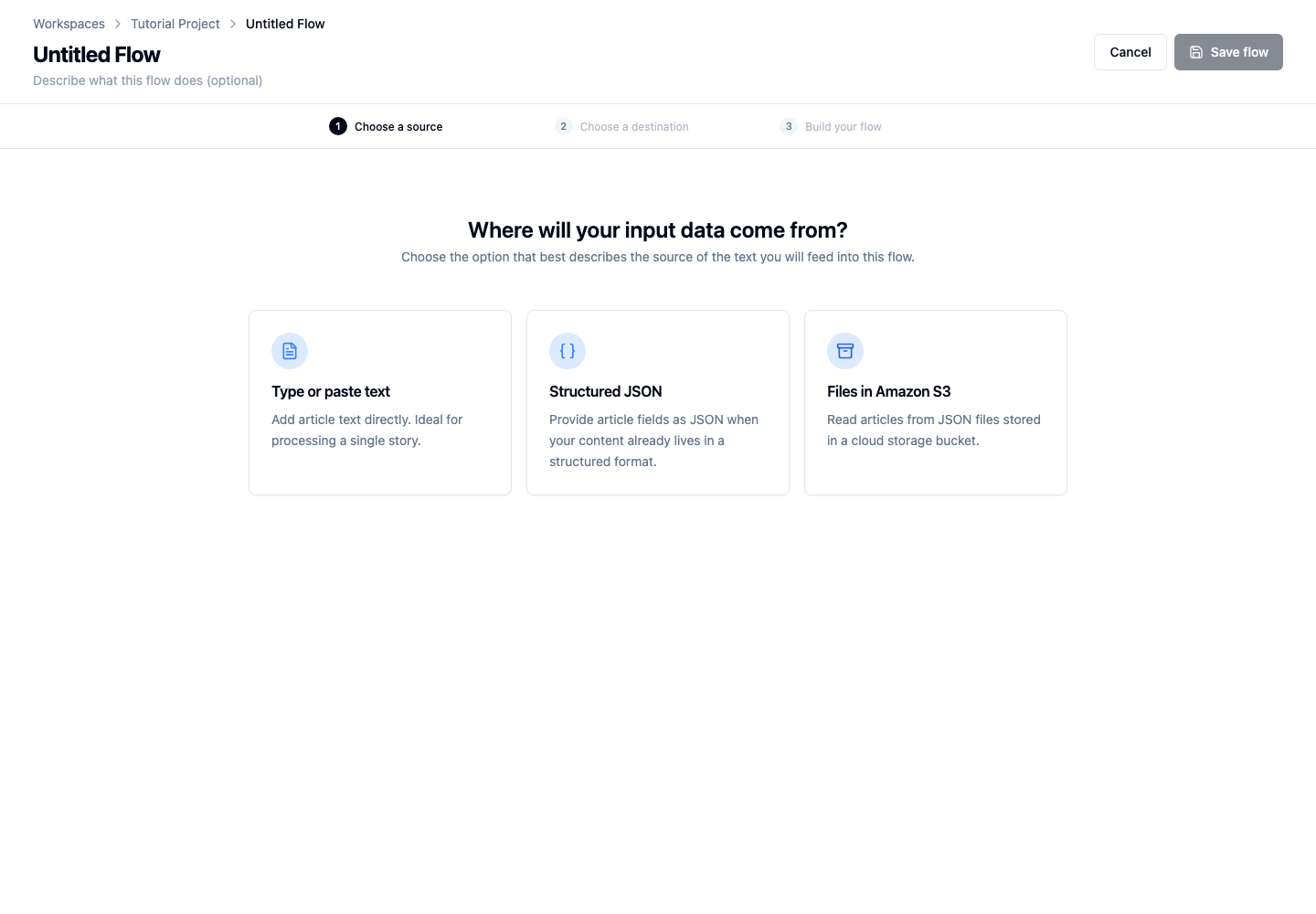
Paste the article into Input text. Leave Enable API runs off for now, then choose Continue.
Text Input stores this article with the flow, making it convenient for a first manual run. Later tutorials cover structured, S3, and API-triggered input.
3. Choose the output
Choose Backfield Output.
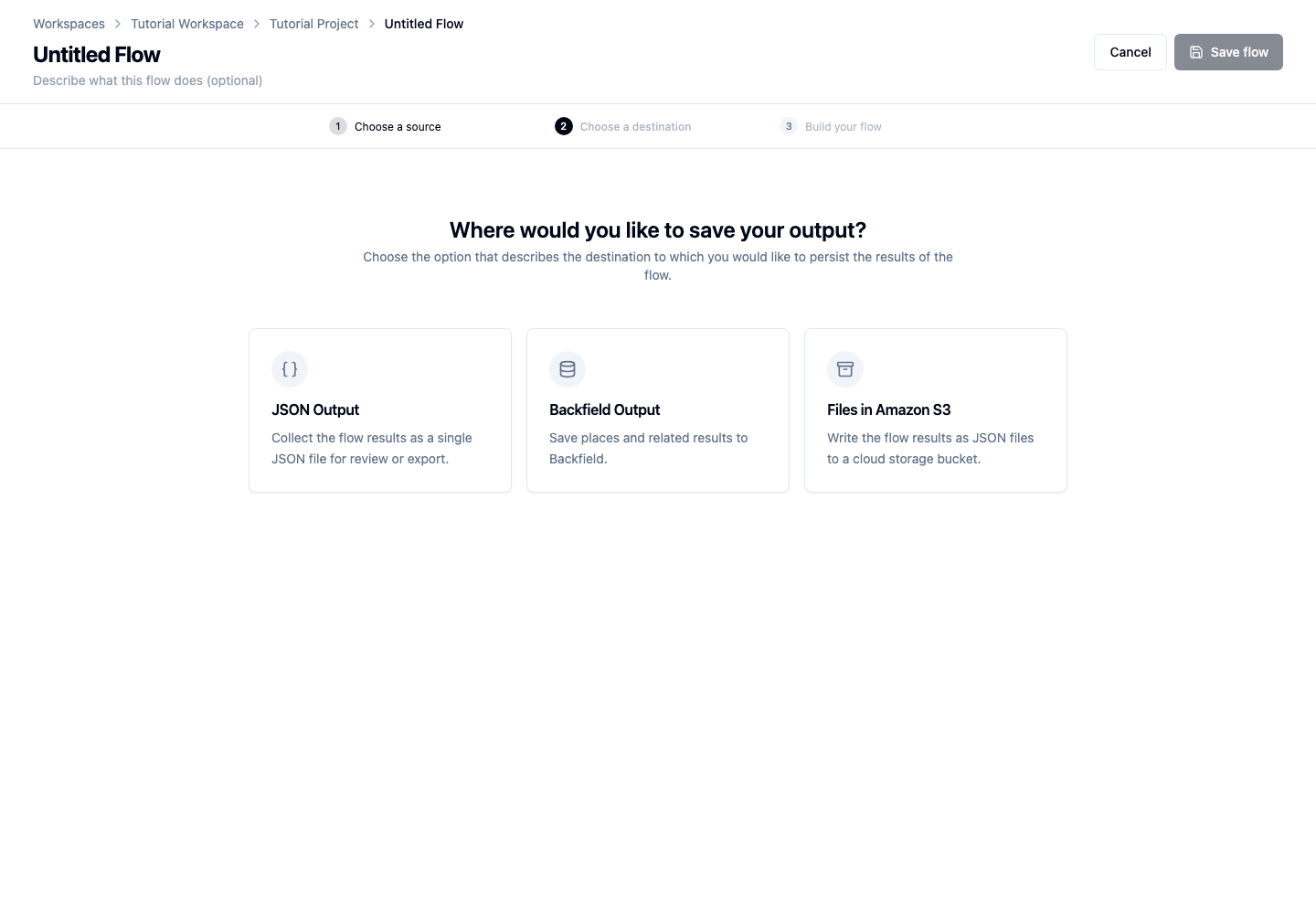
Use these settings:
- Update strategy: Smart Merge
- Stylebook matching: Yes
- Semantic indexing: No
Open the Stylebook tab and confirm that the flow uses Tutorial Stylebook, then choose Continue.
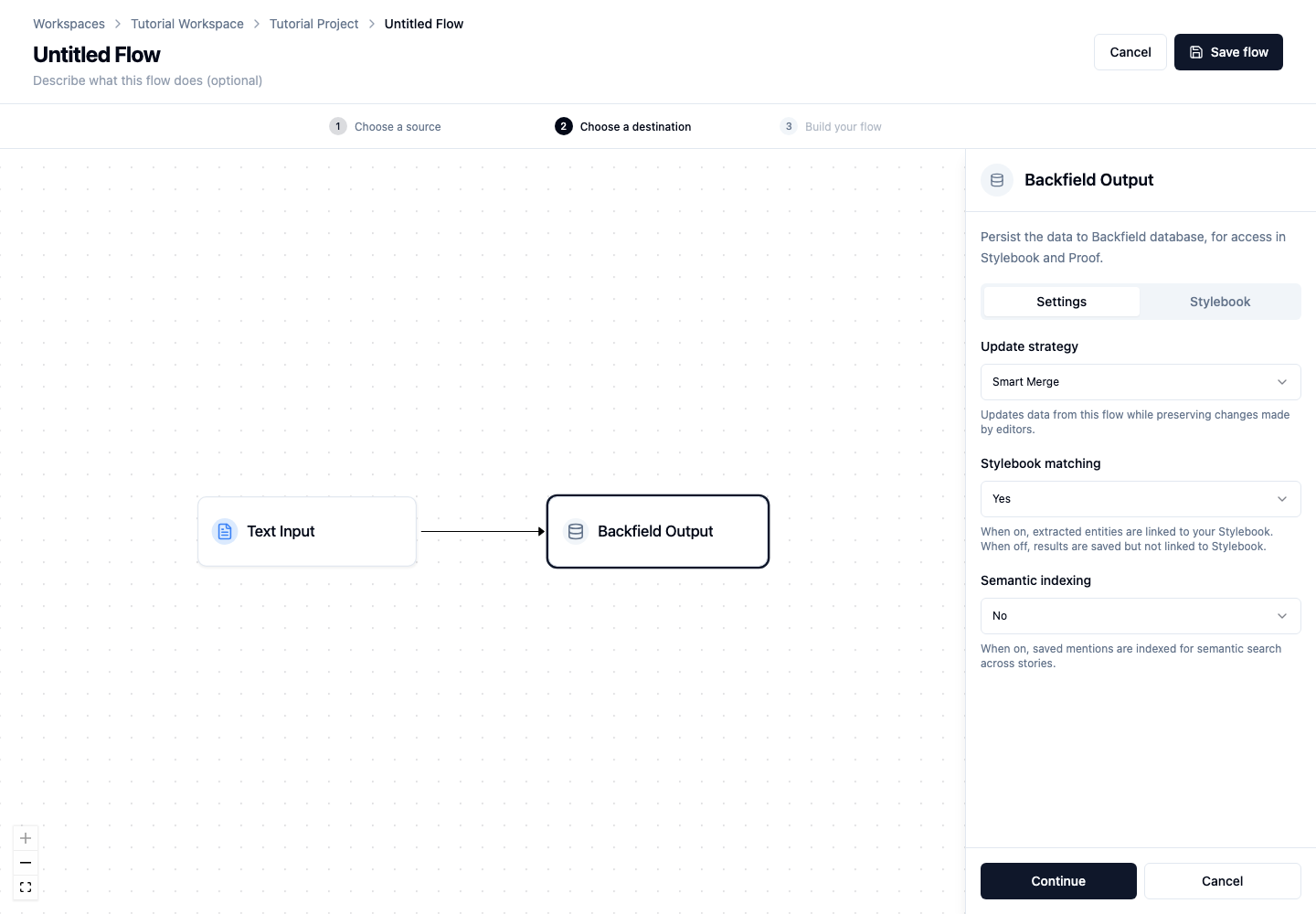
Smart Merge preserves changes editors make during review. Stylebook matching allows extracted people and places to connect to canonical records.
4. Add place extraction and geocoding
The builder begins with Text Input connected directly to Backfield Output.
- Choose the + on that connection.
- Under Extract, choose Place Extract.
- Open Place Extract and select GPT-5.6 Luna as its extraction model.
- Choose the + after Place Extract.
- Under Enrich, choose Geocode Agent.
Place Extract identifies location mentions and retains their supporting text. Geocode Agent resolves those mentions to geographic candidates. Keep these steps on the same path so geocoding receives the extracted places.
5. Add person extraction on another path
Choose Add another path on Text Input, then select Person Extract.
Open Person Extract and choose GPT-5.6 Luna. The default prompt is a good starting point for this tutorial.
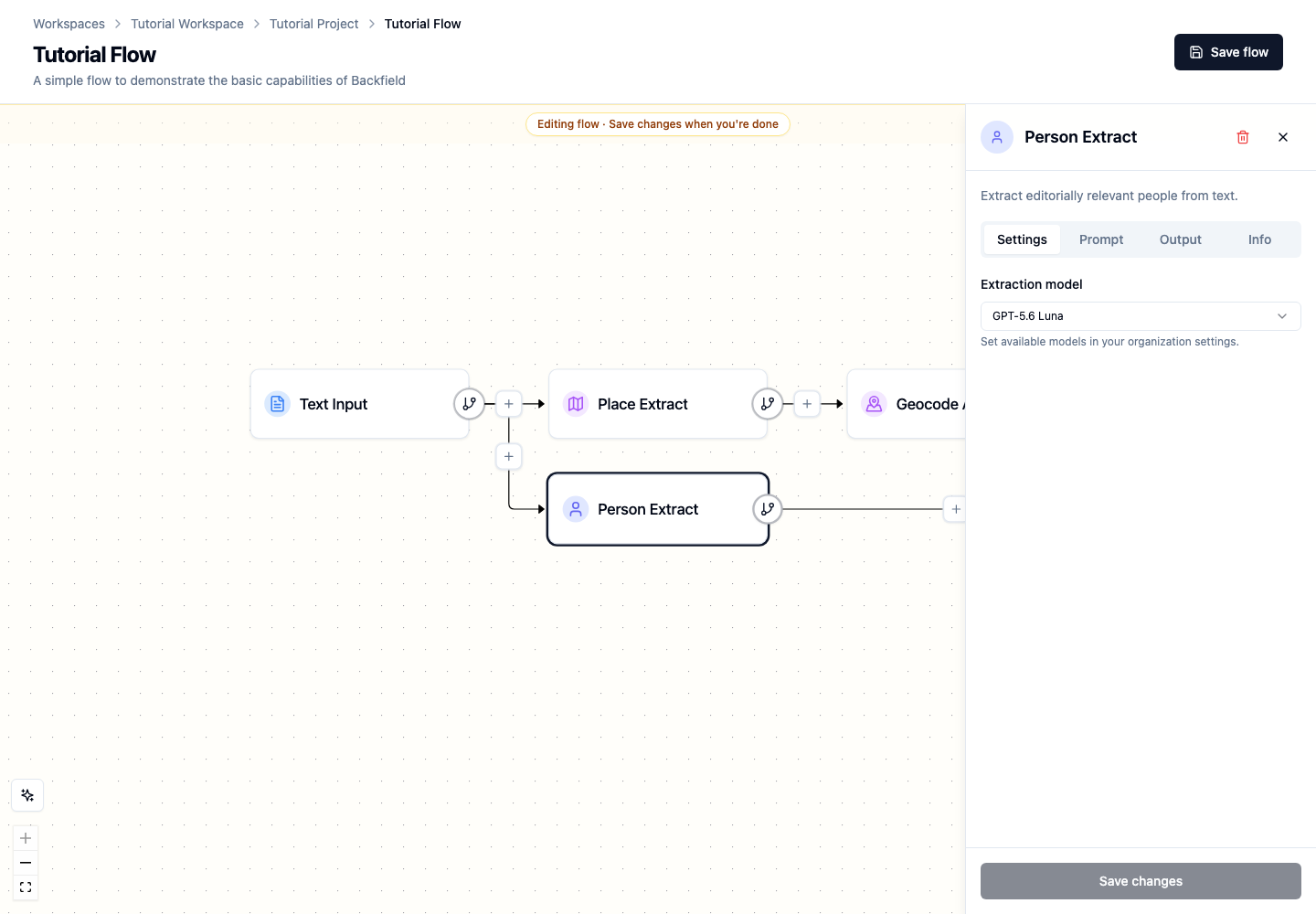
The builder connects the new path to Backfield Output. Person and place extraction can run independently because both read the original article.
6. Review the completed flow
Your flow should have two paths:
- Text Input → Place Extract → Geocode Agent → Backfield Output
- Text Input → Person Extract → Backfield Output
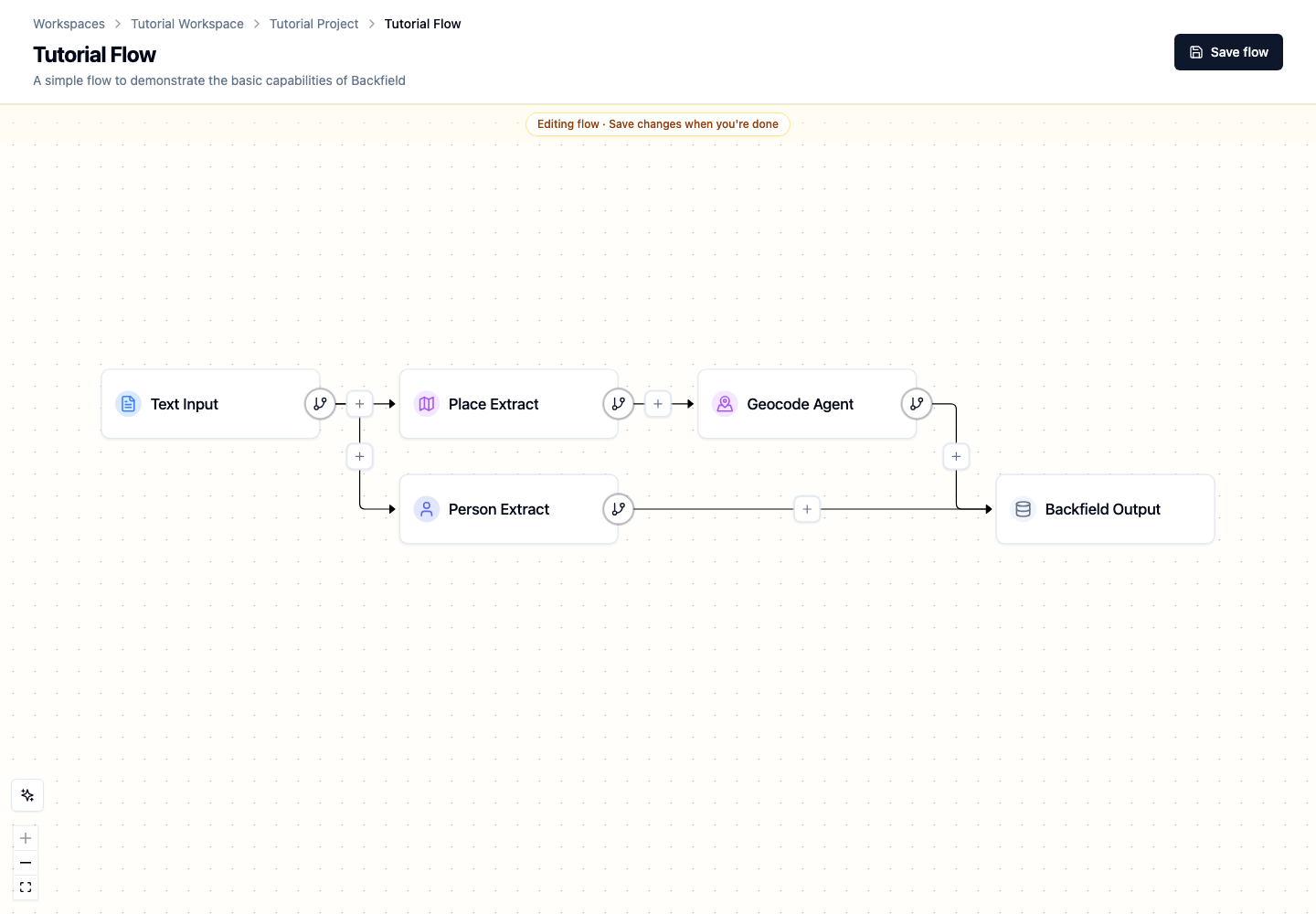
Select any node to open its panel:
- Settings contains choices such as the AI model.
- Prompt contains instructions sent to the model.
- Output describes the structured result.
- Info explains what the node does.
Start with the default prompts. The next tutorial shows how to make the people and place rules more explicit before running the prepared article. Prompt changes should have a clear editorial purpose and should be tested with several articles.
7. Save the flow
Choose Save flow.
If Agate reports a validation problem, open the named node and complete its required settings. A valid flow must have one input, one output, and complete connections between them.
The flow now appears on Tutorial Project's Flows tab.
Next step
Continue with Extract people and places for a closer look at extraction results, evidence, and Stylebook matching.