Run and monitor a flow
Start a flow, follow its progress, and confirm that every item completed successfully.
You'll learn
- How run-level and item-level statuses differ.
- Where to find progress, duration, and estimated model cost.
- When to stop, replay, or inspect a run.
Before you begin
Complete Build a custom extraction. You should have a saved Recipe Extraction Flow containing:
- Text Input with the North Shore wild rice soup recipe;
- Custom Extract configured with GPT-5.6 Luna;
- JSON Output.
1. Check the flow
Open Tutorial Project → Flows → Recipe Extraction Flow.
Confirm that the flow is saved and that Text Input, Custom Extract, and JSON Output form one complete path.
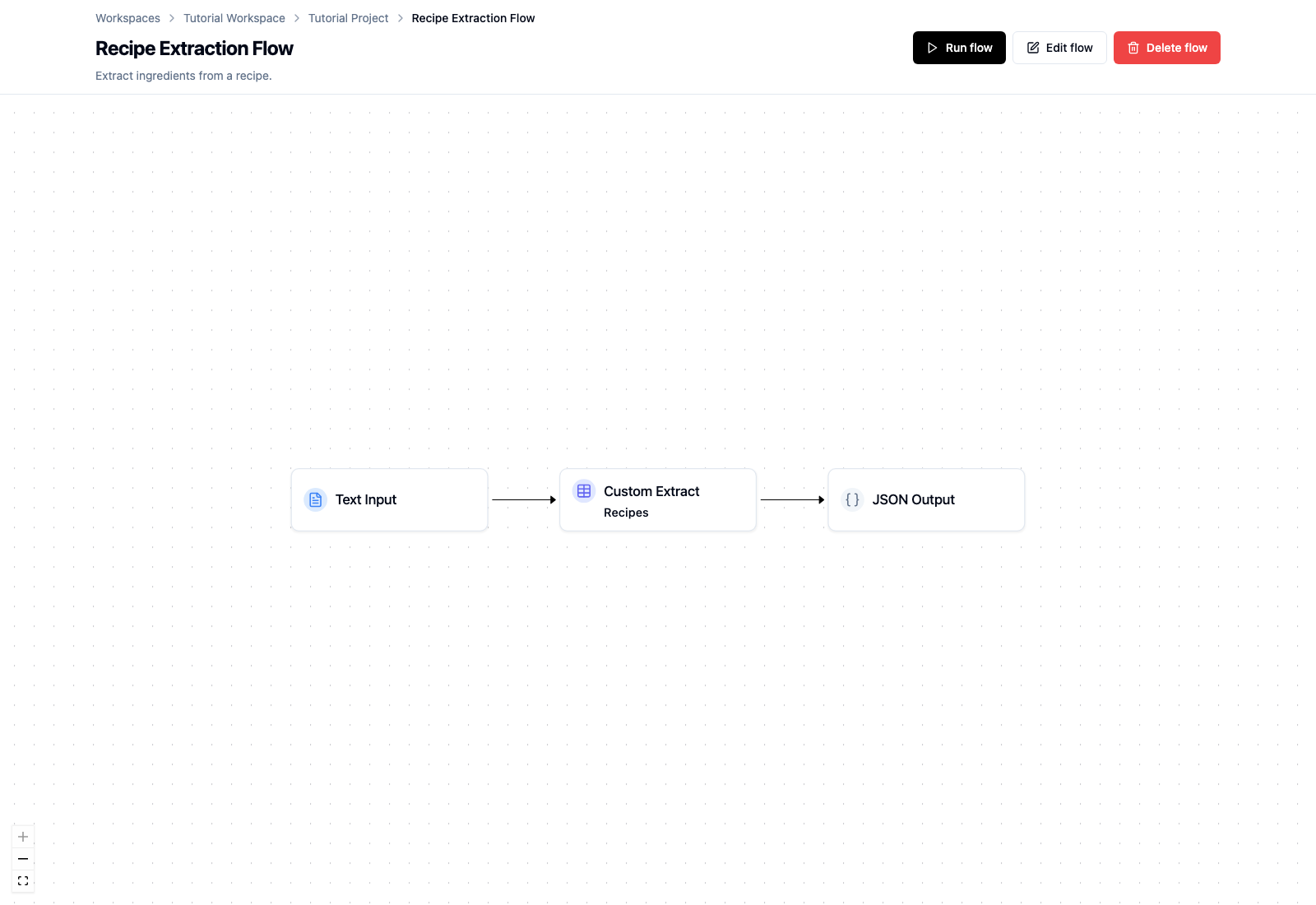
Select Run flow.
Text Input and a single JSON Input document create one processed item. JSON Input with two or more uploaded files creates one item per file (up to 20). S3 Input can create many items from a batch of files, so its run summary may contain a mixture of pending, running, succeeded, and failed items.
2. Monitor an active run
The Run details panel appears when processing starts. Select Open run page to see the full summary and processed-item table.
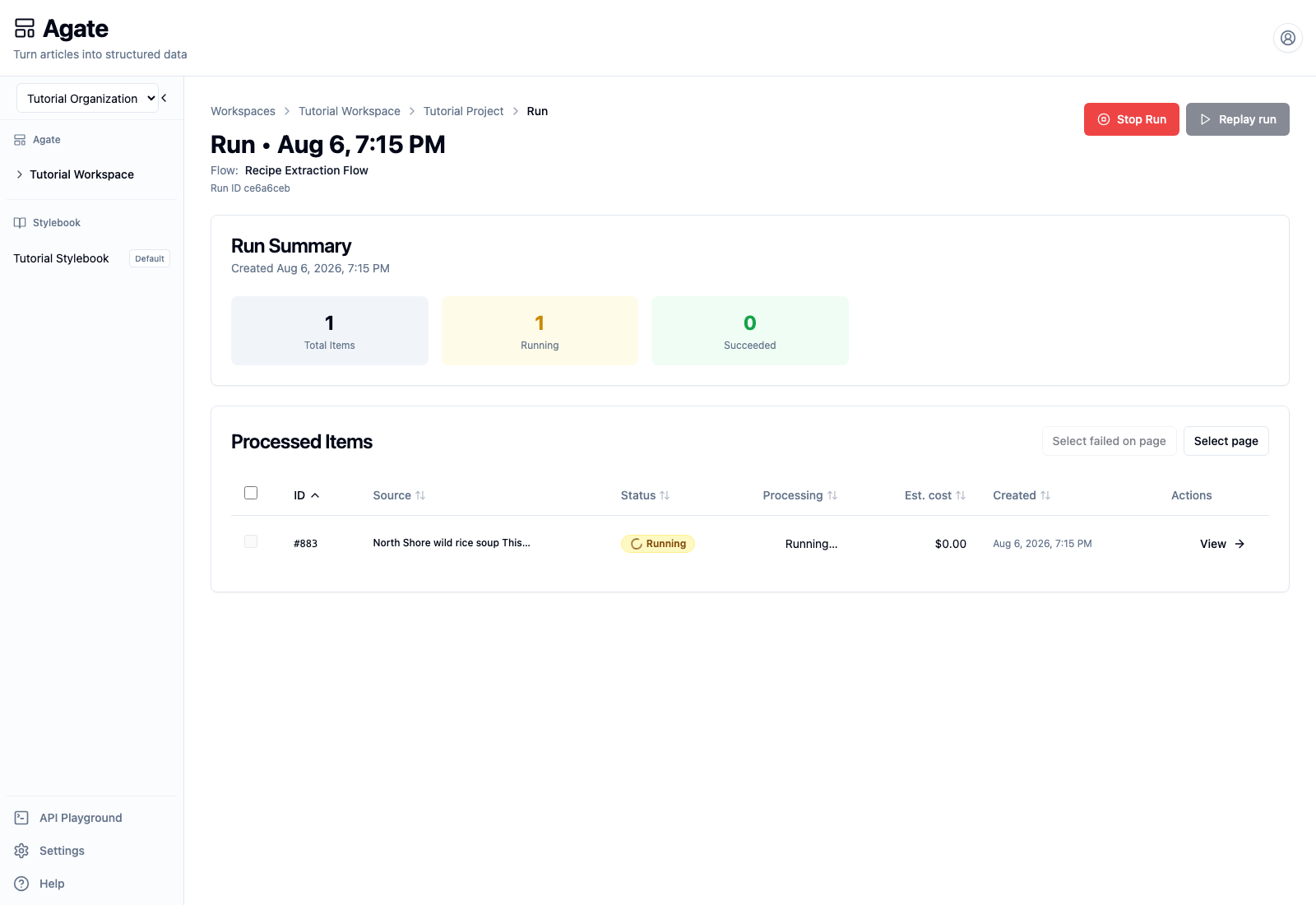
Use the summary and processed-item table to answer:
- Total Items: How many inputs belong to this run?
- Running: How many items are still being processed?
- Succeeded: How many finished without a technical error?
- Status: What is happening to this specific item?
- Processing: How long has the item been running?
The verified recipe run began with one running item and no completed items. The Replay run action remains unavailable while the run is active.
Use Stop Run only when work should not continue. Stopping is not instantaneous: a node already executing may take a short time to finish or cancel.
3. Confirm completion
The page updates as the run progresses. When it finishes, confirm that:
- no items remain pending or running;
- the succeeded count equals the total item count;
- every processed-item row shows Succeeded.
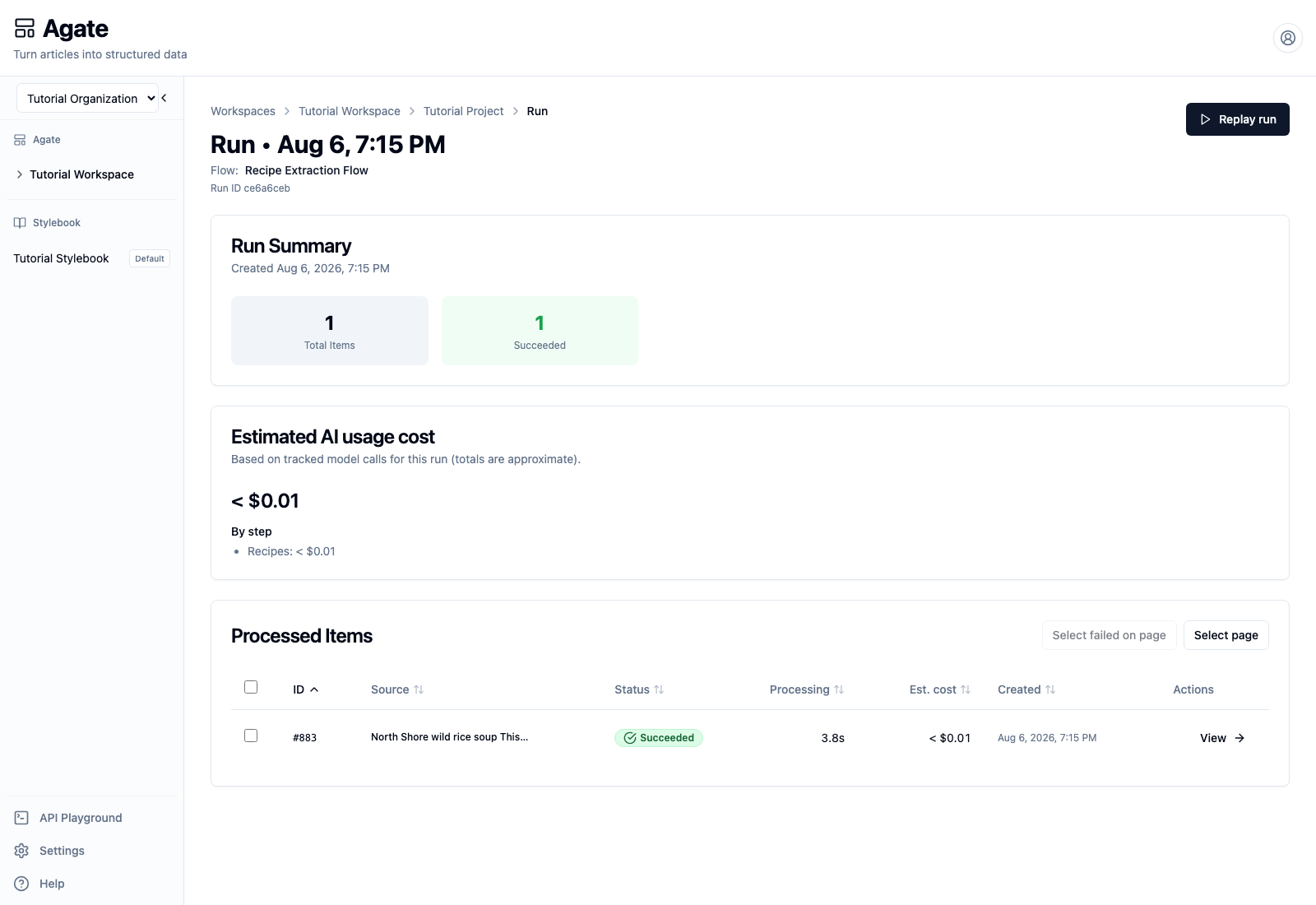
This verified run processed one recipe in 3.8 seconds. Its estimated AI cost was less than one cent, attributed to the Recipes step. Times and costs vary by model and provider, and cost figures are estimates rather than invoices.
Select View to open the processed item and review its Custom Extract results.
4. Respond to failures
If an item fails, open it before starting another run. The error message and failed step usually point to the next check:
- confirm that the input contains the expected fields or text;
- confirm that the selected model is enabled for the project;
- check any required integration credentials;
- review recent prompt or field changes.
For a batch, successful items remain available even when another item fails. Use Select failed on page to work with the failed rows rather than reprocessing successful items unnecessarily.
5. Replay or run again
After a completed run:
- Replay run creates another run from the stored inputs.
- Run flow starts the currently saved flow again.
- Rerun Item regenerates only that item with its original run's saved flow settings.
Use these actions deliberately. Regenerating an item can replace its run-level review changes, while shared Stylebook edits remain separate.